Next-Level Code. Nexuvibe Style ...
Hrs
Min
Sec

Backing up a WordPress site feels like a simple problem until it is not. Install a backup plugin, schedule daily backups, store them somewhere safe. The problem with this approach is not the intent. The problem is the assumption embedded in the word “site.” Most WordPress backup strategies treat the entire installation as a single unit: the database, the themes, the plugins, and the media library all bundled together into one growing backup archive.
That assumption was reasonable when WordPress sites were small. It becomes a serious architectural problem once a site accumulates a meaningful media library. A 15GB uploads folder turns a ten-minute backup into a 90-minute one. It turns a 200MB backup archive into a 15GB one that is expensive to store, slow to transfer offsite, and painful to restore when you actually need it. And the media files themselves, which constitute the vast majority of that size, rarely change. You are backing up static files daily that have not been modified in months.
A complete WordPress backup strategy accounts for this asymmetry. It treats different types of data differently based on how often they change, how critical they are to a fast restore, and what the appropriate backup cadence for each type actually is. This guide walks through that strategy in practical terms and explains where media offloading fits as a foundational piece of a genuinely resilient WordPress backup architecture.
The monolithic backup approach treats your entire WordPress installation as one thing. Every backup captures everything: the MySQL database, the wp-content directory including themes, plugins, and uploads, and sometimes the WordPress core files too. At launch, when your site is small, this approach is perfectly reasonable. A site with a 500MB media library produces a manageable backup that takes a few minutes and stores easily.
The problem is that media libraries grow continuously while databases, themes, and plugins stay relatively stable in size. After two years of normal operation, the ratio typically looks like this: the database might be 50MB to 200MB. The themes and plugins might be another 200MB to 500MB. The uploads directory might be 8GB to 30GB or more, representing 90% or more of the total backup size. You are effectively running daily backups of your entire media archive so that you can protect the few hundred megabytes of database and code that actually changes.
A mature WordPress backup strategy starts by recognizing that a WordPress site contains fundamentally different types of data that have different change frequencies, different criticality profiles, and therefore different backup requirements. Treating all three the same way is what leads to the bloated, slow, expensive backup situation described above.
Your database contains everything that actually changes on your site: posts, pages, comments, WooCommerce orders, product inventory, user accounts, plugin settings, and site options. For an active site, the database changes with every new post, every order, every comment, and every settings update. This is the data that causes real business damage when lost. A database backup from yesterday means you lose today’s orders and content. A database backup from an hour ago means you lose an hour of activity.
Themes and plugins change when you run updates or make customizations. For standard commercial themes and plugins, losing this data is recoverable because you can reinstall from source. The critical data here is any custom code you have written directly in theme files or plugin directories, which should ideally be in version control rather than relying on backups. At 200MB to 500MB, this category is small and cheap to back up frequently.
Your media library contains uploaded files: images, PDFs, videos, documents. Once uploaded, these files almost never change. The same image that was uploaded three years ago is byte-for-byte identical to what is in your uploads directory today. It does not need to be backed up daily. It needs to be backed up once, reliably, and then protected from accidental deletion. But it is the largest component of most WordPress sites by far, and it is what makes monolithic daily backups so expensive and slow.
When your media library lives on an external FTP or SFTP server rather than your hosting server’s filesystem, your backup architecture changes significantly and almost entirely for the better. The change is structural, not cosmetic.
Your WordPress hosting backup is now a backup of the database, themes, and plugins. It no longer includes the uploads directory because those files are not on your hosting server. A backup that previously produced a 20GB archive now produces a 400MB archive. It runs in under three minutes instead of over an hour. It stores cheaply, transfers quickly, and restores in a fraction of the time.
The media library on the FTP server is backed up separately, on its own schedule, using whatever backup mechanism your storage provider offers or a simple rsync job to a secondary destination. Because the media files almost never change, a weekly incremental backup of the FTP server captures everything new without re-copying gigabytes of unchanged files.
Backup strategies are only as good as their restore experience. The real test of any backup architecture is not how smoothly it runs when everything is fine. It is how quickly and reliably you can recover when something goes wrong. That might be a hacked site, an accidental deletion of critical content, a server failure, or a hosting migration gone wrong.
When media is decoupled from your WordPress installation, a restore scenario looks fundamentally different from the monolithic approach.
Implementing this architecture requires two changes to your existing setup: offloading your media library to an external FTP server, and reconfiguring your WordPress backup strategy to exclude the uploads directory.
The media offload is handled by a plugin like WP FTP Media, which moves your existing library to an FTP or SFTP server, rewrites image URLs on output through your CDN, and automatically sends new uploads to the FTP destination going forward. Once this is running, your WordPress hosting server’s uploads directory will be empty or nearly empty, depending on whether you enable local file deletion after transfer.
With the media offloaded, update your WordPress backup plugin to exclude the wp-content/uploads directory. In most backup plugins, this is a straightforward exclusion setting. Your backup will now capture the database, themes, and plugins only. Run a backup after making this change and verify the archive size. For most sites that have been running for a year or more, the size reduction is significant, often 80% to 95%.
Use a database-only backup plugin or configure your existing plugin to back up only the MySQL database. Store these in at least two locations: your hosting provider’s backup system and an offsite location like an encrypted cloud storage bucket or a remote server. At 50–200MB per backup, retaining 30 days of hourly database backups costs almost nothing.
Include themes and plugins in your daily backup job but explicitly exclude the uploads directory. This archive will be 200–500MB typically. Store with a 14-day retention policy. This covers the scenario where a plugin update causes a critical error and you need to roll back to the previous state of the code alongside the database.
Back up your FTP storage server on a weekly schedule using incremental backup so only new files are copied each week. The full backup captures everything once. Subsequent backups add only files uploaded since the last run. This means your media backup overhead is proportional to how many new files you add each week, not the total library size. Store media backups with a 4-week retention policy.
When your media files are served through a CDN, the CDN edge nodes cache copies of your files geographically distributed across the network. This is not a backup, and it should not be treated as one since CDN caches are temporary and evictable. But it does mean that even if your FTP server experiences a brief outage, your visitors will likely continue to see images served from cached CDN copies during the downtime window.
This passive redundancy is a side benefit of the CDN delivery architecture rather than a deliberate backup strategy. The deliberate backup for media is the weekly incremental job described above. But understanding that CDN caching adds a soft resilience layer helps frame why the combined FTP-plus-CDN approach is more robust than simply having files on one server without any delivery layer in front of them.
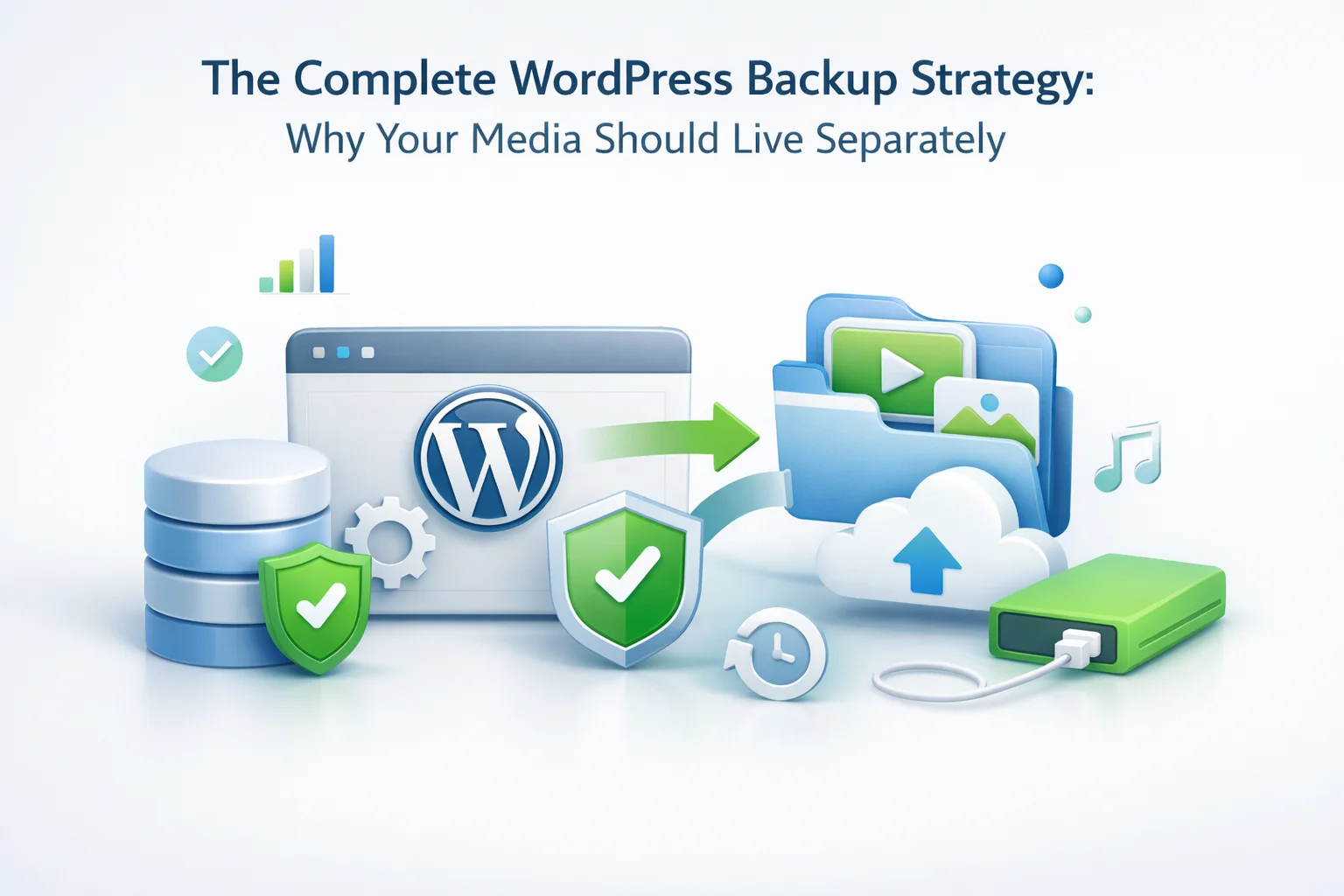
A mature WordPress backup architecture based on separated media storage has three independent layers, each appropriate to the data it protects and the speed at which that data changes.
According to WordPress’s official backup guidance, the database is the most important component to back up and should be prioritized above everything else. The media library, while valuable, represents data that changes less frequently and that can often be protected through a different mechanism than the one protecting dynamic content. The separated architecture described in this guide implements exactly this principle at the infrastructure level.
The investment required to implement this approach is small. Offloading your media library with a plugin like WP FTP Media for backup-optimized WordPress media storage is a one-time configuration that runs automatically from that point forward. Updating your backup plugin to exclude the uploads directory takes under five minutes. The result is a backup architecture that is faster, cheaper, more reliable, and significantly easier to restore from than the monolithic approach most WordPress sites are still using today.
WP FTP Media offloads your WordPress media library to external FTP storage, shrinks your hosting backup from gigabytes to megabytes, and gives your disaster recovery plan a restore time measured in minutes rather than hours.







This backup strategy guide was such a lightbulb moment for me. I'd been struggling with my site backups taking forever and eating up storage, but I never realized it was because I kept backing up my entire media library every time. The idea of separating static media files from everything else is genius why didn't I think of that? My uploads folder is massive, so no wonder my backups were dragging. This just saved me a ton of headaches! Wish I'd found it sooner
Got this during the summer sale and it's been a lifesaver for my classroom blog. The media separation feature cuts backup times way down no more waiting forever just because I've got a few GB of old lesson photos.
fellow WordPress users! I've been managing sites for clients for years, and let me tell you, this guide on separating media from backups is a lifesaver. I used to think backing up everything together was fine until my client's site hit 12GB in media files. Suddenly, backups took forever, restores were a nightmare, and storage costs skyrocketed
The concept of separating media from the main backup makes logical sense, especially when dealing with larger sites. My university department's WordPress install has a 12GB media library, and daily backups were becoming unworkable. Offloading static files to FTP did cut backup times significantly down from over an hour to about 15 minutes. that said, the initial setup wasn't trivial.