Next-Level Code. Nexuvibe Style ...
Hrs
Min
Sec

WordPress migrations follow a predictable pattern. The database exports in under a minute. Themes and plugins zip up and transfer in another minute or two. Then the uploads folder starts copying, and everything slows to a crawl. For a site with a few hundred megabytes of media, this is a minor inconvenience. For a site with 5GB, 10GB, or 20GB of images and files, the media transfer alone can stretch a 10-minute migration into a 3-hour project that ties up a browser tab, a server connection, and your attention for most of an afternoon.
This is not a technical failure. It is an architectural one. When media lives on the same server as the WordPress installation, moving the site means moving everything, including gigabytes of static files that have not changed since they were uploaded. The database and code are what actually define the site. The media is just cargo that gets dragged along for the ride.
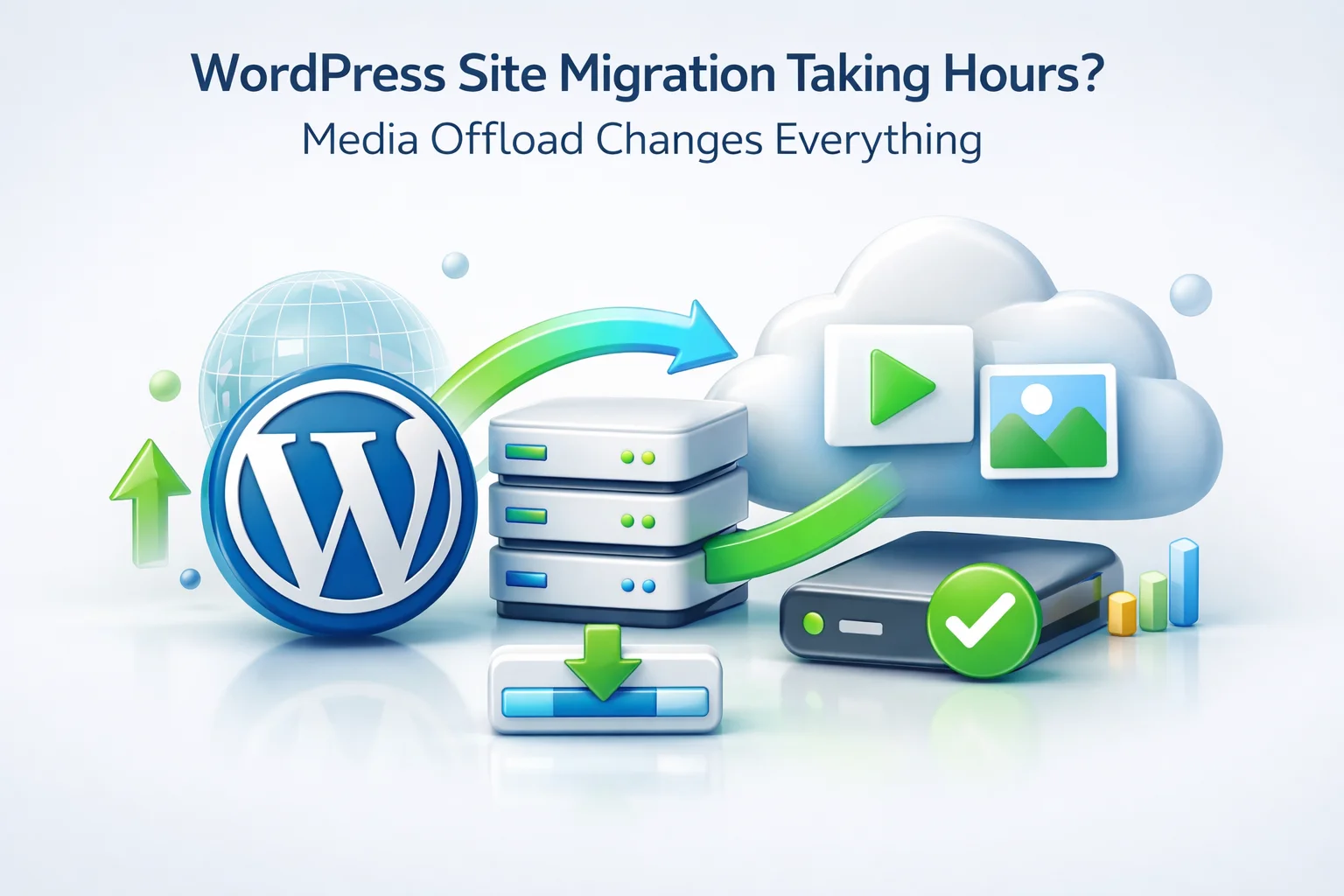
When media lives on an external FTP server instead, a WordPress migration becomes a fundamentally different operation. You move the database, the theme, and the plugins. The media is already where it needs to be. What used to take three hours takes fifteen minutes. What used to require careful coordination and a maintenance window becomes something you can do during a coffee break. This guide explains how that transformation works and how to set it up.
A WordPress migration, at its core, involves copying files from one server to another and restoring a database. The database is typically small, often under 200MB even for active sites with years of content. The plugins and themes are another few hundred megabytes at most. These components transfer quickly because they are small and because the volume of individual files is manageable.
The uploads directory is neither small nor manageable in file count. A two-year-old WooCommerce store with 600 products and four images per product, at five thumbnail sizes each, has 12,000 files in its uploads directory before counting any other media. A blog that has published two posts per week for three years with a featured image and two inline images per post has added over 3,000 files and continues growing. The uploads directory is almost always the largest single component of a WordPress installation, and it grows continuously.
Transfer speed is also not constant. Migration tools that work well for small sites often struggle with tens of thousands of files. Some hosting environments throttle bulk file transfers. Some migration plugins time out halfway through a large uploads directory and require manual intervention to resume. These failure modes are rare on small migrations and increasingly common as media libraries grow. The site that migrated smoothly at 500MB of media does not automatically migrate smoothly at 15GB.
To make the contrast concrete, here is what a migration of a mid-size WooCommerce store looks like under each approach. The site has been running for two years, has a 12GB uploads directory, and is moving from shared hosting to a managed WordPress host.
The difference is not incremental. It is structural. Scenario B is not a faster version of Scenario A. It is a different kind of migration entirely, where the largest and most problematic component has been removed from the critical path completely. The media never moved because it never needed to.
The first concern most site owners raise about FTP media offloading in the context of migration is the URL question. If your images are being served from a CDN URL rather than your hosting domain, what happens to the image URLs when you change hosts or domain names?
This is where output-based URL rewriting provides a significant advantage over the alternative. When a plugin rewrites image URLs on output rather than in the database, your database continues to store the original upload paths as WordPress generated them. The CDN URL is applied at render time by the plugin. When you migrate the site to a new host, you install the plugin on the new host with the same CDN base URL settings, and image URLs render exactly as they did on the old host.
If you are also changing domains as part of the migration, the CDN URL is independent of your domain anyway. Your images were already served from cdn.yourdomain.com or a CDN-provider subdomain, not from yourhosting.com/wp-content/uploads. The domain change affects your WordPress admin URL and your site’s public-facing pages, but it does not affect the image delivery URLs because those were already pointing somewhere other than your hosting domain.
For individual site owners, the migration speed improvement is meaningful but occasional. You might migrate a site once every two or three years. For agencies, migration is a routine operational task. Moving a client to a better hosting provider, onboarding a site from a previous agency, cloning a site for staging, deploying a development environment to production — these migrations happen multiple times per month.
At agency scale, the accumulated time saved by the FTP architecture becomes substantial. An agency doing four migrations per month where each migration saves two hours is recovering eight hours of developer or project manager time monthly. Over a year that is 96 hours, roughly two and a half full work weeks, spent on something other than watching progress bars on file transfers.
The emergency host swap row deserves particular attention. When a hosting provider has an outage or a critical security incident forces an emergency migration, the difference between a 15-minute recovery and a 4-hour recovery is not just operational inconvenience. It is revenue, customer trust, and the kind of crisis management experience that nobody wants to repeat. A site with media on an external FTP server can be pointed at a new host in minutes. The media keeps serving from CDN throughout the process. Visitors may never notice the migration happened.
Once media is offloaded to an external FTP server, the migration process is straightforward enough that it can be documented as a repeatable checklist. Here is the complete sequence.
Use phpMyAdmin, WP-CLI, or a backup plugin to export the database as a .sql file. This is typically under 200MB for most sites and transfers in seconds. This is the most critical piece of the migration since it contains all your posts, orders, users, and settings.
Zip the wp-content directory excluding the uploads folder. Since media is on FTP, the uploads folder is empty or nearly empty and does not need to be included. The resulting archive is typically 200–600MB and transfers in under two minutes. Copy your wp-config.php separately to update database credentials on the new host.
Create the database on the new host, import the .sql file, extract your wp-content archive, update wp-config.php with the new database credentials, and install WordPress core files. Most managed hosts provide a one-click WordPress installer that handles the core file setup automatically.
Since the plugin settings are stored in the WordPress database, they come with the migration. Log into the new WordPress admin, navigate to the WP FTP Media settings, and verify the FTP connection credentials are still correct. Test the connection. The CDN URL setting should also carry over unchanged.
Point your domain DNS to the new host. During DNS propagation, both the old and new hosts serve the same database content. Images continue to load from the CDN throughout this period because their delivery URL has not changed. Verify the site loads correctly on the new host before removing the old installation.
If your site has an upcoming migration, scheduled or likely, the best time to offload your media library is before it happens. Running the offload now means your next migration inherits all the speed benefits described above. The offload itself requires no downtime and runs in the background while your site stays live.
The process of setting up the offload takes under 30 minutes. You sign up for a dedicated FTP storage provider, configure the connection in WP FTP Media, run the background sync of your existing library, verify images are loading from the CDN, and enable automatic uploads for new media. Once this is done, your site is migration-ready in a way it was not before. The media is decoupled from your hosting environment and will not need to move the next time you do.
According to Kinsta’s WordPress migration guide, the uploads directory is consistently cited as the primary source of migration complexity and failure for large sites. The architectural change described in this guide removes that complexity entirely. The migration that used to be a half-day project becomes a coffee-break task, and every migration after it benefits from the same speed advantage permanently.
WP FTP Media moves your WordPress media library to external FTP storage so your next host migration copies only the database and code, images stay live throughout, and the whole process fits inside a lunch break.







I came across this on social media and figured I'd test it out for my new parenting blog. The migration speed was seriously impressive, but I've got one question. how does the output based URL rewriting keep my links stable if I switch hosts later?
Migrations finally don't need a coffee break.
Finally got around to testing this for a client site with a 12GB media library. the theme and plugins actually did move in under a minute like they claimed no joke