
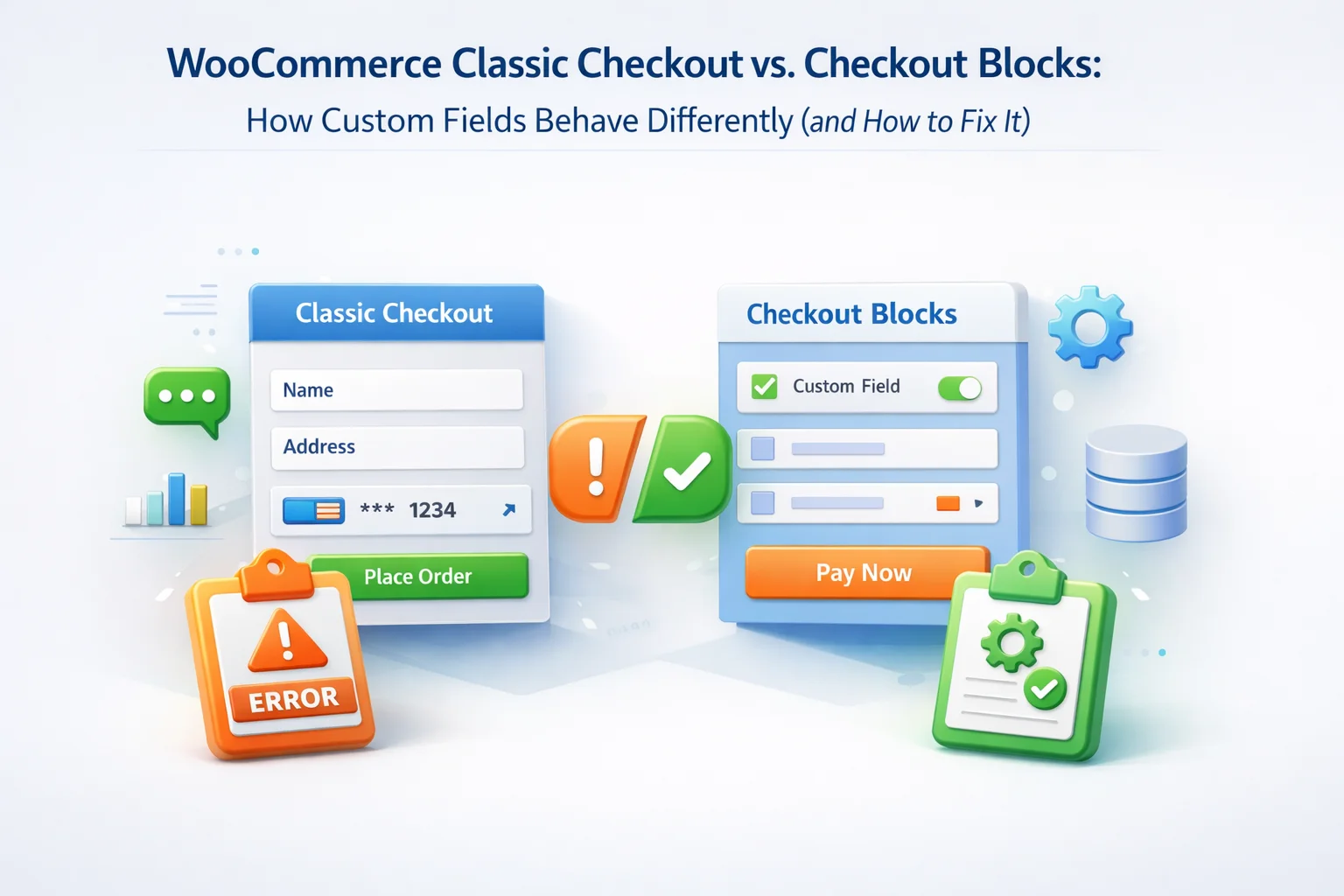
WooCommerce’s transition from the classic shortcode-based checkout to the Blocks-based checkout is one of the most significant architectural changes the platform has undergone since its early days. For the majority of store owners and developers, this transition is mostly invisible — the Blocks checkout looks similar, behaves similarly for customers, and installs as the default on new WooCommerce installations from version 8.3 onwards. But for anyone who has built custom checkout fields — through a plugin, through custom code, or through hooks and filters — the transition to Blocks is not invisible at all. It is often the point at which custom fields stop working entirely.
The reason for this is architectural. The classic checkout is rendered server-side by PHP, using a system of hooks and filters that allow plugins and custom code to inject fields into specific positions in the form. The Blocks checkout is rendered client-side by React JavaScript. PHP hooks do not execute in a React-rendered component. Custom fields injected via woocommerce_checkout_fields or woocommerce_after_order_notes hooks simply do not appear in the Blocks checkout — not because they are broken, but because those hooks are never fired by the Block renderer.
This guide explains the difference between the two checkout architectures clearly, covers exactly what does and does not work for custom fields in each environment, explains how plugins like the NEXU Advanced Checkout Field Editor for WooCommerce Blocks compatibility handle this challenge, and gives you a practical compatibility checklist for ensuring your checkout field setup works correctly regardless of which checkout your store is running.
Whether you are maintaining a store that has already migrated to Blocks, planning a migration, or setting up a new store and deciding which checkout to use, this guide gives you the technical clarity needed to make that decision and implement it correctly.
The Classic Checkout: how it works and why custom fields are easy to add
The Classic WooCommerce checkout — rendered by the
The hooks relevant to custom checkout fields include woocommerce_checkout_fields (which filters the array of billing and shipping fields before rendering), woocommerce_after_order_notes (which fires after the order notes textarea, commonly used to add custom fields), woocommerce_checkout_process (which handles form submission and validation), and woocommerce_checkout_update_order_meta (which saves field values to order metadata).
The PHP hook system is well-documented, has been stable for years, and is understood by the majority of WooCommerce developers and plugin authors. A plugin that hooks into
woocommerce_checkout_fields to add a custom field works reliably on any store running the classic shortcode checkout, regardless of theme, hosting environment, or other plugins. This reliability is why so many plugins — and so much custom code — was built around this hook system over the years. It is also exactly why the transition to Blocks requires deliberate attention.The PHP template system also allows checkout field editor plugins to override template files, use WooCommerce’s internal field rendering functions, and position fields with granular control over the HTML structure of the form. It is a mature, flexible, well-tested system — and it has one critical limitation: it requires server-side PHP rendering to function. The moment the checkout is rendered by React rather than PHP, this entire system is bypassed.
The Blocks Checkout: how it works and why it breaks classic custom fields
The WooCommerce Blocks checkout — implemented via the Checkout block in the WordPress block editor — is a fundamentally different rendering architecture. Instead of PHP executing template files and firing hooks, the Blocks checkout loads a JavaScript React application that renders the checkout interface entirely on the client side. The customer’s browser runs the React app, which makes API calls to WooCommerce’s Store API to retrieve cart data, submit the order, and process payment.
This shift from server-side PHP rendering to client-side React rendering has profound implications for anything that relied on PHP hooks to modify the checkout. PHP hooks do not fire in a React component. The woocommerce_checkout_fields filter never runs. The woocommerce_after_order_notes action never fires. The template files that classic field editors override are never loaded. To a customer, the checkout page looks similar. To the custom field plugin or code waiting for its hooks to fire, the checkout simply does not exist in the way it used to.
woocommerce_checkout_fields — Field array filter, ignored by Block rendererwoocommerce_after_order_notes — Classic hook injection point, not firedwoocommerce_before_checkout_form — Not fired in Blockswoocommerce_checkout_billing — Classic billing section hook, not firedwoocommerce_checkout_shipping — Classic shipping section hook, not firedwoocommerce_checkout_process / woocommerce_checkout_update_order_meta — Classic form submission handlers, bypassed by Store API__experimental_woocommerce_blocks_checkout_fields — The Blocks-specific extensibility API for adding fieldsExtendSchema::instance() to pass custom data through checkout API callswoocommerce_store_api_checkout_update_order_from_request — Fires during Blocks order processing, can update order metadatawoocommerce_store_api_checkout_order_processed — Fires after Blocks order is processedThe Blocks checkout does have extensibility mechanisms — but they are fundamentally different from the classic hook system. They require JavaScript-based extensions, registration through WooCommerce’s Blocks-specific APIs, and communication with the Store API rather than traditional PHP form submission. A plugin or code snippet built exclusively for the classic checkout cannot be adapted to Blocks without rewriting the core implementation. This is not a minor compatibility issue — it is an architectural incompatibility that requires a Blocks-native solution.
Which checkout is your store currently running?
Before addressing compatibility, you need to know which checkout your store is using. The answer is not always obvious — WooCommerce’s default has shifted between versions, and many sites installed before WooCommerce 8.3 are still running the classic checkout while newer installations default to Blocks.
Go to Pages in your WordPress admin and find your Checkout page. Click Edit. If the page contains a block labeled “Checkout” (showing the WooCommerce checkout block UI with blue block handles), you are on the Blocks checkout. If the page shows a shortcode like
On your live checkout page, right-click and view page source (or use browser developer tools). If you see wp-block-woocommerce-checkout in the HTML class names, you are on Blocks checkout. If you see a form with class woocommerce-checkout and PHP-rendered field IDs, you are on the classic checkout.
Go to WooCommerce > Status > Pages. The Checkout entry shows the checkout page. If the WooCommerce version is 8.3 or later and the checkout page was automatically created (not manually configured), it is very likely using the Blocks checkout. WooCommerce 9.x installations default to the Checkout block for all new stores.
How field behavior differs: a direct comparison
Here is a direct, detailed comparison of how the same custom field behavior manifests across the two checkout environments — covering every dimension that matters for a practical checkout field implementation.
What “Blocks compatible” actually means for a checkout field plugin
When a checkout field plugin markets itself as “WooCommerce Blocks compatible,” it is making a claim that deserves scrutiny. There are several levels of Blocks compatibility that differ meaningfully in what they actually deliver.
Some plugins achieve apparent Blocks compatibility by injecting their fields above or below the Checkout block as WordPress block content — essentially placing them outside the Checkout block rather than inside it. These fields may visually appear on the checkout page, but they are not integrated with the Checkout block’s rendering, validation, or order submission flow. The fields may render but not save to order metadata, may not be required-validated before the order submits, and may not participate in the Blocks checkout’s payment flow. This is cosmetic compatibility, not functional compatibility.
Some plugins implement basic field rendering in Blocks but do not fully implement the validation or data registration APIs. These fields appear and may even save basic text values to order metadata, but conditional logic may not function (because it relies on DOM manipulation that does not work on React-managed elements), required validation may not block order submission, and advanced field types like file upload may not work at all. Partially compatible plugins are functional for simple use cases but unreliable for complex checkout configurations.
A fully compatible implementation registers fields through WooCommerce’s Blocks-native APIs, handles data transmission through the Store API, implements validation through the Blocks validation system, and renders field components as React components that are native to the Blocks checkout environment. Conditional logic that reacts to shipping method changes, cart content changes, or other field values works because it is implemented within the React component lifecycle rather than as DOM-manipulation JavaScript. Required fields genuinely block order submission. All field types, including file upload, work correctly. This is what genuine Blocks compatibility means.
How NEXU Advanced Checkout Field Editor handles both environments
The NEXU Advanced Checkout Field Editor is built to handle both the Classic shortcode checkout and the Blocks checkout from a single configuration interface. The plugin maintains separate implementation paths for each environment — Classic fields use the traditional PHP hook system, Blocks fields use the Blocks-native extensibility APIs — but both paths are fed by the same configuration: the fields you configure in the drag-and-drop interface render correctly in whichever checkout environment your store is running, without any additional configuration step.

The practical implication is that a store owner or developer configuring checkout fields in the NEXU Advanced Checkout Field Editor does not need to know which checkout their store is running in order to configure their fields correctly. The plugin detects the active checkout type and uses the appropriate rendering path. For stores that are planning to migrate from Classic to Blocks, the field configuration does not need to be rebuilt — the same configuration continues to work after the migration.
Specifically, the features that require careful implementation in the Blocks environment — conditional logic that reacts to shipping method changes and cart content changes, required field validation that genuinely blocks order submission, file upload fields, and per-product field associations — are all implemented natively for both environments. The conditional logic works in Blocks because it uses the Blocks checkout’s own event system rather than relying on DOM manipulation of PHP-rendered HTML. Required validation works because it is registered through the Blocks validation API, not just added as a PHP check that the Blocks checkout never fires.
Migrating from Classic to Blocks with custom fields: what to check
If you are planning to migrate your store from the Classic shortcode checkout to the Blocks checkout — or if WooCommerce has already defaulted to Blocks on an updated installation — here is the practical migration checklist for custom checkout fields.
Should you migrate to the Blocks checkout?
The question of whether to migrate from the Classic checkout to the Blocks checkout is worth addressing directly, because it is not simply a question of feature parity or compatibility — it is a question of where WooCommerce development is heading and what that means for the long-term health of your store.
Automattic and WooCommerce have made clear in their public roadmap and development activity that the Blocks checkout is the future of WooCommerce checkout. New features, performance improvements, and payment integrations are being developed for the Blocks checkout. The Classic checkout continues to be maintained but is not the focus of new development. Stores that remain on the Classic checkout will eventually find that new WooCommerce features — and new payment methods — are only available in the Blocks environment.
The client-side React architecture of the Blocks checkout enables a faster, more interactive experience — instant field responses, real-time shipping calculations without page reloads, smoother payment processing. These UX advantages translate to measurable conversion rate improvements on stores where checkout speed and responsiveness affect purchase completion. The performance gap between Classic and Blocks is expected to widen as WooCommerce continues optimising the Blocks path.
The most common reason stores delay migration from Classic to Blocks is concern about custom field compatibility. For stores using a Blocks-compatible field plugin like the NEXU Advanced Checkout Field Editor, this concern is addressed by the plugin itself — the configuration works in both environments and no field rebuild is required. For stores using legacy field plugins or custom PHP hook code, the migration requires either a plugin update from the developer or a code rewrite — but the migration itself is a one-time effort that protects the store’s long-term compatibility with WooCommerce’s development direction.
The practical recommendation: what to do right now
Based on the architectural picture above, here is a practical set of recommendations for stores at different stages of the Classic-to-Blocks transition.
Start with the Blocks checkout. It is the WooCommerce default for new installations, it has the performance and UX advantages described above, and starting with Blocks means you will never need to migrate — you will always be on the current architecture. Use a checkout field plugin that is natively Blocks-compatible for any custom field requirements. Do not implement custom fields through PHP hooks in functions.php — those hooks will not work in Blocks and you will face a rewrite when you need to update the checkout.
Plan your migration rather than executing it reactively when WooCommerce deprecates Classic features. Use the pre-migration checklist above to audit your current custom fields, identify compatibility gaps, and resolve them before switching to Blocks. A planned migration on staging, followed by a tested production switch during a low-traffic window, is significantly lower risk than an emergency migration after discovering something has broken.
This is the most urgent scenario — custom fields that were working have stopped working because WooCommerce updated and defaulted to Blocks. The immediate mitigation is to revert the checkout page to the Classic shortcode (replace the Checkout block with a Classic block containing
The WooCommerce Classic-to-Blocks transition is the most important architectural shift in the platform’s recent history, and custom checkout fields sit right at the center of that transition’s compatibility challenges. Understanding the architectural difference — PHP hooks versus React components and the Store API — is the foundation for making good decisions about your checkout setup, whether you are building from scratch, maintaining an established store, or managing a portfolio of client sites at an agency level.
According to WooCommerce’s own developer blog on Blocks reaching feature completeness, the Blocks checkout has been considered production-ready since mid-2023, and since then the gap between Classic and Blocks feature sets has narrowed considerably. For stores with properly compatible custom field implementations, the Blocks checkout is ready to handle the full range of checkout customisation scenarios described throughout this guide series. The NEXU Advanced Checkout Field Editor’s dual Classic and Blocks compatibility means that the custom field configurations you have built — for any of the scenarios in this guide series — work correctly in both environments, and your store is ready for whichever checkout WooCommerce runs in 2026 and beyond.
Custom checkout fields that work in Classic and Blocks — configure once, deploy anywhere
NEXU Advanced Checkout Field Editor maintains native implementations for both the Classic shortcode checkout and the Blocks checkout. Conditional logic, required validation, file uploads, per-product fields, and order metadata storage all work correctly in both environments — no dual configuration, no migration rework.





Saved me hours debugging why my custom fields vanished. Wish I'd known Blocks checkout breaks PHP hooks sooner.
Hey, quick heads up double check which checkout your store uses first.
This guide was a total lifesaver when I realized my custom fields just vanished after switching to Blocks. the explanation about why PHP hooks don't work the same in React finally clicked for me though I kinda wish there was a quick cheat sheet for which field types usually break. still, this probably saved me hours of digging through code. If you're running an older store with a bunch of custom checkout tweaks, do yourself a favor and read this before updating.