
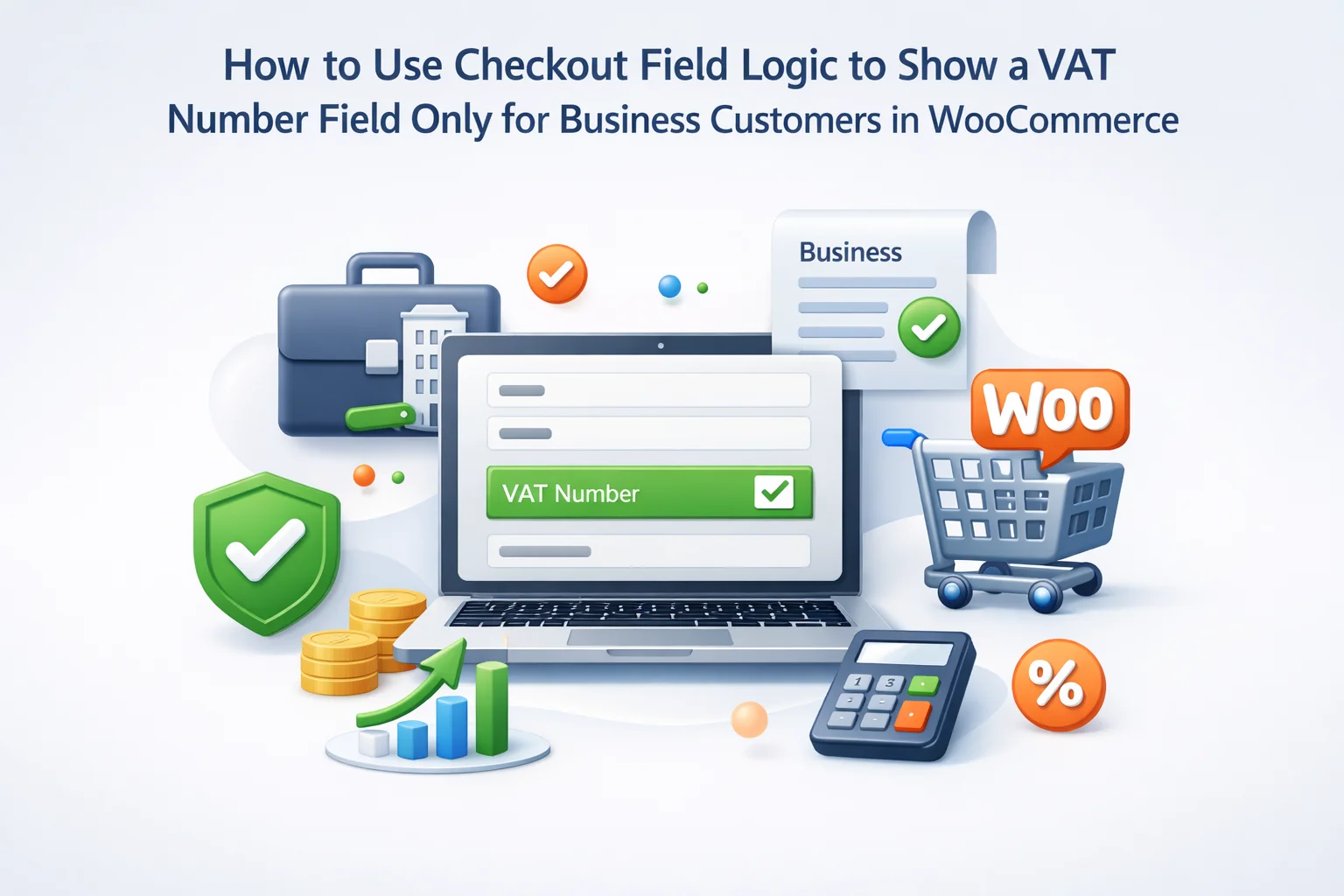
The VAT number field is one of the most commonly misimplemented fields in WooCommerce checkout. Some stores show it to everyone — consumers who have never heard of VAT registration and business buyers who are confused about whether to enter their number or their company’s number. Some stores hide it entirely and then have to chase business customers by email for their VAT number when generating invoices. Some stores use a third-party VAT plugin that adds the field everywhere whether the customer is a business or not, creating a checkout experience that feels generic and poorly considered.
The correct approach is genuinely straightforward in principle: the VAT number field should appear only when the customer identifies themselves as a business buyer. It should be invisible to individual consumers. It should be optional for business buyers who are not VAT-registered (a business below the VAT threshold, or a business in a non-VAT jurisdiction). It should automatically link to the invoice generation and tax calculation workflow. And the trigger for revealing it should be a clean, explicit buyer type selection that the customer makes as a natural part of filling in their order.
This guide shows you precisely how to implement this using field-value conditional logic in the NEXU Advanced Checkout Field Editor for WooCommerce B2B checkout. It covers the trigger mechanism, the VAT field configuration, the additional business fields that should accompany it, format validation for different VAT number standards, and how the collected data flows to invoicing. It also covers the important question of what VAT number collection does and does not accomplish from a tax compliance standpoint — because understanding the limits of the field is as important as implementing it correctly.
As always, this guide provides general information rather than tax or legal advice. VAT obligations, reverse charge rules, and invoice requirements vary by jurisdiction, business type, and transaction type. Consult a qualified accountant or tax professional about your specific obligations.
Why the VAT number field needs conditional logic
The VAT number field exists to support two distinct but related purposes: it enables the VAT reverse charge mechanism for B2B transactions within the EU and UK, and it ensures that business-to-business invoices contain the correct tax identification information required by accounting regulations. Neither of these purposes has any relevance to a consumer buyer purchasing for personal use.
When a VAT number field is shown to all customers without qualification, several problems arise simultaneously. Individual consumers see a field with no relevance to their purchase — creating confusion about whether they need to provide something and anxiety about completing the checkout correctly. Small businesses below the VAT registration threshold see a field they technically cannot fill in because they have no VAT number. Non-EU and non-UK customers who follow entirely different tax systems see a field that has no meaning in their context. The result is a checkout that serves only the relatively small subset of buyers who are VAT-registered businesses in jurisdictions where VAT exists — at the expense of everyone else’s checkout experience.
A consumer buying a product for personal use who sees a “VAT number” field at checkout has no idea what to do with it. Do they need one? Are they supposed to leave it blank? Is something wrong with the checkout? This confusion creates hesitation at the exact moment they should be completing their purchase. In conversion rate testing, unexpected fields — especially ones that require information the customer does not have — are a consistent source of abandonment.
Conversely, a VAT-registered business that purchases from your store and finds no VAT number field at checkout will need to contact you post-purchase to request a corrected invoice. This creates unnecessary administrative work for both your team and the customer’s accounts payable department. Business buyers who are experienced with VAT invoicing expect to enter their number at checkout — it is standard practice across professional B2B e-commerce.
For stores operating in EU or UK markets that supply goods or services to VAT-registered businesses in other countries, the VAT reverse charge mechanism means that valid VAT numbers affect the tax treatment of the transaction. A VAT number field that appears only when a buyer identifies as a business — and that is linked to your tax calculation configuration — ensures that reverse charge rules are applied correctly to the orders that qualify for them.
The trigger mechanism: buyer type selector
The VAT number field does not stand alone — it is one field in a group of fields that together constitute the business checkout experience. The entry point for this entire group is the buyer type selector: a dropdown or radio button field that asks the customer whether they are purchasing as an individual or as a business. When they select “Business,” the entire B2B field group appears. When they select “Individual” (or when nothing is selected), the B2B section remains hidden.

The buyer type selector is a field-value conditional trigger — the mechanism that shows or hides other fields based on what value a customer has selected in this field. This is different from cart-content conditional logic (which reacts to products in the cart) and shipping method conditional logic (which reacts to shipping method selection). Field-value logic reacts to the customer’s own input within the checkout form itself.
When the buyer type selector field value equals “Business or organisation,” the conditional rules on the VAT number field, company name field, PO number field, and any other B2B-specific fields evaluate to true and those fields become visible. When the selector value is anything other than “Business or organisation” — including unselected, which is the default state — those fields remain hidden.
A radio button field with two visible options — “Individual / personal purchase” and “Business or organisation” — is slightly more discoverable than a dropdown because both options are visible simultaneously. When a business buyer sees the form, they can immediately identify the option relevant to them without opening a dropdown. A dropdown is appropriate if you have more than two buyer types (for example, if you also want to distinguish between domestic business and international business for different VAT treatments). For most stores, radio buttons with two options provide the clearest experience.
The complete B2B field group that should accompany the VAT number
The VAT number is rarely the only business-specific field a checkout needs. When a business buyer selects “Business or organisation,” they are signalling a transaction type that has different invoicing, accounting, and procurement requirements from a consumer purchase. The B2B field group should capture everything needed for a complete and correct B2B transaction in a single checkout step.
WooCommerce has a built-in Company field in the billing section. This field can be made conditional using the buyer type selector, showing for business buyers and hiding for individual consumers. Using the built-in WooCommerce billing company field (rather than creating a custom one) has the advantage that it is already recognised by invoice generation plugins as the company name field. If you are already conditionally showing the built-in company field based on buyer type, you do not need to create a separate company name field — just ensure its conditional rule matches the other B2B fields.
The primary field of this entire configuration. This field should be optional rather than required — not all business buyers are VAT-registered (small businesses below the threshold, businesses in non-VAT jurisdictions, charities with exempt status). Making it optional means all business buyers can complete the checkout; only those who need a VAT number on their invoice and have one to provide will fill it in. The label and helper text should explain exactly what the number is used for and what format to enter it in.
Many business buyers purchase through a formal purchase order process where an internal PO number authorises the spend and must appear on the invoice for accounts payable matching. Without a PO number field, invoices go out without this reference, the buyer’s accounting system cannot match the invoice to the PO, and payment is delayed pending the correction. A PO number field resolves this entirely and is expected by professional business procurement teams. Label: “Purchase order number (PO number).” Optional — not all businesses use formal PO processes.
For stores that serve business customers with complex organisational structures — a university department, a corporate procurement team, a healthcare organisation — a job title or department field helps your team route communications and support queries correctly. It also appears on invoices for businesses where the requester’s details are relevant to internal approval processes. Mark as optional and only include if it serves a genuine operational purpose for your customer base.
VAT number format guidance for different markets
VAT numbers follow different formats depending on the country of the business. If your store serves customers in multiple markets, your VAT field helper text should communicate the expected format clearly. Here is a reference for the most common VAT number formats used by WooCommerce stores serving European and UK markets.
For stores that serve customers across multiple EU countries and the UK, the most practical helper text approach is: “Enter your VAT number including the country prefix (e.g. GB 123456789 for UK, DE 123456789 for Germany, FR 12 345678901 for France).” This single instruction guides customers from any supported country to the correct format. For stores that primarily serve one country, a single specific example for that country is cleaner and more directly useful. The EU VIES VAT validation service is a useful resource for verifying EU VAT numbers and can be linked to from your checkout helper text for customers who want to confirm their number is valid.
Step-by-step configuration using the NEXU Checkout Field Editor
Here is the complete implementation sequence for building the buyer type selector and conditional B2B field group including the VAT number field.

In the NEXU Checkout Field Editor, create a new field. Field type: Radio Button (or Dropdown if you prefer). Label: “I am purchasing as:” Options: “Individual (personal purchase)” and “Business or organisation.” Assign field key: buyer_type. Set as optional — do not require customers to select before proceeding, since the default state (no selection) defaults to the individual/consumer experience. Position this field in the checkout form where the B2B section should appear — typically below the standard billing fields, before the order notes area.
Find the existing billing_company field in the global checkout fields panel. Open its settings and navigate to conditional logic. Set the rule: show when field buyer_type equals “Business or organisation.” Save. The company name field will now appear and disappear based on the buyer type selection. If you prefer to always show the company name field (some stores find this useful), skip this step — the company field visibility is a store-specific decision.
Create a new Text field. Label: “VAT registration number (optional).” Add placeholder text showing the expected format for your primary market. Add helper text: “Enter your VAT number to have it included on your invoice. Leave blank if not VAT-registered.” Field key: vat_number. Set as optional. In conditional logic: show when buyer_type equals “Business or organisation.” Save.
Create a Text field. Label: “Purchase order number (PO number).” Placeholder: “e.g. PO-2026-0478.” Helper text: “If your purchase requires a PO number on the invoice, enter it here.” Field key: po_number. Set as optional. Same conditional rule: show when buyer_type equals “Business or organisation.”
In the visual field builder, arrange your fields in a logical B2B sequence: buyer type selector first, followed by company name, VAT number, then PO number. When a customer selects “Business or organisation,” the fields appear in this sequence directly below the selector. The visual grouping communicates that these fields belong together as a business purchase section, distinct from the standard billing fields above.
In an incognito browser, test two complete checkout flows: (1) No buyer type selection or “Individual” selected — confirm the B2B fields are completely hidden, the checkout looks clean, and the order completes correctly; (2) “Business or organisation” selected — confirm all B2B fields appear immediately, a VAT number can be entered, and the values appear correctly in the WooCommerce order admin after the test order is placed.
How VAT number data flows to invoices and tax calculations
Collecting the VAT number at checkout is only operationally useful if that data reaches the systems that need it. Here is how the VAT number collected through your checkout field flows through WooCommerce to invoicing and tax processing.

The VAT number, company name, and PO reference collected through your checkout fields are stored as WooCommerce order metadata — permanently linked to the order, visible in the order admin panel, and available for export. For invoice generation, most WooCommerce invoice plugins (WooCommerce PDF Invoices & Packing Slips, WC Invoices, and similar) can be configured to include custom order metadata fields on the generated invoice. This means the VAT number and PO reference collected at checkout appear automatically on the invoice without any manual data entry — exactly as a professional B2B invoice workflow should function.
Review your specific invoice plugin’s configuration documentation to confirm how to include custom order metadata fields in the invoice template. Most invoice plugins provide a way to map order metadata keys (like vat_number and po_number) to invoice fields — this mapping is typically a configuration step, not a code change.
Collecting a VAT number at checkout and displaying it on an invoice is a data collection function. Correctly calculating VAT on a transaction — including applying zero-rating, reverse charge, or exemption based on a valid VAT number — is a tax calculation function that requires specialist VAT handling, typically through a dedicated WooCommerce VAT plugin (such as WooCommerce EU VAT Number, Aelia Currency Switcher, or similar). The checkout field described in this guide captures the VAT number in the order record. The actual tax treatment of the transaction based on that VAT number requires your VAT plugin to read the collected number and apply the appropriate rule. Ensure your VAT plugin and your checkout field are configured to work together — specifically, that the VAT plugin reads from the correct order metadata field where the VAT number is stored.
What VAT number collection does not accomplish on its own
It is important to be clear about what collecting a VAT number at checkout achieves and what it does not achieve. This clarity protects you from compliance mistakes that arise from conflating data collection with tax compliance.
A text field accepts whatever the customer types. It does not check whether the number is a real, currently registered VAT number for the business claiming it. VAT number validation — confirming that a number exists, matches the company name, and is currently active — requires integration with the VIES service (for EU numbers) or HMRC’s VAT number checker (for UK numbers). For businesses where reverse charge decisions depend on valid VAT numbers, validation through one of these services is a necessary additional step beyond collection.
The checkout field collects the VAT number and stores it in the order record. The tax calculation that determines whether VAT should be charged, zero-rated, or reverse-charged requires a dedicated VAT plugin that reads the collected number and applies the appropriate rules. Without that plugin configured correctly, the order may be charged the wrong amount of VAT regardless of what the customer entered in the VAT field.
VAT invoice requirements — what information must appear, in what format, with what sequential numbering — are governed by national tax regulations that vary by jurisdiction. Storing a VAT number in order metadata is a precondition for including it on an invoice, but the invoice itself must be generated by a plugin that produces compliant invoice documents. The checkout field configuration described in this guide is one component of a complete B2B invoicing setup, not the complete solution on its own.
The customer experience: what business buyers see
When the buyer type selector and conditional B2B field group are implemented correctly, the experience is distinctly different for consumer and business buyers — and both experiences are appropriately optimised for their context.
A consumer buyer completing checkout sees the standard billing fields — name, email, address, payment. No VAT number field, no PO number field, no company name field unless they choose to provide one. The checkout is lean and appropriate for a personal purchase. They complete it quickly without encountering any fields that create confusion or suggest the form was built for a different kind of customer.
A business buyer completing checkout selects “Business or organisation” from the buyer type selector and immediately sees a professional B2B section appear: company name, VAT number (with clear instructions), PO number. The checkout adapts to their selection and communicates that this store handles business purchases professionally — it knows what business buyers need and has provided the fields to collect it. Business buyers who have experienced poor B2B checkout experiences on other stores — specifically the follow-up email to provide their VAT number after the fact — recognise this as a superior process.
The conditional VAT field configuration described in this guide is a single component of a broader B2B checkout strategy. For stores that serve a significant proportion of business customers, combining this configuration with the NEXU Advanced WooCommerce checkout field editor for B2B checkout customization — including business document upload, reseller certificates, and any other B2B-specific fields relevant to your business model — creates a checkout that genuinely serves professional buyers at the standard they expect from a business-to-business supplier.
Show VAT and B2B fields to business buyers — invisible to everyone else
NEXU Advanced Checkout Field Editor gives you field-value conditional logic, buyer type selectors, and per-order metadata storage — everything needed to show VAT number, company name, and PO fields only to business buyers while keeping the checkout clean for individual consumers.





Finally fixed my checkout mess! Had VAT fields showing up for everyone consumers were confused, businesses were missing info. This logic hides it until "Business" is selected. clean and compliant. 24 words
I run a small online shop selling handmade candles, and I've been struggling with how to handle VAT numbers for my wholesale buyers without confusing my regular customers
Quick question about that business/consumer toggle. You've got radio buttons for buyer type, but do you think a dropdown could work just as smoothly? a lot of my customers especially sole props or freelancers might not even realize they're technically business buyers. Would adding more options (like consumer, small biz, registered biz) break the logic or make things confusing? just trying to keep it simple while covering everyone