Next-Level Code. Nexuvibe Style ...
Hrs
Min
Sec

There is a workflow pattern that exists in hundreds of businesses using Gravity Forms, and it looks something like this. A form submission arrives. Someone logs into WordPress, opens the entry, reads through the data, and then opens a Word document or a spreadsheet template. They copy the client’s name, paste it. Copy the address, paste it. Copy the service description, paste it. They check that everything looks right, save the document, export it as a PDF, go back to their email client, attach the PDF, and send it. The whole thing takes fifteen to twenty-five minutes per entry.
This workflow feels normal because it is familiar. But familiarity is not the same as efficiency, and the problem compounds as volume grows. At ten submissions a week it is annoying. At fifty it is a significant operational burden. At a hundred it starts requiring dedicated staff time.
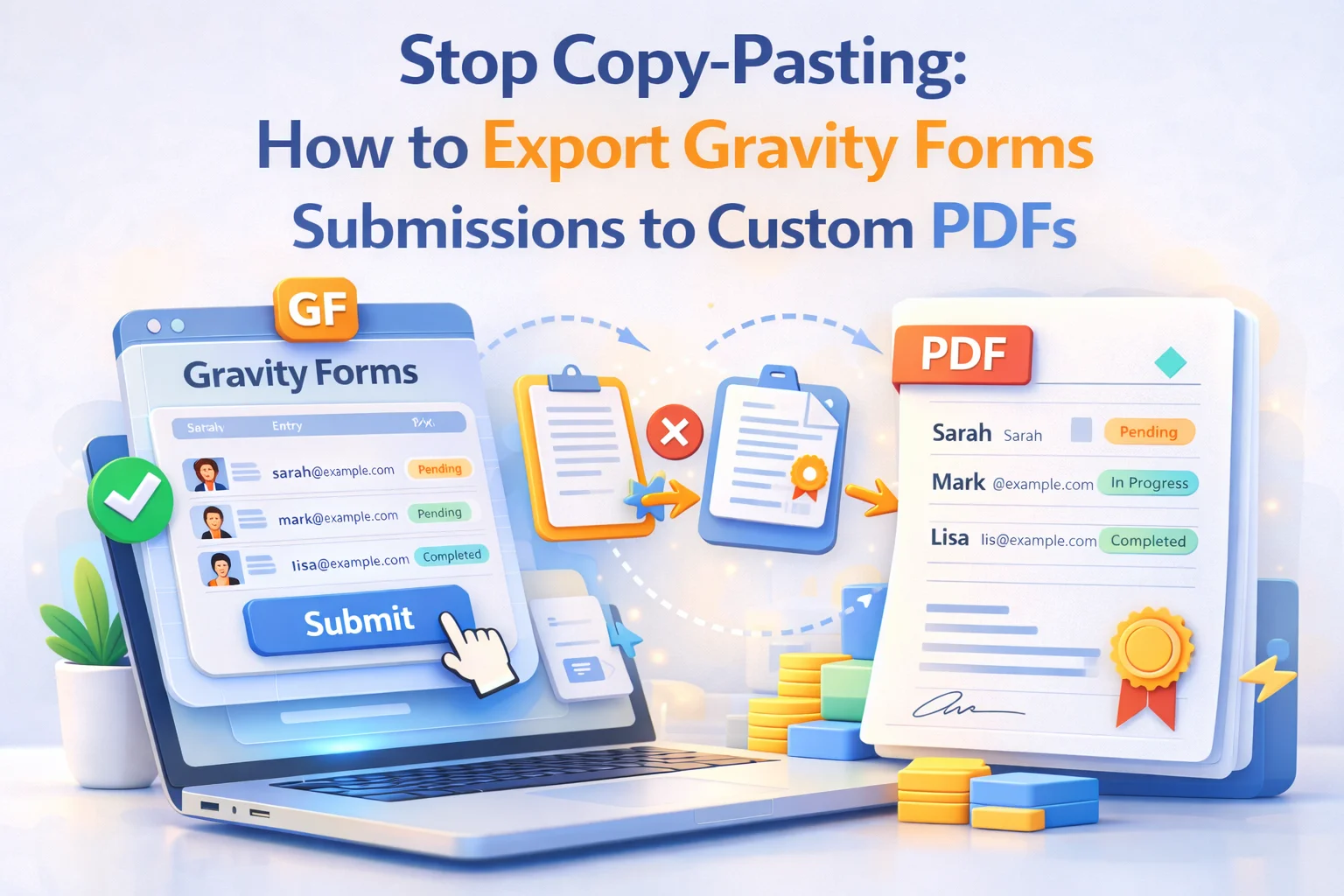
This guide shows you how to break that pattern completely. Every manual step in the copy-paste-format-export-attach cycle can be eliminated. The form submission is the only trigger. Everything that follows is automatic. We will cover exactly how to set this up using Nexu PDF Generator’s custom document export for Gravity Forms, including the template design, field mapping, and delivery configuration that makes the whole cycle run without human involvement.
By the time you finish reading, you will have a clear picture of not just how to set this up, but why every specific step in the manual process exists and which part of the automated setup replaces it.
Before addressing the solution, it is worth being precise about what the copy-paste workflow actually costs, because the calculation is usually larger than people assume.
The obvious cost is time. If each manual PDF takes twenty minutes and you process fifteen submissions per week, that is five hours of staff time weekly spent on a task that produces no new value beyond what could be achieved in five seconds automatically. Annualized, that is over two hundred and fifty hours, more than six full working weeks, spent on copy-pasting.
The less obvious cost is errors. Every manual data transfer introduces error risk. A transposed digit in a phone number. A stale project description left over from the previous client’s document. A pricing figure copied from the wrong field. These errors create rework, damage professional credibility, and occasionally create real disputes. Automation does not make errors. The data in the PDF is exactly the data from the form entry, character for character.
The third cost is delay. A manual process requires a person to be available to do it. Submissions that arrive at 6pm on a Friday wait until Monday morning. Submissions that arrive during a busy period wait until someone has time. Automated PDF generation has no queue. The document is ready the same second the form is submitted, regardless of what time it is or how busy the team is.
Gravity Forms itself has an export function built in. You can export entries to CSV, which is useful for data analysis and spreadsheet work but produces nothing resembling a professional document. There are also basic export plugins that produce simple PDF lists of field values, which technically contain all the data but present it in a way that is not suitable for client-facing use.
A custom PDF export means something different. It means the data from the form entry populates a designed document template where each piece of information appears in a contextually appropriate position. The client’s name appears where a name should appear, in a heading or parties section. The line items appear in a table with calculated totals. The address appears formatted as an address block. The date appears formatted as a date in the relevant section.
The difference between a data dump and a custom PDF is the difference between a spreadsheet row and a professional document. Both contain the same information. Only one of them can be sent to a client, used as a legal record, or shared as professional correspondence.
The core technical task of setting up a custom PDF export is field mapping: connecting each Gravity Forms field in your entry to the position in the PDF template where that data should appear. In Nexu PDF Generator, this happens through a content editor where you write the body of the document and insert field merge tags at the positions where dynamic data should appear.
The plugin reads your form’s field structure and surfaces all available fields as insertable tags. You pick from a list rather than typing field IDs manually. Once a tag is placed, every future entry will have that field’s value appear at exactly that position in the generated PDF.
The mapping process is essentially the same action you were doing manually, but done once as a configuration instead of repeatedly as a task. Instead of copying the client name from the entry and pasting it into your Word template, you place the {client_name} merge tag in the header of the PDF template. The system does the pasting automatically, for every entry, forever.
Single-line text fields and paragraph fields map directly. The merge tag pulls the submitted value and renders it inline in the template at that position. For paragraph fields with long content, make sure the template area containing the merge tag has enough vertical space to accommodate longer responses without layout issues. Testing with realistic content lengths before going live catches problems that short test data does not reveal.
When a checkbox field allows multiple selections, the merge tag renders all selected values, typically as a comma-separated list. If you need each selection to appear on its own line in the PDF, use the field’s individual choice merge tags rather than the parent field tag. This is useful for service selection forms where each selected item should appear as a separate line in a scope section or a services list.
Gravity Forms pricing fields (Product, Total, Quantity) store their calculated values in the entry. These values map to the PDF exactly as calculated. The Total field value in the entry is the grand total after all pricing logic has been applied, so the figure in your PDF is always the authoritative calculated amount rather than a number you calculated manually and might get wrong.
Date fields from the form map using their field merge tag and render in the format configured for that field. The entry submission date is also available as a system merge tag that pulls the exact timestamp of when the form was submitted. This is the value to use for “Issue Date” on invoices and certificates, since it is automatically accurate and requires no manual entry.
If you use the Gravity Forms Signature add-on, the signature image captured in the form field is stored with the entry and can be embedded directly in the PDF at the signature line position. The rendered signature is the actual drawing the user made, not a text font approximation, which is important for any document that needs to carry the weight of a genuine signed agreement.
Here is the complete before-and-after mapping for a typical manual PDF workflow. Each row shows what you currently do manually and what replaces it in the automated system.
Once the feed is configured and the template is built, your day-to-day interaction with the PDF workflow changes entirely. There is no longer a process to execute when a submission arrives. The PDF exists the moment the submission does. Your role shifts from executing the process to occasionally reviewing its output.
The copy-paste PDF workflow exists in virtually every industry that uses online forms for service intake. But some industries have particularly high submission volumes or particularly complex documents that make the time and accuracy savings from automation especially significant.
Patient intake forms, referral letters, treatment summaries, and appointment confirmation documents all follow standardized formats with patient-specific data. Automating this from intake forms eliminates a significant administrative burden while also reducing the risk of data transcription errors in clinical documentation. Practices that see fifteen or more patients daily typically see the most dramatic time savings from this automation.
Client intake forms, engagement letters, non-disclosure agreements, and initial consultation summaries all involve taking information the client provided and putting it into a standard document format. This is exactly what automated PDF export handles. Law firms that use WordPress for client intake can eliminate the paralegal time currently spent on document preparation for new matter openings entirely.
Property enquiry forms, viewing request confirmations, rental applications, and maintenance request acknowledgments all involve producing documents from submitted form data. Property managers handling multiple properties with high enquiry volumes benefit significantly from the consistency and speed of automated PDF generation, particularly for high-volume low-complexity documents like viewing confirmations.
Proposal documents, fee engagement letters, service confirmations, and onboarding questionnaire summaries all follow standardized formats with client-specific data throughout. For firms under regulatory frameworks, the accuracy of client documentation is a compliance matter as well as an efficiency one. Automated PDF generation from verified form submissions provides both the speed and the accuracy that these environments require.
If you have an existing manual workflow, migrating to automated PDF generation does not require rebuilding your forms from scratch. The forms you already have continue to work exactly as they do. You are adding a feed and a template on top of an existing form structure.
For a typical service business with one or two main intake forms, the realistic timeline from “installing the plugin” to “fully automated PDF delivery running” is two to four hours. That includes installing Nexu PDF Generator, designing the PDF template, mapping all the fields, configuring the notification attachments, testing with several real submissions, and confirming delivery is working correctly via SMTP.
Two to four hours of setup time to eliminate fifteen to twenty-five minutes of manual work per entry, every single time, indefinitely. For any business processing more than a handful of submissions per week, the return on that setup time is measured in days, not months.
Nexu PDF Generator maps every Gravity Forms field directly to your PDF template. Set it up once and every future submission generates a complete, professionally formatted PDF automatically, attached to the notification email and stored with the entry. No manual steps. No delays. No errors.








Man, I didn't even realize how much time we were wasting until I read this. my team submits at least 10 forms a week, and I've been the poor sap stuck copying every single field into Word, fixing the formatting, then saving it as a PDF. it's not just the 20 minutes per form it's the little mistakes that add up. Last week, I messed up a client's address twice because I fat fingered the paste. This guide finally made me see how ridiculous that whole process is. automating it is gonna save my sanity.
Still stuck copy pasting at 10 entries. Ugh
Did what it said. saves me about 15 minutes per form now.
Didn't realize how much time I wasted double checking PDFs until this cut my workload in half. Still tweaking the templates, but no more copy paste errors
Saved me hours on checkbox heavy forms but had to double check file uploads. still worth it for repeaters alone.