Next-Level Code. Nexuvibe Style ...
Hrs
Min
Sec

You have probably experienced it. An order comes in and the phone number field contains “no.” The email field has a typo: “[email protected].” The postal code is from a different country than the one selected. The custom text field where you asked for engraving text is filled with a single period because the customer just wanted to get past the required field check.
Bad data at checkout creates a cascade of operational problems. An invalid email address means the customer never receives their order confirmation. An incorrect phone number means the delivery driver cannot reach them. A misspelled address means the package goes to the wrong location. A malformed purchase order number means your B2B invoicing system rejects it and your accounting team has to contact the customer for the correct one.
Field validation is the tool that catches these problems before the order is placed, not after. It is the difference between a customer correcting a typo at checkout (2 seconds, minor inconvenience) and your support team emailing the customer days later to ask for the correct information (wasted time, damaged experience, potential order cancellation). This guide covers how to set up validation that catches real problems without annoying legitimate customers, using a WooCommerce checkout field editor with built-in validation and required field controls.
Bad data is not just an annoyance. It has measurable costs that compound over time. Every order with invalid or incorrect information triggers a chain of events that consumes resources.
A misspelled street name, a wrong postal code, or a missing apartment number leads to a delivery attempt that fails. The package either returns to the warehouse (costing you the return shipping) or sits at a carrier facility while your support team contacts the customer for the correct address. Average cost per failed delivery attempt: $8 to $15 depending on the carrier and the return logistics.
A customer who types “gmial.com” instead of “gmail.com” never receives their order confirmation, shipping notification, or any follow-up communication. They may think the order did not go through and place a duplicate order. Or they contact support asking about the status of an order they have no confirmation for. This is entirely preventable with basic email format validation.
Every order where a custom field is missing, malformed, or unclear requires someone on your team to contact the customer, wait for a response, and update the order. If your store processes 100 orders per day and 5% have data problems, that is 5 customer contacts per day, 150 per month, each taking an average of 10 minutes to resolve. That is 25 hours per month of support time that validation would have eliminated.
There are two fundamentally different philosophies for validating checkout fields, and the one you choose has a significant impact on the customer experience.
Catches errors before the form is submitted. Shows feedback as the customer fills in each field. Uses clear placeholder text to guide the expected format. Validates inline with gentle messages like “Please check your email format.” Turns the field border green when valid. Prevents the error from being submitted in the first place.
Waits until the customer clicks “Place Order.” Shows a wall of red error messages at the top of the page. Forces the customer to scroll back through the form to find the problem. Uses vague messages like “There was an error with your submission.” Destroys the customer’s confidence that their order is going to work. Causes abandonment.
The goal of validation is to help the customer get their data right, not to punish them for getting it wrong. Every validation rule you set up should be designed with the assumption that the customer is trying to provide correct information and just needs gentle guidance to get the format right.
Different field types require different validation approaches. Here is a comprehensive guide to validating each type of field you might have on your WooCommerce checkout.
WooCommerce validates email format by default, but the default validation only checks for the presence of @ and a dot. It does not catch common domain typos like “gmial.com,” “gmal.com,” or “yahooo.com.” Consider adding placeholder text showing a complete example (“e.g., [email protected]”) so customers can visually compare their input against the expected format. Some checkout field editors support custom validation patterns that can flag common misspellings of popular email domains.
Phone numbers are tricky because formats vary by country. A US number looks different from a UK number which looks different from an Australian number. Overly strict validation that rejects valid international formats will frustrate international customers. A reasonable approach is to validate for minimum length (at least 7 digits) and ensure the field only contains numbers, spaces, dashes, parentheses, and the plus sign. Reject obviously invalid inputs like “no” or “12345” without blocking legitimate international formats.
WooCommerce already adjusts postal code validation based on the selected country, which handles most cases. But if you sell primarily to one country, you can add specific format validation. US stores can validate for 5-digit or 9-digit (ZIP+4) codes. UK stores can validate for the UK postcode format. Canadian stores can validate for the alternating letter-number pattern. Country-specific validation catches more errors than the generic WooCommerce check.
For custom text fields, validation depends on what data you are collecting. Purchase order numbers might follow a specific format your B2B clients use. Tax IDs have country-specific formats. Engraving text might have a character limit based on the physical space available. Set minimum and maximum character lengths, and use placeholder text to show the expected format. For engraving text, showing the character limit (“Max 25 characters”) prevents customers from submitting text that will not fit.
Date pickers are inherently validated because the customer selects from a calendar rather than typing a date. The validation concern with date pickers is not format but range: can the customer select a delivery date in the past? Can they select tomorrow when your minimum lead time is 3 days? If your business requires minimum lead times, configure the date picker to disable dates that are too soon. This prevents orders with impossible delivery expectations.
File upload fields need validation for file type and file size. If you are accepting artwork files for custom printing, specify the allowed formats (PDF, PNG, JPG) and maximum file size. If you are accepting tax exemption certificates, you might allow PDF and image formats. Rejecting unsupported file types at the point of upload saves time compared to discovering after the order that the file is unusable.
Good placeholder text prevents more errors than validation catches. When a customer sees “e.g., +1 555-0123” in a phone field, they understand the expected format and match it. When they see an empty field with just the label “Phone,” they type whatever comes to mind, which might be “5550123” or “555.012.3” or “my cell is 555-0123.”
Effective placeholder text follows three rules. First, it starts with “e.g.,” so the customer knows it is an example, not pre-filled data. Second, it shows the complete expected format, including any separators, prefixes, or special characters. Third, it matches the most common format your customers use, which varies by country and audience.
Think of placeholder text as proactive validation. It tells the customer what you need before they make a mistake, rather than telling them what they did wrong after they already submitted it. The combination of clear placeholders (prevention) and proper validation rules (safety net) catches nearly all data quality issues before they become operational problems.
The “required” toggle on a checkout field is a blunt instrument. Marking a field as required guarantees you get data, but it does not guarantee you get useful data. A customer who does not have a purchase order number but is forced to fill in a required PO field will type “N/A” or “123” or “.” just to get past the requirement. You get data, but it is worse than no data because now your system has a PO number on file that looks real but is not.
The general principle is: make a field required only if the order genuinely cannot be fulfilled without that information. A delivery address is required because you cannot ship without it. An engraving text field on a personalized product is required because you cannot produce the product without it. A “How did you hear about us?” marketing field is never required because it has no impact on order fulfillment.
The most elegant form of validation is making it impossible for the customer to enter invalid data in the first place. When you use a date picker instead of a text field for dates, the customer cannot type “next tuesday” or “March 32.” When you use a dropdown for delivery time preferences, they cannot type “whenever is fine.” When you use a checkbox for age verification, the response is always a clear yes or no.
Choosing the right field type is itself a validation decision. Every place you can replace a freeform text input with a constrained input type (dropdown, radio, checkbox, date picker) eliminates an entire category of validation problems. The data is always in the correct format, always one of the valid options, and always machine-readable without interpretation.
Clean order data is not a luxury. It is the foundation that your fulfillment, customer communication, and accounting systems depend on. Every validation rule you set up, every placeholder you write, every field type you choose, and every required/optional decision you make contributes to the quality of data flowing through your business.
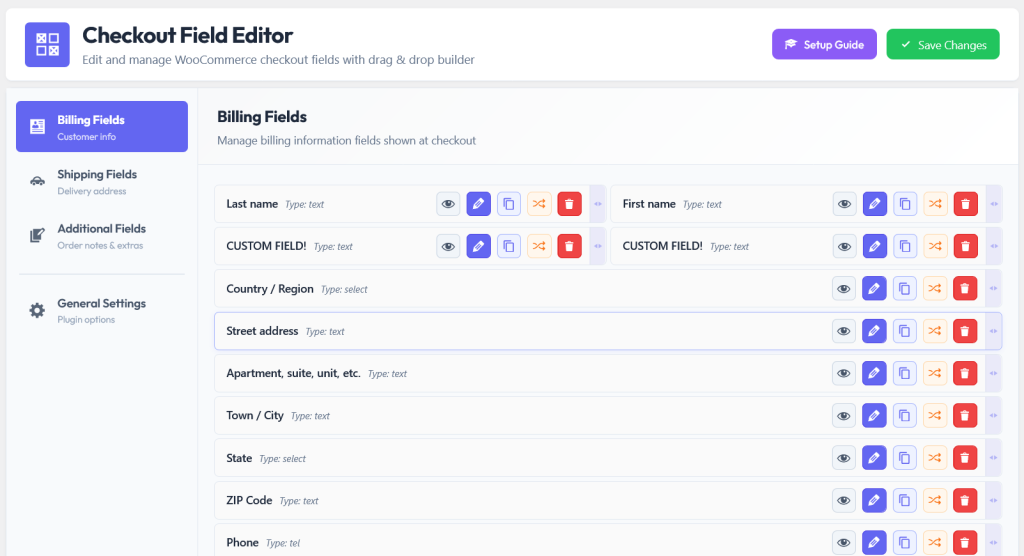
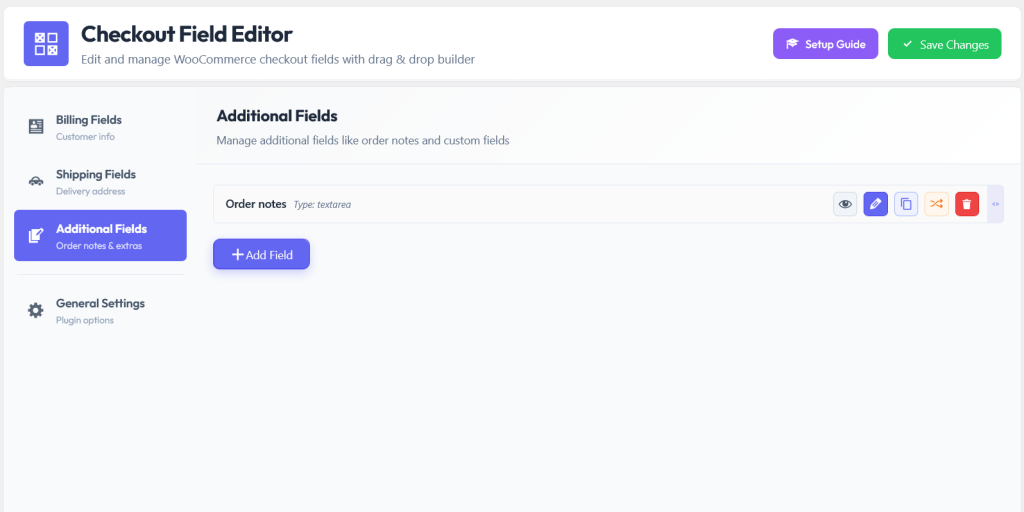
The NEXU WooCommerce checkout field editor with validation controls, required field management, and multiple field types gives you the tools to implement every strategy in this guide: custom placeholder text, required/optional toggles, multiple field types that constrain input to valid formats, and per-product field assignment so validation rules match the specific product being purchased. The investment in validation pays for itself the first time it prevents a failed delivery, a bounced email, or a 10-minute support call.
Set required fields, add placeholder guidance, choose constrained field types, and let validation catch errors before they become failed deliveries, bounced emails, or support tickets.







Hey, this saved my team 25 hours a
This guide saved me so much trouble with my online store. i used to get orders with wrong emails or addresses all the time. Now customers fix mistakes right away instead of me chasing them later.
Hey, this saved us so many hours.