Next-Level Code. Nexuvibe Style ...
Hrs
Min
Sec

Divi is one of the most widely used WordPress themes and page builders in existence. Elegant Themes has consistently improved Divi’s performance over the years, adding static CSS generation, critical CSS, dynamic framework loading, and a built-in image optimization module. These improvements are genuine and worth using. But despite all of them, a significant portion of Divi sites still fail Core Web Vitals, still measure LCP above 3 seconds, and still leave their operators wondering what else can be done.
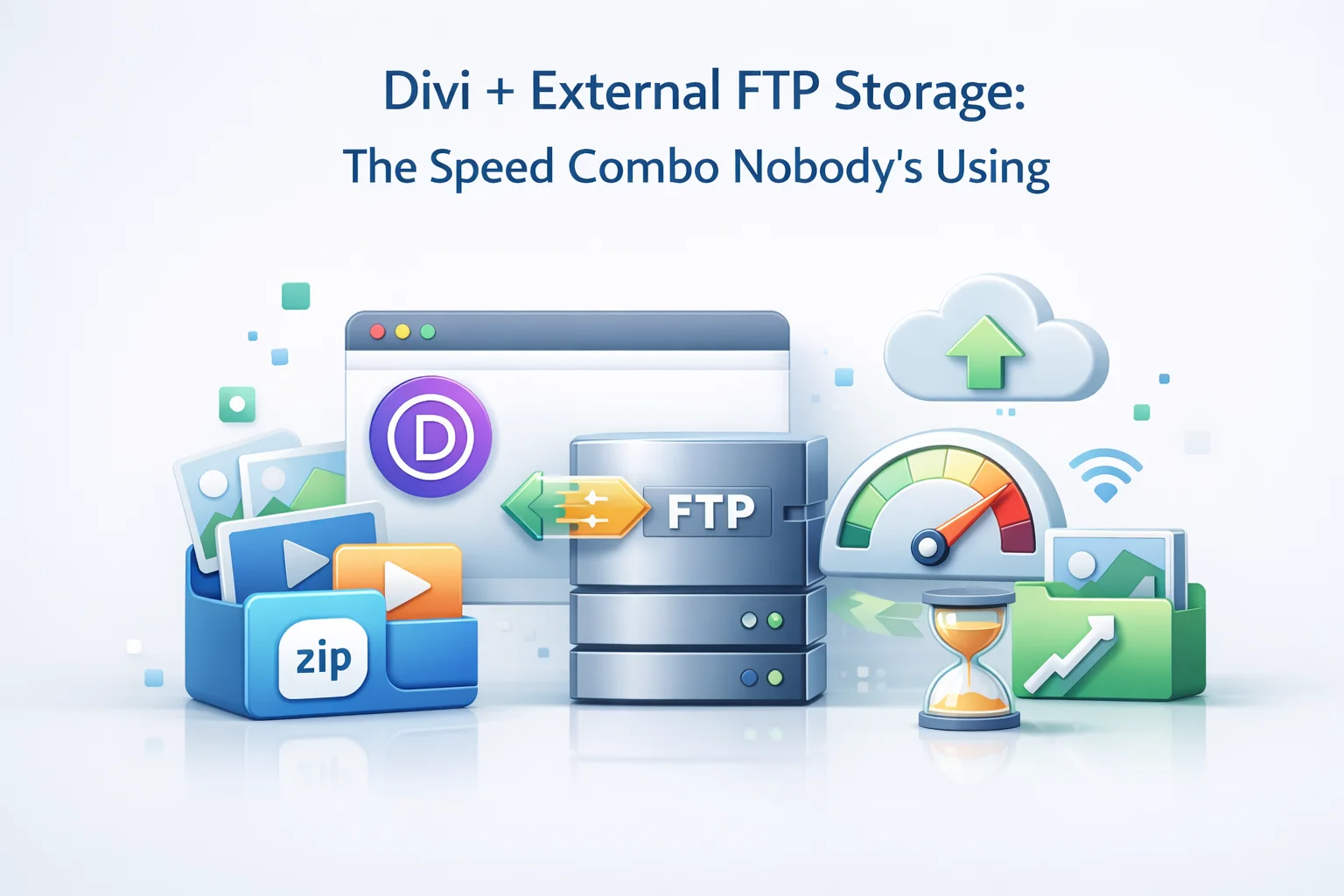
The answer in most cases is not more Divi settings. It is the infrastructure underneath Divi. Specifically, the combination of external FTP storage for the media library and CDN delivery for image requests is something that almost no Divi performance guide discusses, yet it addresses the largest remaining performance variable after Divi’s own optimizations have been applied. This guide explains exactly why that combination works, how to implement it with a Divi site, and what the measurable outcome looks like.
It is also worth noting that external FTP storage for Divi sites is not just a performance story. It is a storage story, a backup story, and a migration story. Divi sites that have been actively developed and iterated over several years accumulate substantial media libraries, and the infrastructure decisions around those libraries have consequences beyond page load time.
Elegant Themes has put real engineering effort into Divi’s performance over recent years. Understanding precisely what these improvements address helps identify the gap that external FTP storage fills.
Divi can generate static CSS files per page rather than computing styles dynamically on each request. This reduces PHP processing time per page load and allows CSS to be cached more effectively. It is a genuine improvement to render-blocking resource handling.
Divi’s built-in critical CSS feature extracts the above-the-fold styles needed to render the visible viewport and inlines them in the HTML. This eliminates render-blocking CSS for the initial paint and is one of the most impactful things Divi has added for perceived performance.
Divi’s dynamic framework loading only loads the JavaScript and CSS modules required by the modules actually present on a given page, rather than loading all Divi modules on every page. This reduces JavaScript weight significantly on simpler pages.
Every one of Divi’s performance features operates on the CSS, JavaScript, and PHP layer. None of them change where images are stored or how they are delivered. A Divi page with static CSS, critical CSS, and dynamic module loading but with images served from the hosting server is still sending 20 to 35 image requests to a server competing with PHP execution. The image TTFB from that server can be 200ms to 500ms per request. This is the remaining bottleneck after Divi’s optimizations are fully applied.
Divi’s layout library and the patterns it encourages create specific image usage patterns that make the infrastructure problem more acute than on a simple WordPress theme. The Divi builder’s visual approach makes it natural to build pages with multiple image-heavy sections stacked vertically.
That final row is the problem statement. A typical Divi homepage makes 25 to 40 image requests, all going to the same server running Divi’s PHP. At moderate traffic with 20 concurrent users, the server is handling 500 to 800 simultaneous image requests in addition to PHP execution. The response time for each image request under this load is where your LCP time is hiding.
The integration between external FTP storage and Divi is transparent by design. Divi does not need to know that its images are on an FTP server. It does not need a module, a setting, or a configuration change. The integration happens at the WordPress output layer, below Divi’s rendering process.
When WP FTP Media is configured and media is transferred to the FTP server, the plugin rewrites image URLs in the final HTML output before it is sent to the browser. Divi generates its page HTML with the original WordPress upload paths, the rewriting replaces the domain with the CDN domain, and the browser receives CDN URLs for every image. Divi never processes the CDN URL itself. It simply renders normally, and the URL swap happens underneath it.
This matters for Divi specifically because Divi uses several image delivery methods simultaneously. Standard img tags for module images, inline CSS background-image properties for section backgrounds and parallax effects, and srcset attributes for responsive images. All of these are caught by output-based URL rewriting because the rewriting processes the entire rendered HTML string rather than targeting specific HTML elements or attributes.
Speed is the most visible benefit of combining Divi with external FTP storage, but it is not the only one. Divi sites that have been in production for two or more years typically have substantial media libraries from years of design iterations, layout experimentation, and content publishing. The accumulation creates problems beyond page load time.
Divi sites are commonly migrated between hosting providers as operators upgrade their infrastructure or move agencies. When the media library is on the hosting server, migrations involve transferring all media files along with the database, themes, and plugins. A Divi site with a 20GB media library can take three to four hours to migrate. With media on FTP storage, the migration transfers only the database, wp-content excluding uploads, and plugin files, reducing migration time to 15 to 30 minutes. The media is already at its destination URL regardless of which hosting provider the WordPress installation moves to.
Backup jobs that include a large uploads directory are slow, produce large archives, and consume significant backup storage. For a Divi site with active development history, the uploads directory is often larger than every other component of the site combined. Excluding uploads from backups once media is reliably on FTP storage reduces backup job duration by 70 to 90% and backup archive size proportionally. The FTP server itself can be backed up on its own schedule and cost structure independently of the WordPress installation.
Setting up a Divi staging environment when the media library is on the hosting server means either duplicating the entire uploads directory to the staging server, or working with broken images throughout the staging environment. When media is on FTP with CDN delivery, a staging environment can point at the same CDN URL as production and display all images correctly without any media file duplication. Design changes can be previewed against real images without copying gigabytes of files to a staging server.
Here is the complete optimization sequence for a Divi site, combining Divi’s own settings with the external infrastructure improvements. The order reflects both impact magnitude and logical dependency.
Move all media to external FTP storage and configure CDN delivery. This removes image delivery from the hosting server entirely and is the single highest-impact performance change available for a Divi site that has not already done it.
Go to Divi Theme Options and enable static CSS file generation. This eliminates dynamic CSS computation on each PHP request. Regenerate static files after any significant design change.
Enable Divi’s critical CSS feature. Let it generate and cache critical CSS for your key pages. This eliminates render-blocking CSS for the initial viewport paint. Regenerate after design changes.
Enable Divi’s dynamic framework loading to reduce JavaScript file size per page. Test each page after enabling to confirm no modules break, as some complex custom modules occasionally have compatibility issues.
Implement server-side page caching via your hosting plan or a caching plugin. With images already on CDN, the hosting server’s only job is PHP execution, and caching reduces how often even that is needed for repeat visitors.
Use an image optimization tool or plugin to compress images and convert to WebP before uploading to WordPress. With CDN delivery already in place from Step 1, optimized images will be cached and delivered from edge nodes at maximum efficiency.
To ground the improvement in realistic numbers, here is what the before-and-after performance profile looks like for a typical Divi agency site implementing this combination.
The performance improvements are significant across all metrics, but the operational improvements are equally striking. An 18GB backup that took 48 minutes becomes a 1.2GB backup that takes 4 minutes. A 3.5-hour migration becomes an 18-minute migration. These are not marginal quality-of-life improvements. They are the difference between maintenance tasks that require dedicated time blocks and maintenance tasks that happen in the background while you do other work.
According to Elegant Themes’ official Divi performance documentation, image optimization is consistently the first recommendation for improving Divi performance scores. The documentation focuses on image size and format, which is part of the picture. The other part, which the documentation does not address, is where the images are served from. WP FTP Media’s Divi performance companion plugin for external media storage fills that gap specifically, integrating with Divi’s output transparently and delivering the infrastructure layer that Divi’s own settings cannot provide.
WP FTP Media offloads your Divi site’s media library to external FTP storage, serves all images including parallax backgrounds through CDN, and reduces LCP, backup time, and migration time simultaneously.







Hey folks, just tried the FTP offload trick with my Divi site and wow LCP dropped nearly a full second. The guide's right: nobody talks about where your images live, but moving them off server actually works
Didn't even see the LCP improvement you mentioned still stuck at around 3.2 seconds on mobile. might work for others, but it wasn't worth the trouble for me.
Got this setup after another frustrating round of wrestling with Divi's built in optimizations turns out even their best tweaks left my LCP scores in the gutter. The guide nailed it: no amount of CSS fiddling or cache plugins was gonna fix the real issue, which was where those images were actually loading from