
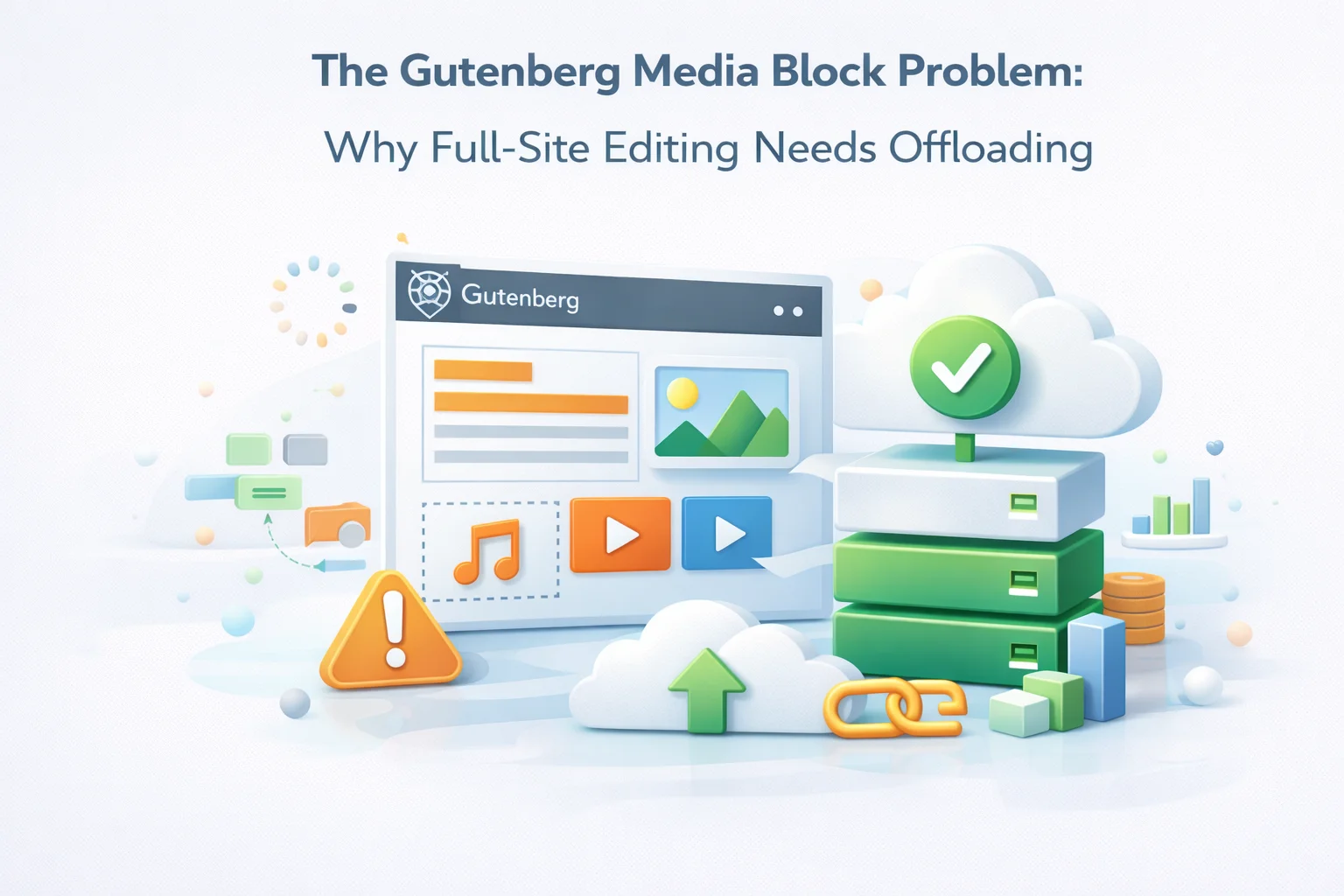
WordPress Full-Site Editing has changed the relationship between content and media in ways that are still being fully understood by the WordPress community. In the classic editor model, media existed in posts. Templates lived in theme files. The uploads directory held media, and the theme directory held everything else. The separation was clean, and traditional media management advice assumed it.
Gutenberg and Full-Site Editing have dissolved that separation. A background image on a site header is now a media library item. A cover block in a reusable block pattern references an image from the uploads directory. Global styles can reference images. Templates can have inline images. The site editor itself stores media references in the WordPress database that appear in the media library alongside post-specific images. The uploads directory has become the single repository for every image used anywhere in the site, including structural and design elements that were previously managed entirely through the theme.
This expansion of where media is used creates specific challenges for storage, performance, and media management workflow that did not exist in the classic editor model. This guide examines what changed, how it affects media storage and LCP, and why FTP offloading with CDN delivery is particularly well-suited to the Gutenberg FSE media model.
How Gutenberg FSE changed where media lives in WordPress
In the classic WordPress theme model, the distinction between content and design was relatively clean. Content images lived in the uploads directory and were managed through the Media Library. Design images — header backgrounds, logo files, decorative patterns — lived in the theme directory and were part of the theme’s file structure. A media management tool only needed to handle the uploads directory.
Gutenberg’s block editor and the subsequent Full-Site Editing features blurred this distinction in fundamental ways. Here is how each FSE feature contributes to the expanded media footprint in the uploads directory.
When you insert a block pattern that includes images, those images are uploaded to the media library during pattern insertion. A testimonial pattern with three headshots adds three media library items. A hero section pattern with a background image adds that image to the uploads directory. Unlike theme images that live in the theme directory, these pattern images are now media library attachments that appear in your uploads directory and contribute to its size and inode count.
Full-Site Editing allows cover blocks, image blocks, and media-text blocks to be placed directly in site templates, not just in post content. A site header template might include a logo image and a background image. A footer template might include a partner logos section. These images are stored in the uploads directory as media library attachments because Gutenberg templates store their content in the WordPress database, not in theme files. They are treated identically to post images from a storage perspective.
Block themes can reference images through global styles, including background images, duotone presets using custom images, and custom CSS with image references. While theme.json files can reference images from the theme directory, images set through the Site Editor’s Styles panel are typically stored as media library items. Custom background images set via the Global Styles interface end up in the uploads directory rather than in the theme files.
Gutenberg’s visual block library makes it easy and natural to use cover blocks with full-width background images, media-text blocks that pair large images with text, and gallery blocks with multiple images per post. This significantly increases the image count per post compared to the classic editor where images were typically smaller inline elements. A single FSE-built landing page can easily contain 10 to 20 media library images in the page content alone.
Why FSE structural images are particularly important for LCP
In a Gutenberg FSE site, the LCP element is most commonly one of three things: the featured image of the post, a cover block background in the hero section, or an image in the header template. The first two are content images. The third is a structural image that appears on every page of the site because it lives in the header template.
A structural header image that fails LCP fails on every page, not just on pages with heavy content. This is qualitatively different from a content image failing LCP on a specific post. It means the entire site’s LCP performance in Google’s CrUX data is dragged down by one image that appears on every URL. Addressing that single image through CDN delivery improves the field LCP for the entire site simultaneously.
A block theme with a site header that includes a logo (60KB) and a background banner image (400KB) adds both images to the media library. On every page load, the browser requests the header template, encounters these images early in the DOM, and begins loading them. The banner image is often the LCP element because it is large and appears in the viewport immediately. If it is served from the hosting server at 400ms TTFB, the LCP fails for every page on the site. Move it to CDN and TTFB drops to 15ms — the site’s LCP passes across all URLs simultaneously.

How WP FTP Media handles FSE block images
The good news for FSE sites is that WP FTP Media’s output-based URL rewriting handles Gutenberg’s image output exactly as it handles classic post images, because both ultimately produce HTML that the rewriting layer processes before it reaches the browser.
Gutenberg renders images in several ways. Standard Image blocks produce img tags with src attributes. Cover blocks produce div elements with inline CSS background-image properties. Media-text blocks produce img tags inside the block structure. Gallery blocks produce multiple img tags. All of these end up as HTML that WP FTP Media’s output rewriting processes comprehensively: it finds every image URL in the entire rendered HTML output and replaces the hosting domain with the CDN domain, regardless of which HTML element or attribute contains the URL.
Template images, pattern images, and global style images are processed through the same rendering pipeline as post content images. When Gutenberg renders the site header template, the header’s images appear in the HTML output. WP FTP Media’s rewriting processes that output and the CDN URLs are correctly substituted. There is no special configuration needed for template versus content images — the rewriting works at the output layer without distinguishing between them.

The FSE design update workflow after media offload
One workflow consideration specific to FSE sites is what happens when a designer updates a template image or block pattern image. In the classic model, changing a theme background image meant replacing a file in the theme directory. In the FSE model, changing a template image means uploading a new image to the media library, which WP FTP Media will automatically transfer to FTP and serve from CDN.
This workflow is actually simpler than the classic theme model from a performance perspective. When a new template background image is uploaded, it immediately goes to FTP via the auto-upload feature. The CDN begins caching it on the first request. There is no theme file deployment, no FTP to the hosting server for the theme directory, and no cache invalidation workflow for the old hosting-served image. The media library handles the asset management, and WP FTP Media handles the distribution.
In the Site Editor, select the cover block, replace the background image with a new upload. The new image uploads to the media library, is automatically transferred to FTP by WP FTP Media, and WP FTP Media’s URL rewriting serves it from CDN on the next page render. The old image remains in the media library and on FTP (it is not deleted automatically). If you want to clean up, delete it from the media library.
Synced (formerly reusable) blocks that contain images follow the same workflow. Edit the pattern, replace the image with a new upload, and the pattern updates everywhere it is used. The new image goes through the normal upload-to-FTP-to-CDN pipeline. Because synced patterns appear on multiple pages, ensuring the image is CDN-served is particularly important for LCP consistency across all pages using the pattern.
When a template image is updated with a new file, the new file gets a different filename in the uploads directory (WordPress appends a suffix to avoid conflicts). Because it is a new URL, there is no CDN cache entry to invalidate — the CDN serves the new image from the origin on the first request and caches it. The old image’s CDN cache entry remains until it expires naturally. No explicit cache purging is required for normal image updates in FSE.
The storage impact of FSE: why media libraries grow faster with block themes
Beyond performance, FSE sites accumulate media files more rapidly than classic WordPress sites because of the expanded ways images are used throughout the site structure. Understanding the growth patterns helps size the FTP storage appropriately.
The practical implication is that a site that migrates from a classic theme to a block theme will see its media library grow not just from new content but from the design iteration process itself. Every time a designer experiments with a different cover block image in a template and discards it, the discarded image remains in the media library unless manually deleted. Over the course of a site redesign using the Site Editor, dozens of experimental images can accumulate in the uploads directory.
According to WordPress’s official block editor documentation on global settings and styles, FSE represents a fundamental shift in how WordPress manages design assets. The documentation describes the intent of moving design controls into the database rather than theme files, which is exactly the change that expands media library scope. WP FTP Media’s Gutenberg block theme media management plugin is designed to handle this expanded media scope seamlessly, treating template images, pattern images, and structural design images identically to post content images — automatically offloading every image to FTP storage and serving it from CDN regardless of where in the WordPress block structure it originates.

Gutenberg put media everywhere in your site. Make sure it all loads fast.
WP FTP Media automatically offloads every image in your Gutenberg FSE site to FTP storage and delivers it from CDN — whether it came from a post block, a template part, a synced pattern, or global styles — without any special configuration for FSE-specific image types.





As a bank manager who also tinkers with WordPress on the side, I grabbed this guide hoping to finally make sense of Gutenberg's media chaos. The section explaining how templates used to live in theme files but are now mixed up with media in the uploads folder? that alone made it worth every penny. My site's header images were cluttering up my media library like a stack of unpaid invoices, and this laid it all out so clearly. No more guessing where files should go just real, actionable solutions
Finally, a clear explanation of why my site's uploads folder was overflowing with design assets
long time WordPress user here and I gotta say I'm really disappointed with how this handles Full Site Editing media. Used to be that templates lived neatly in theme files clean, simple, no clutter. now? Every little header background or pattern image gets dumped into the media library like it's just another blog post upload. My site's uploads folder is a mess, and performance is dragging because of it. Expected better from a premium solution. if I'm paying for this, it should actually solve the problem, not just move it around
FSE template images finally make sense now!
Hey folks, just wanted to share how this guide saved my bacon with my clinic's WordPress site. I'd been struggling with slow load times since switching to Full Site Editing especially the header images and reusable patterns I use across pages. Turns out, FSE treats everything as media now, even structural stuff like template backgrounds. the guide broke down why CDN delivery isn't just for post images anymore; it's critical for those global styles and patterns that affect LCP. followed the offloading steps, and my site's speed improved overnight.