
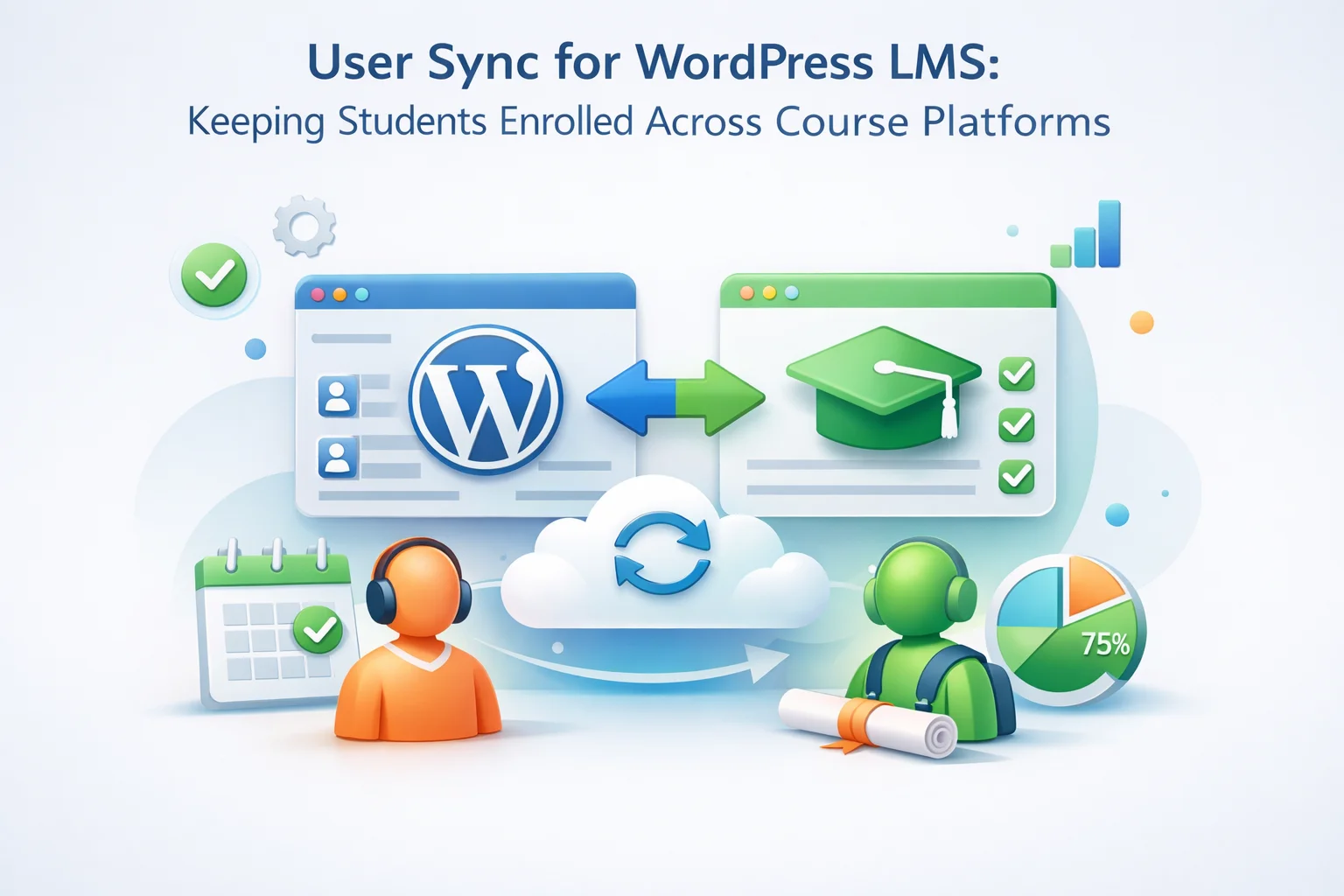
The architecture of a typical WordPress-based online education business creates a specific user sync problem that most general multi-site sync guides do not fully address. You have a WooCommerce store where students buy courses. You have an LMS installation — running LearnDash, LifterLMS, TutorLMS, or another platform — where they actually take those courses. You may also have a community site where enrolled students interact, ask questions, and build relationships with each other and with instructors. Each of these is a separate WordPress installation. Each maintains its own user database. And the handoff between them — the moment a purchase on the store becomes access on the LMS — is where the most painful friction in online education businesses consistently lives.
The LMS user sync problem is more complex than standard e-commerce multi-site sync for a specific reason: it is not just about user record data. It is about enrollment status, course access, progress state, and role-based permissions that are deeply intertwined with the LMS’s own data model. A student who cannot log in is a straightforward authentication problem. A student who can log in but finds themselves unenrolled from courses they paid for, or who loses their progress when their profile is updated, is experiencing an LMS-specific sync failure that requires a more nuanced understanding to fix correctly.
This guide addresses the full complexity of WordPress LMS user sync. It covers the architecture decisions that online education businesses need to make, the specific data types that need to flow between your sites, the enrollment access patterns that break without proper sync, and how a WordPress LMS user sync and cross-site enrollment management plugin solves these problems without custom development.
We reference LearnDash and LifterLMS specifically in several sections because they are the most widely deployed WordPress LMS platforms, but the architectural principles apply to any LMS plugin that manages course enrollment through user roles and meta. If you use TutorLMS, MasterStudy LMS, or another platform, the same framework applies with platform-specific meta key names.
The three WordPress LMS architectures and their sync requirements
Not all WordPress LMS businesses have the same architecture. The sync requirements differ meaningfully depending on how you have structured your sites. Understanding which architecture you are using is the starting point for designing the right sync configuration.
The post-purchase gap: why students cannot access courses they just bought
The post-purchase gap is the most common and most damaging problem in Architecture 1 setups. A student completes their purchase on the store. They receive a confirmation email with a “Start Learning” button. They click it. They arrive at the LMS and are asked to create an account — or worse, told their email address does not exist in the system. The momentum of having just paid for something is met with a bureaucratic wall, and the experience communicates the exact opposite of a premium course business.
This gap exists because the store processed the payment and created a WooCommerce customer record, but that creation event never reached the LMS. In an unconnected two-site setup, no mechanism exists to tell the LMS about the new student. In a manual setup, an admin periodically exports new customers from the store and imports them into the LMS — creating a delay that may be hours or days depending on how often the import is run.
Research from the online education space consistently shows that a student’s engagement in the first 24 hours after purchase is one of the strongest predictors of course completion and long-term retention. A student who cannot access their course immediately after purchase is experiencing their lowest moment of motivation — they just paid, but cannot start. According to surveys by learning industry researchers at The eLearning Guild, first-session failure is among the top triggers for online course refund requests, second only to content quality issues.
With real-time user sync, the post-purchase gap collapses to seconds. The moment a new customer is created on the WooCommerce store — triggered by order completion — the sync system creates a corresponding account on the LMS with the correct role and permissions. By the time the student clicks “Start Learning” in their confirmation email, their account is already waiting for them on the LMS. No registration form. No account creation friction. The course is immediately accessible.

Role mapping for LMS: how a Customer becomes a Student
WordPress user roles are the mechanism that LMS plugins use to control course access. A user with the “student” or “learner” role can access enrolled courses. A user with only the “customer” role from WooCommerce has no LMS-specific permissions and will find courses inaccessible even if their account exists on the LMS site. This means role mapping — the translation of roles between your store and your LMS — is not a minor configuration detail. It is what determines whether a paying student can access their course.
LearnDash uses a custom role called group_leader for instructors and treats course enrollment as a combination of the student’s WordPress user account and LearnDash-specific enrollment records stored in wp_usermeta under the key structure course_[course_id]_access_from. For basic access, a “subscriber” role is sufficient — LearnDash controls course access through enrollment records, not WordPress capabilities. The critical role mapping is: WooCommerce customer → LearnDash site subscriber.
wp_posts entries of type sfwd-transactions. These enrollment records are created by LearnDash’s WooCommerce integration when a purchase is processed on a combined store+LMS site. When running a separate store, a different enrollment trigger mechanism is needed — typically a webhook or the LMS plugin’s REST API — to create enrollment records on the LMS site when a purchase fires on the store.LifterLMS uses lms_student as its primary student role. Users with this role have access to their enrolled courses. LifterLMS also creates enrollment records stored in a custom database table (wp_lifterlms_user_postmeta) rather than exclusively in wp_usermeta. Role mapping for a separate store architecture: WooCommerce customer → LifterLMS site lms_student. The lms_student role grants LMS-specific capabilities without requiring elevated WordPress permissions.
Some course businesses use membership plugin tiers to gate course access rather than per-course purchases — a “Gold Member” gets access to all advanced courses, a “Basic Member” gets foundational content. In this architecture, the membership tier (stored as role or custom capability by plugins like MemberPress or Paid Memberships Pro) must be propagated to the LMS site so the LMS’s access restrictions can evaluate it correctly. The role mapping must preserve these tier distinctions: gold_member → gold_member (pass-through), or gold_member → lms_premium_student if the LMS uses different role names for access tiers.

Subscription and membership changes: keeping access rights current
Registration and initial enrollment are only part of the user lifecycle in a subscription-based course business. Access rights change throughout a student’s relationship with your platform: subscriptions upgrade, downgrade, renew, lapse, and cancel. Membership tiers change. Trial periods end. Group enrollments are granted and revoked. Every one of these changes on the store must be reflected on the LMS for access controls to remain accurate.
This is an area where manual management is particularly fragile. A subscription that lapses at 2 AM on a Sunday morning needs to be reflected on the LMS at 2 AM on that Sunday morning. A student whose subscription auto-renews at midnight needs their access reinstated immediately after the renewal processes — not when an admin checks the imports on Monday. The business logic is straightforward but the execution requires real-time propagation that manual processes cannot reliably deliver.
The “critical — immediate” items in the table above are the ones that create legal and business risks when delayed. A student whose subscription has lapsed but who retains access to paid content because the role update has not propagated is accessing content they are not entitled to. Conversely, a student whose subscription has renewed successfully but who loses access because the renewal did not propagate is being denied content they have paid for. Both situations generate support contacts, chargebacks, and reputational damage. Neither is acceptable with a real-time sync system in place.
SSO for the LMS: eliminating the login wall between purchase and learning
Account existence on the LMS and SSO are complementary but separate problems. User sync ensures the student has an account on the LMS. SSO ensures they do not have to log into that account separately. Both are necessary for a genuinely frictionless experience, but the failure modes are different and affect students differently.
Without SSO, a student who is logged into your store and clicks “Continue to Course” will land on the LMS login page. They must either remember their LMS credentials (which may differ from their store credentials if they were created at different times), go through the “Forgot Password” flow, or contact support. In the best case this adds 60 seconds of friction to every course access session. In the worst case it is the friction that convinces a student not to engage with the course today — or any day.

With SSO configured, the student clicks “Continue to Course” from the store while authenticated and arrives at the LMS already logged in. The token-based SSO handshake happens transparently in the redirect. The student’s session on the store extends seamlessly to the LMS. For a course business trying to maximize completion rates, this is not a minor UX improvement — it removes a meaningful friction point from every single course session a student initiates.
It also eliminates the entire category of “forgot password” support tickets that originate from students trying to log into the LMS directly. In a network with SSO, students log in once on the master site and are authenticated everywhere. The LMS login page becomes a fallback path rather than the primary entry point.
The community layer: syncing enrolled students into discussion and peer learning spaces
Many course businesses add a community layer to their LMS platform — a discussion forum, a BuddyPress-powered social community, or a members-only content site where students ask questions, share progress, and interact with instructors. This community layer almost always sits on a separate WordPress installation, which means enrolled students need their accounts synchronized there as well.
The community layer has specific sync requirements that differ from the LMS. The LMS is primarily about access control — can this student see this course? The community is primarily about identity and participation — who is this person, what are they enrolled in, and how should their community profile reflect their learning journey? A student who is a “Gold Member” on the LMS should have a corresponding badge, forum access level, or group membership on the community site. Their profile information should be consistent so instructors and peers see the same name and avatar everywhere.
Forum plugins like bbPress control post and reply permissions through WordPress roles and capabilities. If enrolled students are supposed to access course-specific discussion forums, their role on the community site must grant the necessary forum permissions. Role mapping should ensure that a student arriving from the LMS via sync gets the correct forum access role on the community site automatically.
If your community uses BuddyPress groups to organize students by course, cohort, or membership tier, group membership typically needs to be set programmatically when a user account is created on the community site. While basic user sync delivers the account and role, BuddyPress group membership may require additional configuration or a triggering hook to assign the student to the correct group at account creation time.
Instructors who interact with students across both the LMS and the community benefit from consistent profile data — they should see the same display name, avatar URL, and biographical information regardless of which site they are viewing the student from. This is a metadata sync requirement: the extended profile fields used by both the LMS and the community platform need to be kept in alignment through the sync system.

Configuring user sync for a WordPress LMS ecosystem: the practical checklist
The configuration decisions for an LMS sync setup are more nuanced than a simple e-commerce multi-site setup because of the enrollment data layer and the access-control implications of role mapping. This checklist covers the decisions specific to LMS environments.

What a unified WordPress LMS ecosystem looks like for the student
When all of these pieces are configured correctly — user sync, role mapping, SSO, subscription lifecycle propagation, and community integration — the student experience transforms completely. The before and after is not subtle.
The infrastructure for this unified experience is not complex to configure. The architectural decisions — master site designation, role mapping, sync direction, SSO, metadata scope — take time to think through but minutes to implement once decided. The result is a course platform that operates like a coherent product rather than a collection of separate WordPress installs that happen to share a customer base.
Nexu User Sync’s WordPress LMS student enrollment sync and cross-site course access management provides the role mapping interface, real-time propagation, SSO, background queue, and event log that make this configuration possible without custom development. The plugin handles the plumbing. Your focus stays on building courses that students want to take.
Your students buy on the store and learn on the LMS. Make that transition invisible.
Nexu User Sync connects your WooCommerce store, WordPress LMS, and community site into a unified student network — with real-time account sync, role mapping, SSO, and subscription lifecycle propagation built in.





I work as a receptionist but also help manage our small training site on WordPress. your guide on LMS user sync was such a lifesaver it finally clicked why students kept losing progress when they updated their emails. we've had a few frustrated learners over this exact thing, so seeing it all laid out was a huge relief
I'll be honest I had high hopes this would finally fix my multi site sync issues, but so far it's just been one headache after another. The whole reason I went with it was to keep subscriptions in sync across different sites, but that's the part that keeps letting me down.
Hey everyone! just wanted to share my experience with this plugin since I've been using it for my little coffee education side hustle. Before this, juggling courses on one site and purchases on another was a total headache students would buy a barista training course, then message me all confused because they couldn't find their lessons. now?