Next-Level Code. Nexuvibe Style ...
Hrs
Min
Sec

Most WooCommerce stores that sell across multiple product categories have meaningfully different gross margins per category. A store might sell entry-level accessories at 40% margin, mid-range products at 55% margin, and premium items at 70% margin. Applying a single flat commission rate across all of these categories means either paying too much commission on low-margin products, paying too little on high-margin ones where a higher rate would attract better affiliates, or — most commonly — some unhappy combination of both.
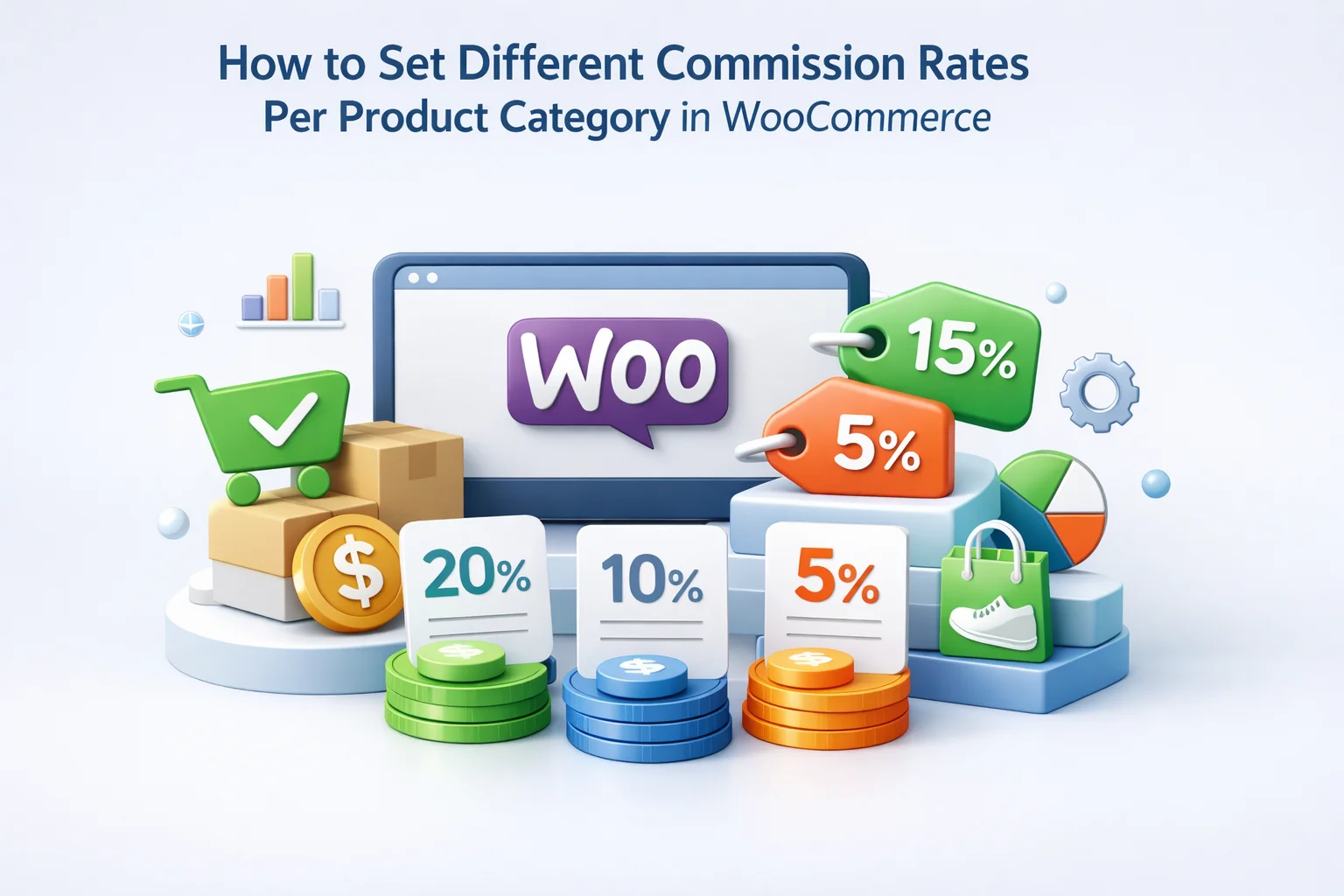
Category-level commission overrides solve this by letting you set a specific commission rate for each product category, independent of the default rate that applies to everything else. A product in your “Premium” category earns the premium rate. A product in your “Accessories” category earns the accessories rate. Orders with products from multiple categories calculate each product’s commission at the appropriate category rate. The affiliate gets total commission that reflects the actual mix of what they sold.
This guide covers the full configuration of category-level and product-level commission overrides using Affiliate Engine, a WooCommerce affiliate commission management plugin with per-category rate support — the logic for deciding which rates to set, the configuration steps, the override hierarchy that determines which rate applies when multiple rules could match, and the scenarios where product-level overrides are necessary beyond category-level rules.
Setting commission rates without reference to your product margins is how stores end up either losing money on affiliate-driven sales or running programs that do not attract quality affiliates because the rates are too low. Before configuring any rate, you need to know the gross margin for each product category — and from that, calculate the maximum commission rate that keeps affiliate-driven sales profitable.
Example: A product category with 60% gross margin and a 30% target margin floor supports a maximum commission of 30%. A category with 35% gross margin and the same 30% floor supports a maximum commission of only 5%.
This formula gives you the ceiling. Your actual rate should be below that ceiling — leaving buffer for returns, payment processing fees, and the other variable costs that reduce realized margin from the gross figure.
Once you have the maximum viable rate for each category, the question becomes where in the range below that ceiling to set the actual rate. Higher rates within the safe range attract better affiliates and generate more promotional effort. Lower rates are more conservative but may not offer enough incentive for quality content creators to prioritize your program. A practical approach: start at roughly two-thirds of your maximum viable rate and adjust based on affiliate recruitment results over the first six months.
Before configuring category-level rates, you need to understand the priority order that determines which commission rule applies when multiple rules could potentially match a given product. Affiliate Engine evaluates commission rules in a specific hierarchy — the most specific matching rule wins.
The highest priority. If you have manually set a specific commission rate for a specific affiliate on their account, that rate applies to all their sales regardless of any category or product rules. Used for negotiated partnerships with high-value affiliates.
A commission rate set on a specific WooCommerce product overrides both the category rate and the default rate. Used for individual products that have unique margin characteristics distinct from their category average — a hero product offered at a promotional commission rate, or an excluded product set to zero commission.
A commission rate set for a specific WooCommerce product category applies to all products in that category, unless a product-level override exists for a specific product within it. This is the primary tool for per-category commission management and the focus of most of this guide.
The global default commission rate configured in the main commission settings. Applies to any product that does not have a product-level or category-level rule. Every product in your store that does not match a more specific rule falls back to this rate — including any new products added in the future until you explicitly assign them to a category with a rule.
This hierarchy means you can build your commission structure from the general to the specific: set a sensible default, then override at the category level for most of your catalog, then add product-level overrides for the exceptions. You do not need to configure every product individually — category rules handle everything in that category with a single setting.
Category commission rules are configured in the Commission settings tab. The interface allows you to map specific WooCommerce product categories to specific commission rates — either percentage or flat amount — that override the default for products in those categories.
Before adding category rules, confirm your global default commission rate is set to something sensible — typically your most common product category’s appropriate rate, or a conservative fallback rate that applies to anything you have not explicitly categorized. This default protects you against new products being added to your store by a team member who does not know about the commission structure — they will earn the safe fallback rate rather than accidentally earning zero or an incorrect amount.
In the Commission tab, select a WooCommerce product category from the dropdown and enter the commission rate for that category. Repeat for each category that needs a rate different from the default. You do not need to add rules for categories where the default rate is appropriate — only categories that require a different rate need explicit configuration. The categories listed in the dropdown match exactly your WooCommerce product categories, so they must be set up in WooCommerce → Products → Categories before they appear here.
Each category rule can be configured as either a percentage of the product price or a flat cash amount per unit sold. Percentage-based rates scale naturally with product price and are appropriate for most product categories. Flat-amount rates make sense for categories where you want to pay a fixed referral fee regardless of the exact variant or price — for example, paying $5 per unit sold regardless of whether the customer bought the $30 or $60 size, which simplifies commission calculation and makes earnings more predictable for affiliates.
Some product categories should generate no affiliate commission — clearance items being sold at cost, products you sell as loss leaders, or categories that are already heavily discounted. Rather than trying to remember to manually exclude these from affiliate attribution, create a category rule setting the commission to 0% or $0. Any order containing products from this category will generate no commission for those line items, even if other items in the same cart earn commission at their respective category rates.
Category-level rules handle the vast majority of commission configuration needs for most WooCommerce stores. But specific situations call for product-level overrides — individual product commission rates that apply to a single product regardless of its category.
When launching a new product, offering a temporary higher commission rate on that specific product drives affiliate attention without committing to a permanent category-wide rate increase. Set the product-level commission override to the launch rate (say 25% instead of the category’s standard 15%), run the launch campaign, then remove the product-level override once the launch period ends and the product settles into the standard category rate.
If a product category has broadly similar margins except for one or two products that cost significantly more to produce, set product-level overrides for those specific items at a lower rate. The category rate continues to apply correctly to all other products in the category; only the specific thin-margin products use their individual override rate.
If a specific product has high upsell potential, generates strong repeat purchase behavior, or is a new product you want to establish quickly, set a higher product-level commission to make promoting that specific product more attractive to affiliates. A “featured product” higher rate is a practical way to direct affiliate attention toward specific items in your catalog without changing the entire category structure.
Product-level overrides are configured directly on the WooCommerce product edit page rather than in the Affiliate Engine commission settings. When Affiliate Engine is installed, a commission override field appears in the product data section — enter the override rate there and it will take priority over any category rule for that specific product.
When a customer places an order containing products from multiple categories with different commission rates, the commission is calculated per line item rather than per order. Each product in the cart earns commission at its own applicable rate (product override → category rate → default), and the total commission for the order is the sum of the per-item commissions.
This per-line-item calculation is visible in the referral record for the order, where each product’s commission contribution is logged. Affiliates see the total commission for the order in their dashboard. The underlying per-product calculation is visible in the admin Referrals detail view, which is useful for auditing complex multi-category orders.
When your affiliate program has multiple commission rates depending on what is sold, transparency is important. Affiliates who understand why different products earn different commissions will direct their promotional efforts toward higher-commission products — which is exactly what you want. Affiliates who discover different rates without explanation may feel misled, even if every rate was documented in the fine print of terms they accepted.
Include a simple commission structure table on your affiliate program page: each category and its rate. This information converts better-informed applicants — affiliates who can see your premium products earn 20% before they apply will plan their promotional strategy around those products from day one, rather than discovering the rate structure after approval when the initial enthusiasm has cooled.
The approval email is a good opportunity to highlight which product categories earn the highest commission and direct new affiliates toward promoting them. A brief note — “Our Premium range earns 20% commission, our Standard range earns 12%. Most affiliates find the Premium products convert well with a content-driven review approach” — gives new affiliates a starting point and makes the rate structure visible without requiring them to hunt for it in the terms document.
Commission structures need maintenance. Product margins change when supplier costs change, when you renegotiate wholesale pricing, or when you introduce new product lines. New categories get created and assigned a default rate that may not be appropriate. Sale pricing changes the effective margin on promotional items. Without periodic review, a commission structure that was sensible at launch can become financially risky or competitively weak over time.
Schedule a quarterly commission audit — a 20-minute review where you check three things: whether any new product categories were added without explicit commission rules (and are therefore falling back to the default), whether any significant cost-of-goods changes occurred that affect the viability of current rates, and whether the Referrals dashboard shows any categories generating commission spend that seems disproportionate to the revenue they are generating. This audit keeps the commission structure aligned with your actual unit economics rather than the unit economics that existed when you first configured the rules.
Category-level commission configuration transforms a single-rate affiliate program into one that reflects the actual economics of your product catalog. It protects your margin on lower-margin categories, enables genuinely competitive rates on high-margin ones, and creates the kind of transparent, differentiated structure that experienced affiliates recognize as a sign of a professionally run program worth prioritizing.
Affiliate Engine’s WooCommerce affiliate commission rates per product category plugin supports the full override hierarchy covered in this guide — default rate, category-level rules, product-level overrides, and per-affiliate negotiated rates — with per-line-item commission calculation on multi-category orders, zero-commission exclusion rules, and the Referrals dashboard that shows commission records at the product level for auditing and verification.
Affiliate Engine supports a full commission override hierarchy — default rate, category rules, product overrides, and per-affiliate rates — with per-line-item calculation on multi-category orders and exclusion rules for zero-commission products.








Picked this up during the spring sale to finally get our affiliate payouts organized by category. The whole idea of matching commissions to margins actually makes a lot of sense our premium pet food line has way better margins than the basic toys, so a flat rate never really worked for us.
Hey, just set this up for my print sales and it actually makes sense now. My fine art category runs at higher margins so I bumped the commission there to attract better affiliates. took 10 minutes with the guide.
Ugh the margin examples were so confusing.