Next-Level Code. Nexuvibe Style ...
Hrs
Min
Sec

Commission rates are the decision that most store owners make too quickly when setting up a WooCommerce affiliate program. They pick a number — usually something that sounds reasonable, like 10% — enter it into the settings, and move on. Then six months later they are dealing with affiliates who feel underpaid, products that are being promoted at a loss, or a commission structure so simple that it gives the same reward to someone who sends two customers a year as to someone who sends two hundred.
Commission configuration is not complicated, but it does require deliberate thinking about three things: your margins, the behavior you want to incentivize, and how the rules will hold up as your program grows. This guide works through all three dimensions and shows you exactly how to configure percentage commissions, flat commissions, and tiered performance structures in WooCommerce — specifically using Affiliate Engine, a WooCommerce commission tracking and affiliate management plugin built for exactly this kind of practical program management.
By the end of this guide, you will have a clear picture of which commission structure fits your store, how to configure it without creating edge cases that come back to bite you, and how to evolve your commission rules as your program matures.
Before you open the commission settings panel, you need to make one foundational decision: are you paying affiliates a percentage of the sale, or a fixed flat amount? This is not a style preference. It is a structural decision that affects your margins, your affiliate motivation, and the complexity of your admin workflow going forward. Each has a genuine use case, and many stores eventually use both simultaneously for different product categories.
The affiliate earns a fixed percentage of each referred sale. A 10% commission on a $150 order pays $15. The same 10% on a $40 order pays $4.
The affiliate earns a fixed dollar amount regardless of order value. A $20 flat commission pays $20 whether the order is $80 or $800.
This is the setting that most store owners get wrong, and it can make a significant difference to your actual margins. The commission base defines what number the percentage is applied to. There are typically four options, and each one gives a meaningfully different result.
The subtotal — meaning the product value before tax and shipping — is almost always the right base for percentage commissions. Paying commission on tax means you are sharing revenue that belongs to the government. Paying commission on shipping means an affiliate earns more simply because a buyer happens to live in a remote area, which was not the intent of the program. Using the product subtotal as the commission base is clean, predictable, and defensible to both your accountant and your affiliates.
The commission settings panel in Affiliate Engine for WooCommerce brings together all the decisions discussed so far — commission type, calculation base, approval trigger, hold period, and restriction rules — in a single organized panel. Let us walk through each setting deliberately.
Select either percentage or flat amount, then enter your default rate. This default applies to all orders unless overridden by a more specific rule (product-level or category-level override, if supported). For most stores, start conservative — you can always increase commission rates as the program proves its value. Starting too high and needing to reduce it later creates friction with established affiliates.
Choose what the commission percentage is applied to. As discussed above, the product subtotal (excluding tax and shipping) is the right choice for the vast majority of WooCommerce stores. If your store sells services where there is no shipping, your choice simplifies further since shipping is not relevant. Confirm your selection by running a quick calculation on a few of your actual orders to check the resulting commission is what you intended.
This setting determines when a referral order generates an approved commission. The correct choice for almost every physical goods store is the “completed” order status, not “processing.” Processing means payment was received, but the order might still be refunded, returned, or cancelled. Completed means the order has been fulfilled and passed the likely refund window. Setting approval to “processing” means you could end up with approved commissions on orders that are subsequently refunded — and reversing those creates an administrative mess and a bad affiliate experience.
Even after an order reaches “completed” status, a hold period adds an additional waiting time before the commission becomes payable by the affiliate. This is your safety net for late refund requests and charge-backs. If your store has a 14-day return policy, set a hold period of at least 14 days — ideally 21 to allow for processing delays. The hold period does not mean affiliates are not earning; it means they cannot request payout until the commission has been held long enough to be confident the underlying sale is final.
This setting prevents commissions from being generated on orders below a specified value. It is most useful for stores where very small orders have margins too thin to support commission payouts, or where you want to incentivize affiliates to promote higher-value products and bundles rather than individual low-cost items. If your catalog includes items priced at $5 to $10, a minimum order threshold of $25 to $30 focuses affiliate activity on orders that are worth incentivizing.
Self-referral means an affiliate earns commission on their own purchases — placing an order through their own referral link. Disable this. The reason is simple: allowing self-referrals turns your affiliate program into a discount mechanism. People join to get a commission on their own orders rather than to genuinely promote your store. The small goodwill gesture of allowing self-referrals is not worth the structural distortion it introduces into your affiliate data and your program economics.
When you enable coupon tracking alongside link-based referral tracking, you create a scenario where both a referral cookie and an affiliate coupon code might be present at checkout. The commission priority setting determines which attribution wins when both exist simultaneously.
Document your priority decision in your affiliate program terms so there is no ambiguity when an affiliate asks why a particular order was attributed differently than expected. This single line in your terms prevents a significant number of support questions.
Tiered commissions reward higher performance with higher commission rates. Instead of every affiliate earning the same 10%, an affiliate who generates more referrals or higher sales volume earns a better rate — say 12% or 15%. The tier structure provides a structured incentive for your best affiliates to keep performing, and it does so in a way that is transparent and fair rather than relying on individual ad hoc deals.
A practical tier structure for a WooCommerce affiliate program looks something like this: a base tier for everyone, a mid-tier triggered by a defined performance threshold (say, 10 approved referrals in a rolling 90-day period, or $1,000 in referred sales), and a top tier for the highest performers. The exact thresholds depend on your program’s scale and your typical affiliate activity levels — but the structure itself is the important thing.
Tiers work alongside the base commission settings, not as a separate system. When an affiliate reaches the threshold for a higher tier, their commission rate adjusts automatically based on the rules you have defined. This means you do not need to manually update commission rates for high-performing affiliates — the system handles it, and affiliates can see their tier status from their dashboard.
Once your commission settings are live and referral orders start coming in, the Referrals tab in the admin dashboard is where you review what is being generated and approved. Each referral record shows the affiliated order, the attributed affiliate, the commission amount, and the current status — pending, approved, or paid.
Reviewing referral records regularly in the first few weeks after launch is important because it lets you validate that your commission configuration is working as intended. Check that commission amounts are calculating correctly on real orders, that the approval trigger is firing on the right status, and that the hold period is being applied properly. If you see unexpected amounts, trace them back to the commission base setting — that is usually where discrepancies originate.
If you are uncertain what commission rate to start with, industry benchmarks are a useful reference point. They should inform your decision, not determine it — your margins and program goals are what ultimately set the right number — but knowing the typical range for your product type helps you set a rate that is competitive enough to attract and retain good affiliates.
These benchmarks come from publicly reported affiliate program data across the industry — sources like AffiliateWP’s affiliate marketing statistics and CJ Affiliate’s publisher reports provide useful context for established categories. Use them as a starting reference, then adjust based on your actual margins and the feedback you get from early affiliates.
After walking through the correct configuration, it is worth spending a moment on the mistakes that appear most consistently in real WooCommerce affiliate programs. These are not hypothetical edge cases — they are errors that create actual operational problems and real financial exposure.
A refunded order that already generated an approved commission means you now need to reverse that commission — manually, in the admin, explaining the reversal to the affiliate. If you have a 10% refund rate and commissions approve on processing, you are regularly reversing approved commissions. Use “completed” and a hold period that matches your refund window instead.
For a store selling $150,000 in annual revenue with an average tax rate of 10%, calculating commission on the full total instead of the product subtotal means you are paying commission on $15,000 of tax revenue. At a 10% commission rate, that is $1,500 per year paid to affiliates on money that belongs to the government. Small individually, significant at scale.
Tiers based on raw visit counts reward affiliates for sending traffic, not for sending buyers. An affiliate who sends 500 visits a month that convert at 0.5% is less valuable than one who sends 50 visits that convert at 8%. Base your tier thresholds on approved referrals or referred revenue, not on raw visit volume.
Commission settings that were sensible at launch may need adjustment as your program grows, your product catalog changes, or your margins shift. Set a calendar reminder to review commission settings quarterly. What was a sustainable 12% rate when you were doing $5,000 a month in affiliate-referred revenue may need revisiting when that figure reaches $50,000.
Commission configuration is not just a backend exercise. The commission information that affiliates can see in their dashboard directly affects their trust in the program and their motivation to keep promoting. When affiliates can see their pending commissions, their approved earnings, their tier status, and their payout-ready balance, they feel informed and confident. When that information is hidden or confusing, they disengage.
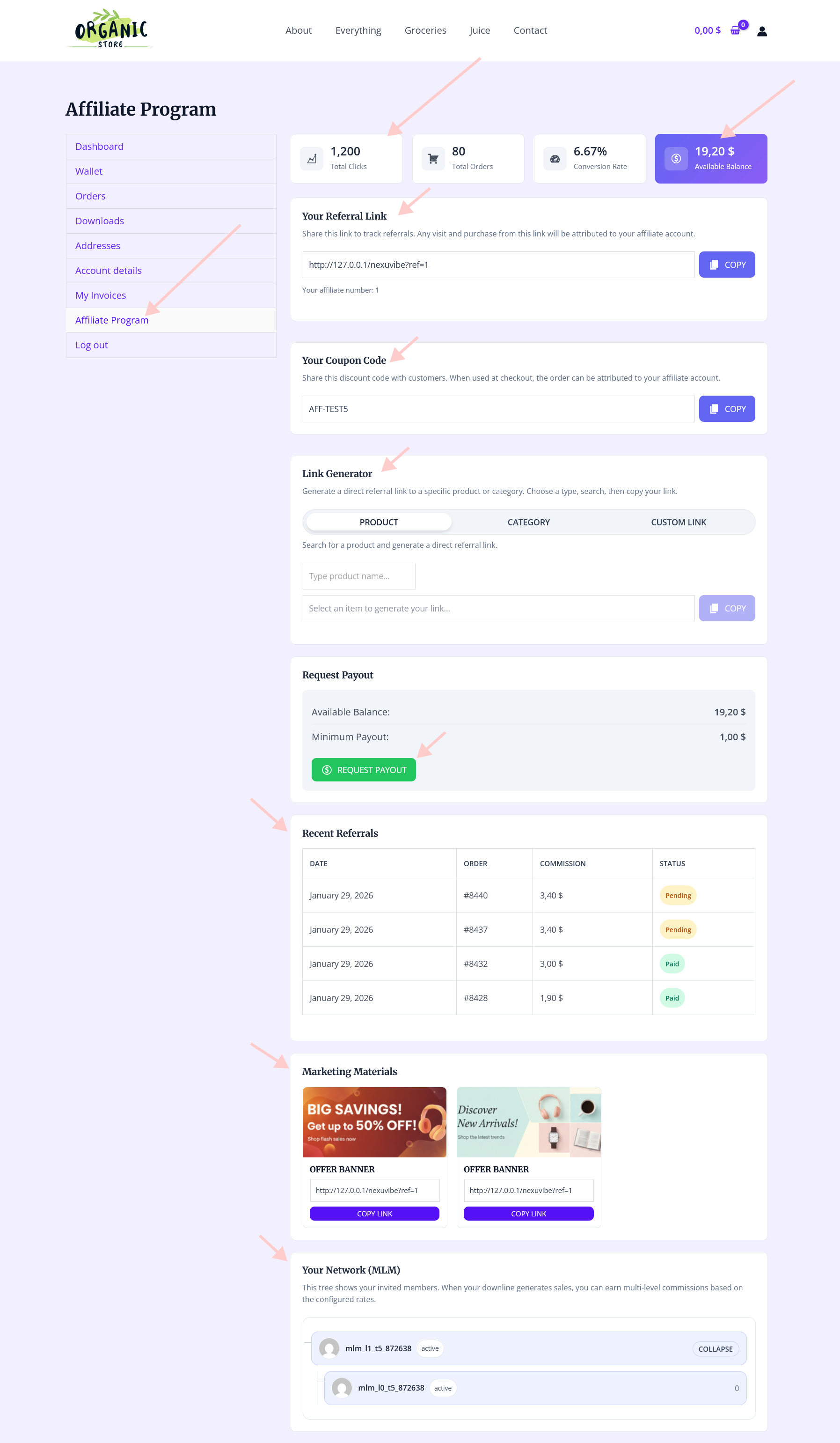
The affiliate-facing dashboard in Affiliate Engine shows each affiliate their referral link tools, commission history with status breakdowns, their current tier level, and their payout-eligible balance. This transparency is not just good UX — it is what keeps affiliates active between payouts. Affiliates who can see commissions accumulating have a concrete, ongoing reason to keep sharing. Affiliates who cannot see anything until they ask you have no feedback loop keeping them engaged.
Before approving your first affiliates, run through this checklist. It covers the commission settings that, if wrong, create the most consistent problems in real WooCommerce affiliate programs.
Getting commission configuration right from the start is one of the highest-leverage things you can do when setting up a WooCommerce affiliate program. It determines your margins, shapes affiliate behavior, and defines the financial relationship between your store and the people promoting it. Once your rules are live and affiliates have been told what to expect, changing them becomes significantly more friction-laden.
Affiliate Engine’s WooCommerce commission and referral program plugin puts all of these settings — commission type, calculation base, approval trigger, hold period, self-referral rules, and tiered performance levels — in a single organized panel. Configure them once, validate with a test order, and your commission foundation is solid before the first affiliate is ever approved.
Affiliate Engine gives you a single commission settings panel covering type, base calculation, approval trigger, hold period, self-referral rules, and performance tiers — everything you need to run a financially sound affiliate program in WooCommerce.








Man, I was sweating bullets trying to set up my first affiliate program for my truck parts store. Didn't want to mess up the commissions and end up paying out more than I actually make on those big rig accessories. this guide broke down the whole percentage vs. flat rate thing in plain English no confusing tech talk. it even showed how to set different rates for high margin items versus the cheaper stuff. Two hours later, I had everything configured without stressing that I'd accidentally tank my profits on payouts
Hey folks, just had to leave a quick note about this commission setup guide. As someone who runs tours and sells merch on the side, I was always worried about paying too much in affiliate commissions or not enough to keep my promoters happy. This broke down flat vs percentage rates in a way that actually made sense no fluff, just clear examples of when to use each. Even showed how to mix them for different products. Saved me from what would've been a messy trial and error phase
This guide saved me so much head scratching when setting up commissions for my spice shop's affiliate program. I was about to blindly set a 10% rate on everything until I read the part about commission bases turns out I would've been paying out on tax too, which is just throwing money away. The flat vs. percentage breakdown was a really helpful, especially for my lower margin bulk orders. Wish I'd found this before my first payout cycle!
Hey everyone, just wanted to share my experience setting up flat commissions with this guide. I run a store with prices all over the place $50 stuff up to $2,000 items and the flat rate system actually works way better for us. No more stressing over percentages cutting into profits on big sales or affiliates feeling shortchanged on smaller ones