Next-Level Code. Nexuvibe Style ...
Hrs
Min
Sec

Running a multilingual WooCommerce store creates a specific translation challenge that is different from translating a blog or a corporate website. Products are not just content. They are data-rich entities with titles, long descriptions, short descriptions, SEO meta titles, SEO meta descriptions, product attributes, categories, tags, and custom fields. Every one of these fields needs to be translated for the product to appear correctly and rank properly in search engines for each target language.
Doing this manually for a catalog of 50 products is tedious. For 200 products, it is a full-time job. For 1,000 products, it is simply not feasible without automation. And the work is never done: every new product, every description update, every seasonal promotion needs to be translated across all languages again.
This guide walks through the complete process of setting up automatic AI-powered product translation for a WooCommerce store using WPML and NEXU AI Auto Translator for WooCommerce and WPML product translation. From initial configuration to your first translated product going live, every step is covered.
A WooCommerce product contains far more translatable content than a regular WordPress post. Understanding what each field is and why it needs translation helps you set up the automation correctly and verify that everything is working.
The SEO implications are what most store owners miss. If you translate your product title and description but leave the Yoast SEO meta title and description in English, your Spanish product page shows up in Google Spain with an English title and description. Spanish-speaking customers see this mixed-language result, assume it is not for them, and click on a competitor. You did the translation work but lost the SEO benefit because the metadata was not included.
This is one of the key advantages of using NEXU WPML AI translator with Yoast SEO and WooCommerce custom field translation. It translates all of these fields in a single pass, including the SEO metadata that other tools often miss. Your translated products go live with proper SEO in every language from the start.
Before setting up automated product translation, make sure you have the following in place. Trying to set up translation with missing pieces leads to confusion and wasted time.
You need the WPML CMS or Agency plan (which includes WooCommerce Multilingual) or the standalone WooCommerce Multilingual addon. This is what makes WooCommerce products translatable through WPML. Without it, product-specific fields like short descriptions and attributes will not appear in translation jobs. Verify that WooCommerce Multilingual is active in your WPML settings under WooCommerce.
Set up all the languages you plan to sell in through WPML Languages settings. Each language needs to be active and properly configured with its display name and locale. If you are targeting specific regional variants (Brazilian Portuguese vs. European Portuguese, for example), make sure you have selected the correct variant.
You need an API key from at least one AI provider: OpenAI, Anthropic Claude, Mistral, or xAI Grok. For WooCommerce product descriptions, we recommend Claude Sonnet 4.6 or GPT-4o for the best balance of natural-sounding marketing copy and accurate technical details.
Your products should be complete and finalized in your primary language before you translate them. Translating a product that still has placeholder descriptions or missing SEO metadata means you will need to re-translate it later. Get your product content right in the source language first, then translate once.
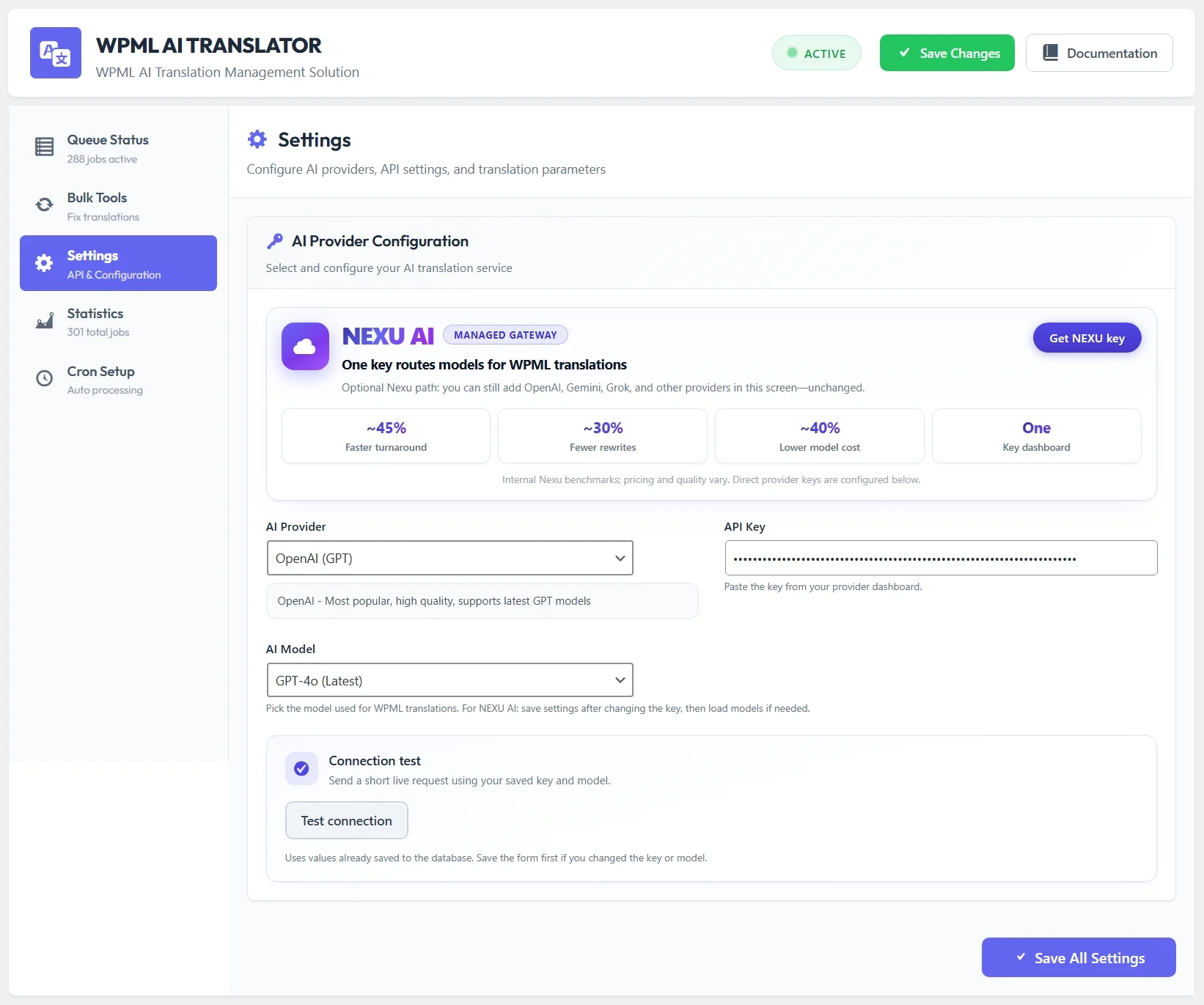
Download and install NEXU AI WPML auto translator for WooCommerce multilingual stores. Activate it and go to the settings page. Select your AI provider, paste your API key, and choose the model you want to use for product translation.
For product descriptions specifically, we recommend Claude Sonnet 4.6 if your store sells to European markets. Claude’s natural tone preservation works particularly well for the persuasive language that product descriptions require. If you sell primarily to Asian markets, GPT-4o is a stronger choice for languages like Japanese and Korean. You can always switch models later without reconfiguring anything else.
Before sending products for translation, verify that WPML is correctly configured to handle all WooCommerce product fields. Go to WPML, then Settings, then Custom Fields Translation. You need to make sure the following fields are set to “Translate” rather than “Copy” or “Do not translate.”
The fields _yoast_wpseo_title and _yoast_wpseo_metadesc must be set to “Translate” in WPML’s custom field settings. If these are set to “Copy,” your translated product pages will display the original-language SEO title and description in search results, which defeats the purpose of multilingual SEO.
WPML WooCommerce Multilingual typically sets up product fields correctly by default, but verify that product title, long description, short description, and purchase note fields are all marked as translatable. Fields like _regular_price and _sale_price should typically be set to “Copy” since prices are usually the same across languages (WPML handles currency conversion separately).
Go to WPML Settings, then Taxonomies Translation. Verify that Product Categories, Product Tags, and any custom product attributes are set to “Translatable.” If these are not translatable, your products will be translated but the categories and attributes on the translated product pages will still display in the original language.
This step is critical and often overlooked. Product categories and attributes should be translated before you start translating individual products. When a product is translated and its category already has a translation, WPML automatically links the translated product to the correct translated category. If the category is not yet translated, you end up with orphaned products that are not properly categorized in the target language.
The NEXU plugin includes a dedicated bulk tool for re-translating categories and taxonomies. Navigate to the plugin’s bulk tools section and select “Categories” to translate all product categories across your active languages. For product attributes (like “Color,” “Size,” “Material”), use WPML’s Taxonomy Translation page to assign translations to the AI translator.
With categories translated and the plugin configured, you are ready to translate products. Go to WPML Translation Management. In the content type filter, select “Products” to show only WooCommerce products. You can translate products one at a time or select multiple products to translate in batch.
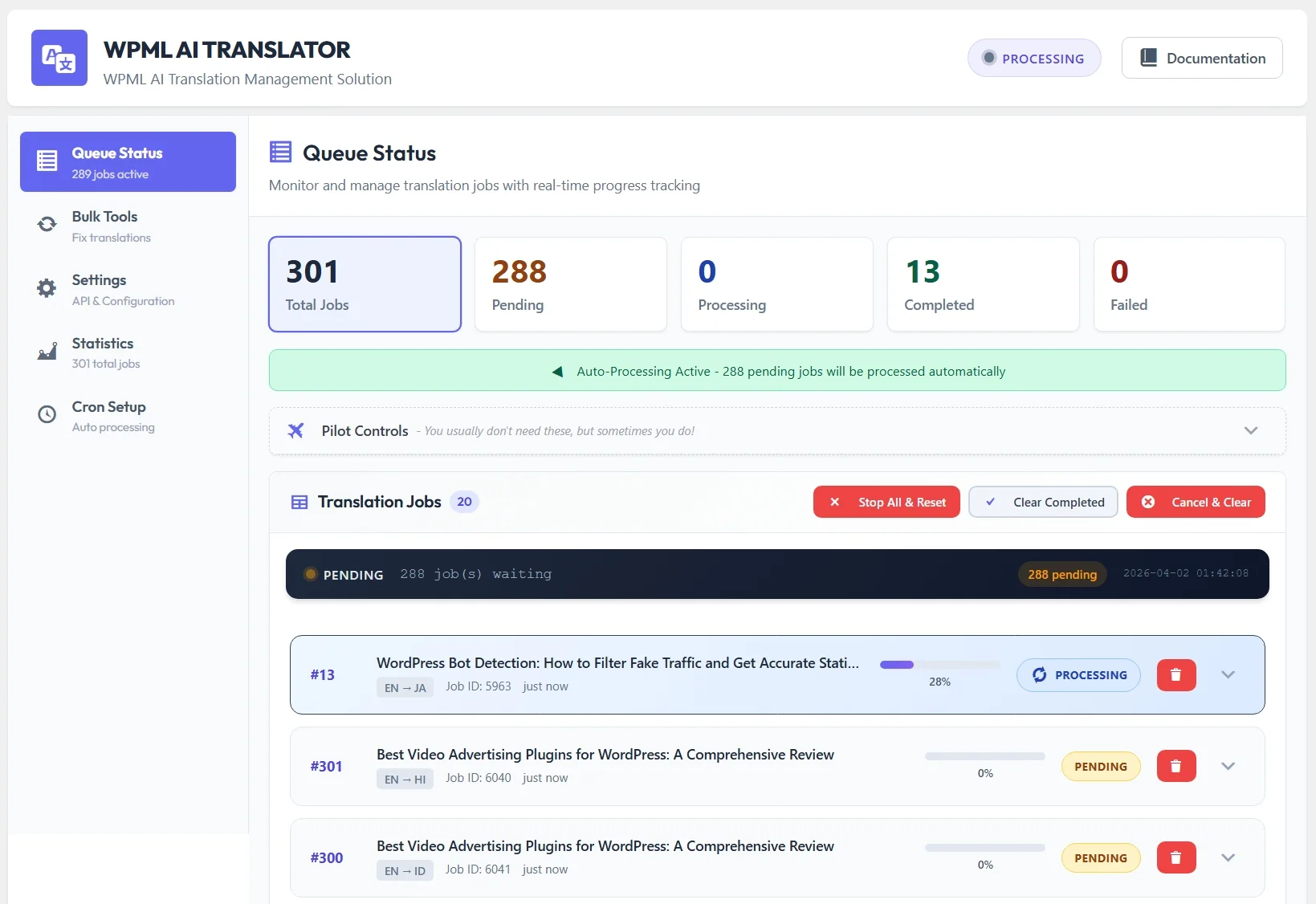
Select the products you want to translate, choose your target languages, and assign the AI Translator. Click “Send all translation jobs.” The plugin picks up each job, sends the product content (title, long description, short description, SEO metadata, and any other translatable custom fields) to your AI provider, and delivers the complete translated product back to WPML.
For a typical WooCommerce product with a 200-word description, 50-word short description, and SEO metadata, each translation takes about 30 to 60 seconds per language. If you are translating 50 products into 4 languages, that is 200 translation jobs. The plugin processes them sequentially in the background, completing the entire batch in roughly two to three hours without any manual intervention from you.
Once translations complete, spot-check a few products to verify everything came through correctly. Here is what to look for.
Switch your site to a translated language using WPML’s language switcher and navigate to a translated product. The title, description, short description, and category should all appear in the target language. Images and pricing should remain unchanged.
View the page source or use a browser SEO extension to check the meta title and meta description tags. They should be in the target language, not the original language. This is the most commonly missed field in product translation, and it directly affects your search engine visibility in international markets.
On the translated product page, click the product category link. It should lead to a translated category page with translated products listed. If the category page shows the original language name or the breadcrumb has mixed languages, revisit Step 3 and translate the missing categories.
A WooCommerce store is never static. You add new products, update descriptions for seasonal promotions, adjust SEO metadata based on keyword research, and retire old products. Each of these actions has translation implications.
When you publish a new product, go to Translation Management, find the product, and send it for translation as described in Step 4. The process is the same every time. With practice, sending a new product for translation takes about 30 seconds of your time. The actual translation runs automatically in the background.
When you update a product’s content in the default language, WPML marks the existing translations as “needs update.” You can then re-send the product for translation. The plugin’s bulk re-translation tools let you retranslate multiple updated products at once, which is efficient for seasonal description updates or site-wide content refreshes.
Whenever you create a new product category or attribute, translate it before assigning products to it. This keeps your taxonomy structure clean across languages. The bulk category translation tool in the plugin handles this quickly.
Here is a realistic cost breakdown for a store with 200 products, each averaging 350 words across all translatable fields (title, descriptions, SEO meta), translated into Spanish, French, German, Arabic, and Portuguese.
The workflow described in this guide turns product translation from a bottleneck into a background process. You create products in your default language. The AI translates them automatically. Your multilingual customers see properly translated product pages with correct SEO metadata, translated categories, and natural-sounding descriptions in their language.
The compounding benefit of this approach is what makes it transformative for store growth. Every product you add is instantly available in all your target markets. Every description update propagates across languages. Every new category you create can be translated in seconds. Your multilingual store keeps pace with your business without translation becoming a separate workstream that competes for your time and budget.
NEXU AI Auto Translator with complete WooCommerce WPML multilingual product support handles the technical complexity: API communication, content chunking, custom field mapping, SEO metadata extraction, and background queue management. You handle the business decision: which products to translate, which languages to target, and which AI model produces the best results for your market.
Product titles, descriptions, Yoast SEO metadata, categories, and custom fields. Four AI providers. Background processing. Bulk tools. From $39/year.








got this set up for our farm store's seasonal stuff.
Wow, my store's finally multilingual!
The guide's step by step breakdown for translating product categories and attributes was exactly what I'd been looking for most tutorials just gloss over that part. i finally got my store's whole taxonomy localized without having to manually enter everything, which honestly saved me hours of work