Next-Level Code. Nexuvibe Style ...
Hrs
Min
Sec

Registration forms are deceptively simple when they handle one person at a time. Name, email, a few preferences, submit. But the moment your registration needs to handle groups, the complexity multiplies. A parent registering three children for a summer camp. A company signing up a team of eight for a conference. A travel agency booking a family of five with different passport details and meal preferences for each person.
These scenarios require two things that most form builders do not combine well: multi-step structure (to keep the form from becoming a wall of fields) and repeatable field groups (to handle a variable number of registrants per submission). Multi-step forms break the process into manageable stages. Repeatable fields let each stage adapt to the actual group size. When these two capabilities work together, you get a registration system that feels organized and intuitive regardless of whether someone is registering one person or twenty.
Gravity Forms provides the multi-step capability natively through its Page field, which creates page breaks with progress indicators. The repeatable fields capability comes from the NEXU Advanced Repeater plugin for Gravity Forms group registration with dynamic attendee fields. This guide shows you how to combine them into registration systems that handle real-world group scenarios.
Multi-step forms and repeatable fields each solve a different UX problem. Multi-step forms reduce perceived complexity by breaking a long form into stages that users complete one at a time. Repeatable fields reduce actual complexity by adapting the form to the number of items the user needs to enter. For group registrations, you need both.
Without multi-step structure, a group registration form with contact details, multiple attendees, per-person preferences, and payment information becomes a single-page form that can easily exceed 40 or 50 fields. Even with a repeater making the attendee section dynamic, the form feels overwhelming when everything is visible at once.
Without repeatable fields, a multi-step form with a fixed number of attendee slots forces you to either over-build (adding 10 attendee sections and hoping nobody needs more) or under-build (limiting to 3 attendees and frustrating larger groups). The form cannot adapt to the reality that group sizes vary.
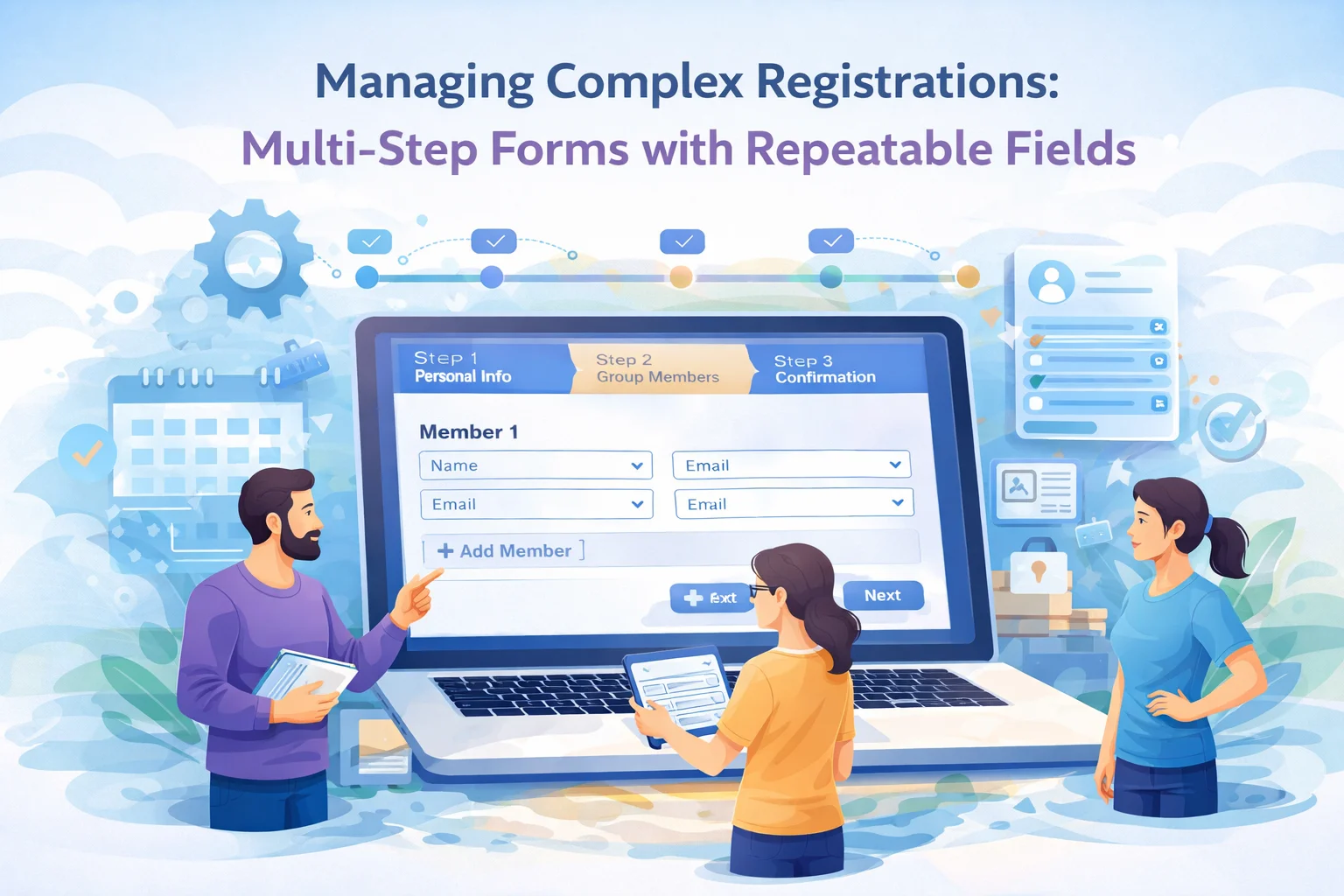
When combined, the user experience becomes: Step 1 collects the organizer’s contact information. Step 2 presents the repeatable attendee section where they add as many participants as needed. Step 3 handles any group-level preferences or payment. Each step is focused, and the second step adapts to the actual group size.
The form architecture for a group registration follows a three-step pattern that works across industries. Whether you are building for a school, a conference, a travel company, or a sports league, this structure handles the workflow cleanly.
This step collects information about the person submitting the registration. Full name, email address, phone number, organization or company name if applicable, and billing address. These fields appear once per submission. This is the person your team will contact about the registration, and the person who receives the confirmation email.
This is the repeatable section. Each row represents one attendee with their individual details: name, date of birth or age group, email (if different from the primary contact), any preferences relevant to your event (session choices, dietary requirements, t-shirt size), and any required information (medical notes, emergency contact, accessibility needs). The organizer adds one row per person they are registering.
This final step handles anything that applies to the group as a whole rather than to individual attendees: special group requests, total registration fee (calculated from the number of attendees), payment method selection, terms and conditions acceptance, and any notes for your team. The running total from the repeater section feeds into this step so the organizer sees the full cost before submitting.
In the Gravity Forms editor, this translates to: the first and third steps are separated by Page fields (Gravity Forms’ native multi-step feature). The second step contains the Repeater Start marker, the attendee fields, and the Repeater End marker. The Page field before and after the repeater section creates the step boundaries, while the repeater handles the dynamic attendee count within that step.
A parent needs to register their children for summer camp. They might have one child or four. Each child has a name, age, grade, allergies or medical conditions, and program preferences. The parent also needs to provide their own contact information and an emergency contact.
With a static form, the camp has to decide how many child sections to include. Three sections? The family with four kids cannot complete the registration. Six sections? Most families waste time scrolling past empty sections. And every added section multiplies the number of fields in the form, making it feel heavier even for families registering just one child.
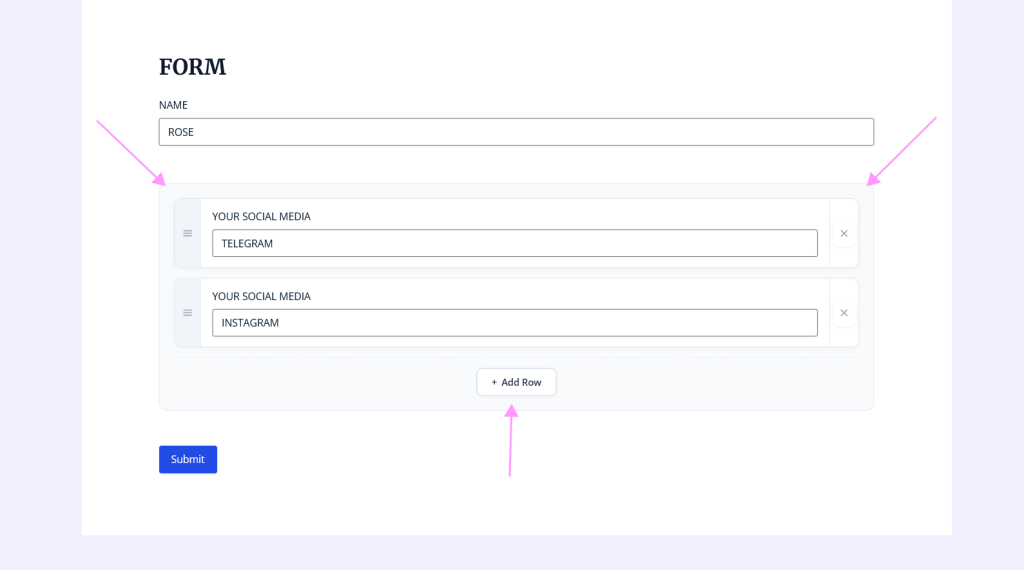
With the multi-step repeater approach, Step 1 collects the parent’s contact and emergency information. Step 2 presents one child section with fields for name, date of birth, grade, medical notes (text area), program selection (dropdown), and t-shirt size (dropdown). The parent fills in the first child, clicks Add Row to add a second, and repeats until all children are entered. Step 3 shows the total fee calculated from the number of children and confirms the registration.
A company sends a team to a conference. The admin assistant registers everyone. Each attendee needs a name, email, job title, session track preference (from a dropdown of available tracks), and dietary requirement for the event lunch. The company pays for all attendees in a single transaction.
Step 1: company information and billing contact. Step 2: attendee details as a repeatable section, with one row per person. The admin adds rows for each team member. Step 3: total registration fee (calculated per attendee), payment processing, and invoice details.
The session track dropdown in the attendee section is where this becomes more useful than a simple RSVP. Each person picks their own track, and the entry data shows exactly who is attending which sessions. Your event planning team can generate accurate headcounts per session directly from the form entries, without any manual cross-referencing.
A tour operator takes group bookings where one contact person registers an entire travel group. Each traveler needs: full legal name (as on passport), nationality, passport number, date of birth, dietary preference, room type preference, and any mobility or accessibility requirements.
This is one of the most field-heavy registration scenarios. Each attendee row has seven or more fields. Without multi-step structure, the form becomes genuinely overwhelming. With a multi-step approach, the personal details for each traveler are contained within Step 2, and the group-level booking details (travel dates, departure city, optional excursions) are in separate steps.
For travel forms specifically, the file upload capability becomes important. If each traveler needs to upload a passport copy, the repeater must support a file upload field per row with the file staying associated with the correct traveler. The NEXU Gravity Forms repeater with file upload support for group registration forms handles this per-row association, so the entry data shows exactly which document belongs to which traveler.
A coach or team manager registers an entire team for a league. Each player needs: name, jersey number, position (dropdown), date of birth, and an emergency contact with name and phone number. The team-level information includes team name, division, home venue, and the coach’s contact details.
This scenario works well as: Step 1 for team and coach information, Step 2 for the repeatable player roster, and Step 3 for league-specific choices and payment. The player section adapts from a 5-person recreational team to a 25-person competitive roster without any form redesign.
Collecting group registrations is half the challenge. Processing them efficiently is the other half. When your admin team opens a registration entry, they need to immediately understand: who submitted it, how many people are registered, and what each person’s details are.
The repeater data should appear as a table in the entry detail view, with each attendee as a row and each field as a column. Your team scans the registration at a glance rather than scrolling through dozens of individual field entries. For a camp registration with four children, the entry shows a four-row table with columns for name, age, program, and medical notes. Fast to review, easy to act on.
The confirmation email should list all registered attendees in a readable format. Parents and organizers use this email as their receipt and their reference. If the email dumps raw data or an unformatted list, they will contact your team to confirm that the registration was received correctly. A formatted attendee table in the email prevents these unnecessary support requests.
Most registration operations eventually need the data in a spreadsheet. For camps, this is the roster. For conferences, this is the attendee list with session assignments. For travel, this is the passport details for visa processing. The export format needs to preserve the per-attendee structure rather than collapsing everything into single cells. Structured export from the NEXU repeater plugin for Gravity Forms with structured data export keeps each attendee as a readable row in the exported file.
Group registration forms have specific UX considerations that differ from other form types. These decisions affect completion rates and data quality.
Complex registrations are a workflow problem, not just a form problem. A parent registering children, a company registering employees, or a coach registering a team expects the process to be straightforward regardless of group size. When the form adapts to them with clear steps and the right number of attendee slots, the experience feels respectful and professional.
The combination of Gravity Forms’ native multi-step pages and the NEXU Advanced Repeater for Gravity Forms multi-attendee registration with per-person calculations gives you both capabilities in a single, manageable form. Your users get a guided, adaptive experience. Your admin team gets structured, readable entries. Your operations get clean data exports.
Combine Gravity Forms multi-step pages with NEXU Advanced Repeater to build registration systems for camps, conferences, travel, and teams. From $19/year.







just wanted to share my experience with this registration system. As a trucker who plans family trips during downtime, I tried it for booking a group tour with five of us all with different passports and meal preferences.
Didn't expect this to handle my class field trip signups so smoothly!
The 2026 guide talks about keeping things simple, but the reality is far from it. I tried setting up a basic group registration with just full name, email, and phone for attendees nothing fancy and the form still looked like a data entry nightmare.
Got this set up for a church retreat registration where folks needed to input dietary restrictions and emergency contacts for each family member. The multi step part works fine, but adding repeat fields for every kid got clunky fast.