Next-Level Code. Nexuvibe Style ...
Hrs
Min
Sec

Here’s a scenario that plays out across hundreds of membership sites, professional associations, alumni networks, and community platforms every week: someone uses Gravity Forms to collect member registrations. The form works perfectly. New members fill it in, their data lands in the Gravity Forms entry database, and the site owner now has a complete list of members — name, organization, specialty, location, whatever the registration form collected.
And then the obvious next step hits: the members want to be able to find each other. A directory. A member list. A browseable, searchable frontend view of all the people in this community. And suddenly the question becomes: how do you take those Gravity Forms entries and display them as a proper user directory on your website?
Gravity Forms doesn’t have a built-in directory view. It’s an entry collection and management tool — the display side is not its job. This guide explains your options clearly and shows you the most practical, lowest-friction path from “Gravity Forms registration” to “working frontend user directory.”
Fair warning upfront: the “easiest” path here is genuinely easy, but it does require installing the right tool for the job. We’ll explain why, and we’ll show you exactly what the setup looks like.
The Gravity Forms data model stores each form submission as an “entry” — a record in the WordPress database containing all the field values from that submission. These entries are designed to be accessed and managed from the WordPress admin interface. They are not, by default, designed to be displayed on the frontend of your site.
There’s no Gravity Forms shortcode that renders a filterable list of entries. There’s no built-in public profile page for individual entries. There’s no directory template. This is not a bug or an oversight — it’s simply outside Gravity Forms’ core scope. The plugin is a data collection and management tool. Displaying that data publicly on your frontend is a separate problem that requires a separate solution.
Understanding this clearly saves a lot of time. It means you’re not looking for a hidden Gravity Forms setting or a configuration option you missed. You need to add a display layer on top of your Gravity Forms data — something that can read entries, apply visibility and privacy rules, and render them as a directory that visitors and members can navigate.
Gravity Forms exposes a PHP API (GFAPI) that developers can use to query entries programmatically. A skilled developer can build a custom WordPress template that queries GFAPI for entries, renders them as a directory, adds search and filter functionality, and handles individual profile pages. This works well but is a serious development project — typically 20 to 40 hours of custom work, ongoing maintenance every time Gravity Forms updates, and zero flexibility for non-developers who need to adjust the display later.
Some developers use Gravity Forms’ post creation feature to automatically generate a custom post type entry for each form submission. This post type can then be displayed using any standard WordPress directory or listing plugin. The problem is data synchronization: when a member updates their Gravity Forms entry, the post isn’t automatically updated. You end up with two copies of the data that can fall out of sync, creating maintenance headaches and potential data integrity issues.
There are plenty of WordPress member directory plugins that have their own registration forms, their own member database, and their own directory display. If you’re already using Gravity Forms for registration, adding one of these means you’re either asking members to fill in two separate forms or you’re attempting some kind of complicated synchronization between two separate data stores. Neither is a good outcome.
If you’re building a new directory from scratch, it’s worth designing your registration form with the directory output in mind. If you already have an existing form, these considerations can guide any revisions you make.
Think clearly about which fields belong in the public directory listing and which are private. Name, job title, organization, and a bio belong in the directory. Email address, phone number, and payment information probably don’t — or at least should be controlled by the member, not visible by default. Use field labels that reflect this distinction, so configuration later is intuitive.
A directory without filters is just a long list. If you want members to be able to filter by specialty, location, membership tier, or industry, you need to collect that information using categorical fields — dropdowns, checkboxes, or radio buttons — not free text. “Specialty: Cardiology” is filterable. “Please describe your specialty: I work primarily in cardiac care and have an interest in electrophysiology” is not.
Directories with photos perform significantly better in terms of member engagement than text-only directories. People connect with faces. A file upload field for a profile photo — with clear instructions on preferred dimensions and file format — is worth including from the start. It’s much harder to add this later when you have hundreds of existing entries with no photos.
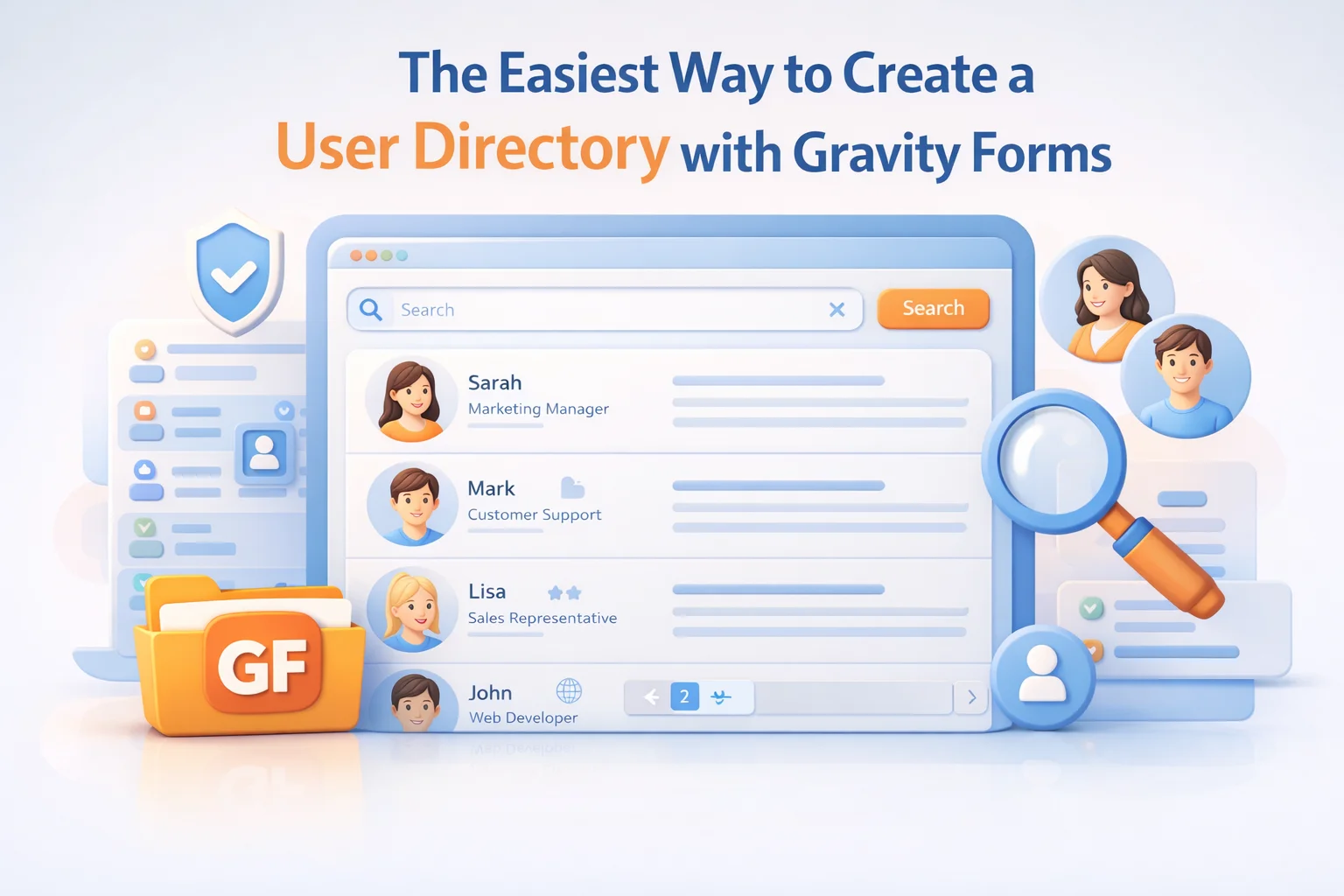
Nexu Portal — the Gravity Forms user directory and frontend dashboard plugin solves this without requiring any code. It reads directly from your Gravity Forms entries and renders them as a frontend-facing directory — searchable, filterable, and with individual profile views for each entry.
The architecture is clean: Nexu Portal is a display layer on top of your existing Gravity Forms data. There’s no data duplication, no synchronization to manage, and no separate database. When a member’s Gravity Forms entry is updated, the directory reflects that update immediately. Your data lives in one place and appears in two places — the Gravity Forms admin view and the frontend directory — without any manual synchronization.
Configure which fields are searchable and which can be used as filters. Name fields and bio fields work well for keyword search. Categorical fields — specialty, location, membership type — work well as filter dropdowns. You configure this in the Nexu Portal settings without touching any code, and changes take effect immediately.
Each entry in the directory gets its own profile page. You configure which fields appear on the profile — you might show more information on the individual profile than in the directory listing. Profile pages have their own URLs, which means they can be linked to, bookmarked, and shared. This makes the directory genuinely useful rather than just a list people scroll through once and forget.
Configure whether the directory is publicly accessible or visible only to logged-in members. This distinction matters enormously for associations and professional networks where contact information is a member benefit, not a public resource. You can also configure individual members to opt out of the directory listing while still maintaining their account — useful for members who want to participate in the community but prefer not to appear in the public roster.
A directory is only as good as the accuracy of its data. Member information changes — people change jobs, move cities, get new credentials, update their bios. If updating a directory profile requires members to email an administrator, most of them simply won’t do it. Directories built on stale data quickly lose their value as a community resource.
This is where Nexu Portal’s combination of directory display and frontend editing becomes particularly powerful. The same plugin that renders the public directory also provides the private portal interface where logged-in members can edit their own entries. From the member’s perspective: they see their public profile in the directory, and they see an “Edit my profile” button that takes them to a pre-filled form where they can update their information directly.
When they submit their changes, their Gravity Forms entry is updated and the directory reflects the new information immediately. No admin intervention required. No synchronization delays. The data is current because the member is the one keeping it current — which is how it should work.
Medical societies, bar associations, engineering guilds — any organization that maintains a searchable roster of credentialed professionals. Members register through a Gravity Form that collects their credentials, specialty, and contact details. The public directory lets patients, clients, or employers find qualified professionals in their area. The private portal lets members keep their credentials and contact information current.
Universities, schools, and alumni organizations that want to help their community find and connect with each other. Alumni register and fill in their current employer, location, and interests. The directory lets other alumni search by graduation year, industry, or location. The self-service portal lets alumni update their profiles as their careers evolve — without the association having to manually maintain a database.
Chambers of commerce, trade associations, and curated vendor networks. Businesses apply through a Gravity Form, providing their service categories, location, and contact details. The directory becomes a member benefit — a resource that drives referrals between members and provides public visibility. The self-service portal means businesses can update their listings without submitting a support ticket every time their address or phone number changes.
Building a publicly accessible directory means making people’s information visible on the internet. This has both practical and legal dimensions that are worth taking seriously before you build.
Practically: be clear with members at registration time exactly what information will appear in the public directory and what will remain private. Don’t assume they understand the distinction. Make it explicit in the registration form, ideally with a preview of what their public profile will look like. Give members a way to opt out or control their visibility.
Legally: if your directory serves members in the European Union or UK, displaying their personal information publicly creates obligations under GDPR and UK GDPR. Your privacy notice should cover the directory use of their data. Members should have the ability to request removal or modification of their public listing. None of this is onerous if you plan for it from the start — but retrofitting privacy controls onto a directory built without them is much harder. Nexu Portal’s visibility and access controls make this planning considerably more tractable.
Nexu Portal adds the directory layer your Gravity Forms setup is missing — with search, filters, individual profiles, privacy controls, and member self-service editing, all without duplicating your data or writing custom code.






Hey, this actually fixed my member directory mess!
So I grabbed this plugin specifically to turn Gravity Forms entries into a searchable member directory, and honestly, it's been more hassle than it's worth. the setup guide makes it sound like a no brainer, but getting the frontend display to actually work smoothly? Not even close.
Finally got my member directory up without hiring a dev