Next-Level Code. Nexuvibe Style ...
Hrs
Min
Sec

There is a particular kind of frustration that comes with WordPress email going to spam. Unlike an email that simply never sends, spam filtering is silent. Everything on your WordPress dashboard looks completely normal. The email was sent. The plugin reports success. And somewhere in a recipient’s junk folder, your password reset email, your order confirmation, or your contact form reply is sitting unread, or getting automatically deleted after thirty days without ever being seen.
This is one of the most common WordPress problems, and it is also one of the most misunderstood. Site owners often assume the problem is with WordPress itself, or with their email content, or even that it is their recipients’ spam filters being overly aggressive. In most cases, none of these are the real cause. The real cause is how WordPress sends email by default, and the good news is that it has a clean, permanent solution.
This guide explains the mechanics of spam filtering well enough that you will understand exactly what is triggering it on your site, then walks you through every step needed to fix it, including the DNS records, the SMTP configuration, and the ongoing monitoring that keeps your email out of spam permanently.
Understanding what you are up against makes the fix much clearer. Modern spam filters used by Gmail, Outlook, Yahoo, and corporate email servers do not just scan email content for suspicious words. They run a multi-layered authentication check before they even look at your content. If your email fails these authentication checks, it goes to spam or gets rejected outright, regardless of what the email actually says.
The authentication checks happen in this order. First, the receiving server looks at the IP address the email came from and checks whether that IP is authorized to send mail for your domain. This is the SPF check. Second, it verifies a cryptographic signature embedded in the email headers to confirm the message genuinely came from your domain and was not tampered with. This is the DKIM check. Third, it checks whether your domain has published a policy about what to do with messages that fail these checks. This is DMARC.
After the authentication checks, spam filters also look at reputation signals: whether the sending IP address has been used to send spam in the past, whether the domain has a history of good or bad sending practices, and whether recipients have been marking messages from this sender as spam. On shared hosting, you share an IP with many other sites, some of which may have terrible email reputations.
Only after all of these infrastructure-level checks does a spam filter examine the email content itself. By the time content analysis happens, the decision has often already been made. This is why fixing your email content or unsubscribe links does nothing if your authentication records are wrong.
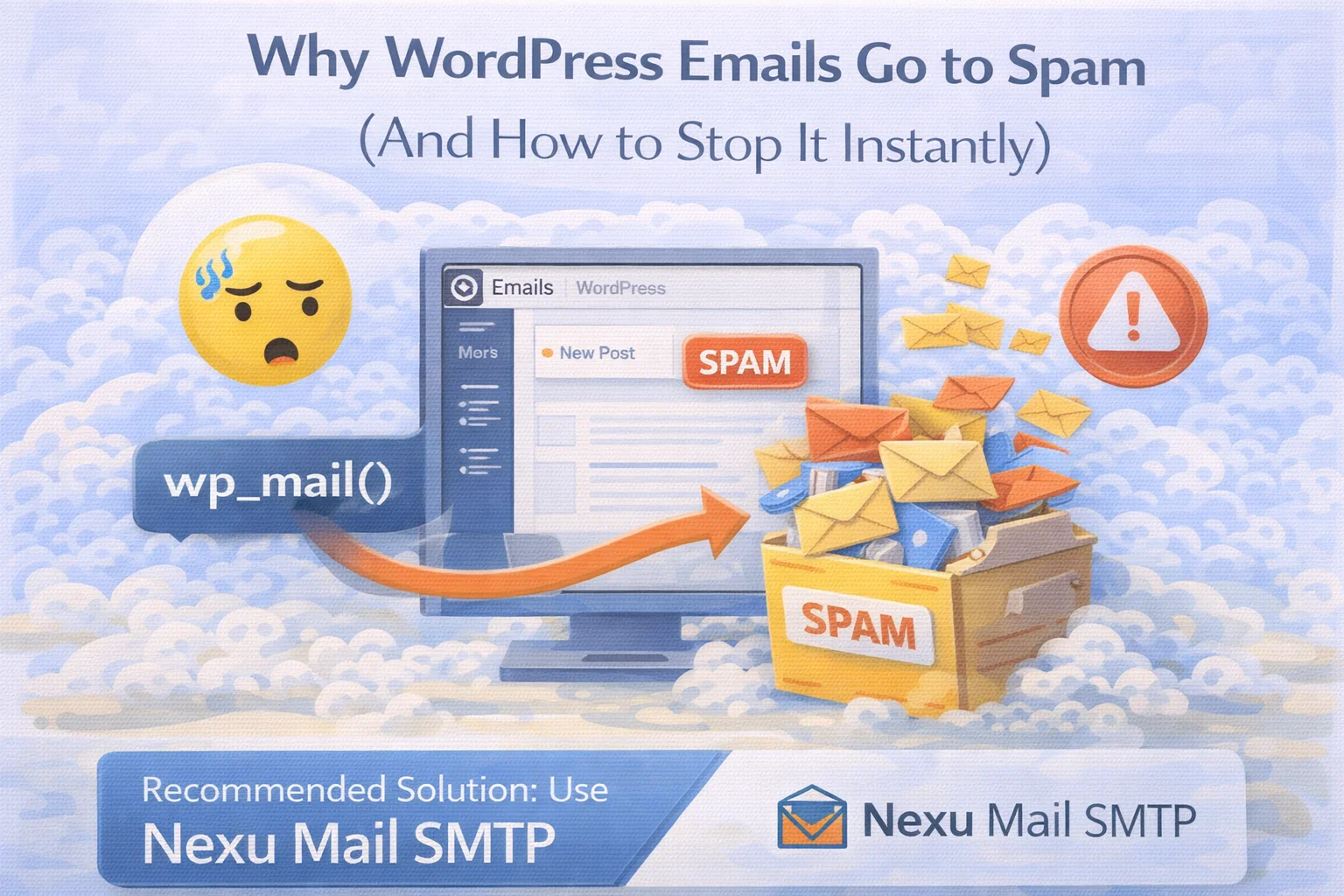
WordPress’s default email sending method creates almost every condition that spam filters are designed to catch. When WordPress sends an email using PHP’s mail() function, the email originates from your web server’s IP address. That IP address is almost certainly not listed in your domain’s SPF record as an authorized sender. The email also carries no DKIM signature, because web servers do not have DKIM signing keys configured.
The result is an email that, from a spam filter’s perspective, looks exactly like a spoofed message: it claims to be from your domain, but it comes from an IP address that has no authorization to send for that domain, and it carries no cryptographic proof of authenticity. The fact that it is a legitimate transactional email from a real WordPress site is irrelevant. The credentials do not check out.
Your SPF record lists which servers are authorized to send email for your domain. Unless you have specifically added your web server’s IP address to your SPF record (which almost nobody does), your web server has no authorization to send mail as your domain. Gmail, Outlook, and every other major mail receiver checks this. An email from an unauthorized server is automatically a spam candidate.
DKIM signs each outgoing email with a cryptographic key that the receiving server can verify against a public key published in your DNS. When WordPress sends email through the PHP mail function, no DKIM signing happens. The email arrives at the destination with no proof of authenticity, which is a significant negative signal for modern spam filters, especially Gmail and Google Workspace environments.
On shared hosting, hundreds or thousands of sites share the same IP address. If any of those sites are sending spam or have been compromised, the IP address may appear on email blacklists. Your perfectly legitimate WordPress emails are then penalized for the behavior of sites you have no connection to. This is a structural problem with relying on your web server for email delivery, not something you can fix by adjusting your own site.
WordPress sends email from [email protected] by default. If this email address does not exist as a real mailbox, or if it differs from your domain’s configured sending address, spam filters flag the inconsistency. Sending from a non-existent address, or from an address on a different domain than your website, is another classic spam signature.
The single most effective thing you can do to stop WordPress emails going to spam is to stop sending from your web server entirely. Instead, configure WordPress to route all outgoing mail through a proper SMTP service, whether that is Gmail, Google Workspace, Outlook, or a transactional email provider like SendGrid or Mailgun.
When you do this, your emails no longer come from an anonymous web server IP. They come from Gmail’s or Google’s mail servers, which are recognized and trusted by every receiving server on the internet. The SPF and DKIM authentication records are already in place on these providers’ infrastructure. Your emails arrive with full authentication credentials and pass every infrastructure-level spam check automatically.
To configure SMTP in WordPress, you need a plugin that intercepts WordPress’s outgoing email and redirects it through your SMTP credentials. Nexu Mail SMTP fixes WordPress spam problems at the server level by replacing the unreliable PHP mail function with authenticated SMTP delivery. The setup takes a few minutes: you enter your SMTP host, port, and credentials, set a consistent From Name and From Email address, and every email WordPress sends from that point forward goes through your chosen mail service with full authentication.
One detail that trips up many people during setup: if you are connecting through Gmail, you cannot use your regular Gmail password. Google requires an App Password, a special credential generated specifically for third-party app access under your Google Account’s security settings. This is easy to generate but easy to miss if you are following a guide that was written before Google made this mandatory.
Configuring SMTP is the sending fix. Configuring your DNS authentication records is the credentialing fix. You need both. SMTP ensures your emails go through a trusted server. DNS records prove that server is authorized to send for your domain. Together, they give your emails a clean bill of health at every checkpoint a spam filter runs.
Your SPF record is a DNS TXT record on your domain that lists authorized sending servers. Each email provider has a specific include statement to add to your SPF record. For Gmail and Google Workspace, you add include:_spf.google.com (see Google’s official SPF documentation ) to your record. For SendGrid: include:sendgrid.net. For Mailgun: include:mailgun.org. Your domain registrar or hosting control panel is where you add this record. If you already have an SPF record, you add the include statement to the existing record, do not create a second SPF record, as only one is valid.
DKIM setup works slightly differently depending on your provider. For Google Workspace, you generate a DKIM key in the Admin Console under Apps > Google Workspace > Gmail > Authenticate Email, then add the provided TXT record to your domain DNS. For transactional providers like SendGrid or Mailgun, the DKIM records are provided in your account dashboard and need to be added as CNAME records on your domain. Once added, allow up to 48 hours for DNS propagation before testing.
Start with a monitoring-only DMARC policy: v=DMARC1; p=none; rua=mailto:[email protected]. This tells receiving servers to take no action on failed messages but to send you aggregate reports, so you can verify that your SPF and DKIM are working correctly before moving to a stricter policy. After a few weeks of clean reports, you can update the policy to p=quarantine or p=reject for stronger protection. Never jump straight to p=reject without first confirming your authentication records are working perfectly.
After configuring SMTP and updating your DNS records, you need to actively verify that emails are now landing in the inbox and not just feeling like they should be. Do not assume the fix worked, test it.
Beyond the one-time deliverability test, you need ongoing visibility into what your WordPress site is sending and whether it is being delivered. This is where an email log becomes essential. Without a log, you are back to relying on customer complaints to detect spam problems. A full email log that records every outgoing message, its recipient, and its delivery status means you can check at any time whether emails are reaching their destinations.
Nexu Mail SMTP’s built-in WordPress email log with spam detection alerts gives you this visibility automatically. Every email your site sends is logged with a full status record, so the moment something changes, an SMTP credential expires, a provider configuration shifts, a new plugin starts generating emails that bypass your SMTP configuration, you see it immediately rather than finding out from a customer three days later.
Once your technical setup is correct, the remaining causes of spam placement are in the email content itself. These are secondary to authentication, but they matter once you have the infrastructure right.
Certain words and patterns in subject lines are heavily weighted by spam filters: excessive use of all caps, multiple exclamation marks, words like “free,” “guaranteed,” “winner,” “congratulations,” and most financial terms. Transactional emails from WordPress (order confirmations, password resets) generally do not have this problem, but if you are using WordPress to send promotional emails or newsletters, be aware of what your subject lines look like through a spam filter’s lens.
Emails that are primarily images with very little text are a classic spam signature. Spam filters cannot easily analyze image content, so image-heavy emails are treated as suspicious by default. WordPress transactional emails do not typically have this problem, but custom HTML emails built with page builders or marketing tools often do. Aim for a roughly balanced ratio of text to images.
Links in emails are checked against blacklists of known spam or malware domains. If your WordPress site links to any external resource (tracking pixels, third-party services, shortened URLs) that appears on a domain blacklist, that can trigger spam classification for an otherwise clean email. Review any external links in your email templates and ensure they go to reputable, clean domains.
A high bounce rate is one of the fastest ways to damage your sender reputation. If your WordPress site is regularly sending to invalid email addresses (customers who mistype their address during registration, old addresses that no longer exist), email providers notice the pattern and begin treating your sending domain as a low-quality sender. Keep your email list clean and handle bounce notifications from your SMTP provider.
WordPress emails going to spam is a solvable problem with a clear solution path. The overwhelming majority of cases come down to the same root cause: emails being sent from an unauthorized server with no authentication credentials. Fixing the sending infrastructure. SMTP configuration plus DNS authentication records, resolves it permanently in almost every case.
The key is doing it completely. Half-measures, like adding an SPF record without configuring SMTP, or configuring SMTP without adding DKIM, leave you still failing some of the checks that spam filters run. The checklist above covers everything. Work through it in order, test your deliverability score after each major change, and use an email log to maintain visibility once everything is working correctly.
Nexu Mail SMTP replaces WordPress’s unreliable default mail function with authenticated SMTP delivery, and adds a full email log so you always know what was sent and whether it arrived.








Hey everyone, just wanted to share my experience with this email deliverability guide. As an HR director, I don't normally mess with tech stuff, but we've had so many issues with WordPress emails like password resets and onboarding links just disappearing into spam folders.
Finally fixed my email issues after years of headaches! The DMARC setup was way simpler than I thought just followed the guide step by step. no more lost order confirmations.
Will this work on shared hosting?