
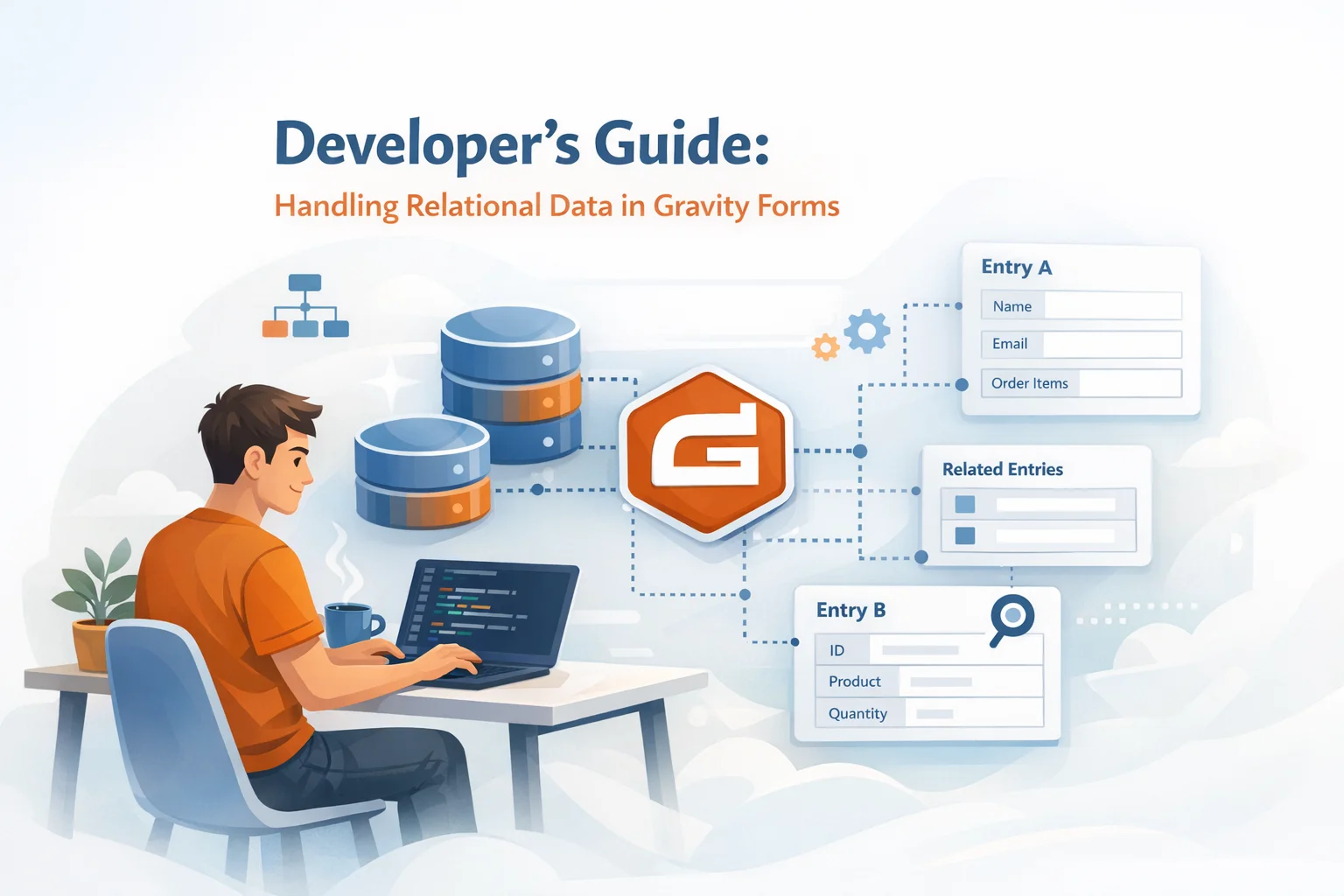
If you think about Gravity Forms entries the way a database developer thinks about tables, the limitations become obvious fast. Each form is essentially a flat table. Each entry is a row. Each field is a column. There are no foreign keys, no joins, no relationships between entries. If you need a company record connected to multiple employee records, or a project record linked to multiple task records, the native architecture does not give you a way to express that.
And yet, relational data is what almost every serious WordPress application needs. CRM systems, project management tools, inventory trackers, enrollment systems, multi-step approval workflows: all of these require one record to reference multiple related records. Developers who need this in Gravity Forms have three options: build a custom database schema alongside the forms, use the Gravity Forms entry tables with clever workarounds, or use plugins that add relational capabilities directly to the form layer.
This guide covers the architectural patterns, the tools, and the practical implementations for handling relational data in Gravity Forms. It is written for developers who understand data relationships and want to know how to implement them within the Gravity Forms ecosystem rather than around it.
How Gravity Forms stores data under the hood
Before building relational patterns, you need to understand the storage architecture. Gravity Forms uses a multi-table schema within the WordPress database that is more sophisticated than most developers expect.
wp_gf_entryThe primary entry table. Each row is one form submission. Contains the entry ID, form ID, submission date, user agent, IP address, source URL, and status. This is the “row” in the flat table model. Notably, it does not contain the actual field values directly.
wp_gf_entry_metaThe field values table. Each field value for each entry is stored as a separate row with the entry ID, field number (meta_key), and the value (meta_value). This is an EAV (Entity-Attribute-Value) pattern. A form with 20 fields creates 20 rows in this table per entry. This structure is flexible but makes relational queries more complex than a traditional normalized schema.
There is no built-in mechanism for linking one entry to another. No foreign key field. No parent-child reference table. No join capability in the core API. Every relationship between entries must be implemented through metadata conventions, shared field values, or third-party plugins that extend the schema.
This architecture works well for independent form submissions. It breaks down when your application logic requires one submission to “own” or “reference” other submissions. That is the fundamental gap this guide addresses.
The three relational patterns in Gravity Forms
Relational data in Gravity Forms falls into three patterns. Each one has different implementation approaches, different tool requirements, and different tradeoffs. Understanding which pattern your project needs determines which solution is right.
One parent record contains multiple child records within the same entry. A company registration that includes multiple employees. An order that includes multiple line items. A project that includes multiple tasks. The child records are not separate entries; they are embedded inside the parent entry as structured data. This is the simplest relational pattern and the one most non-developer users need.
One parent entry links to multiple child entries that exist as independent database records. Each child entry has its own entry ID, its own metadata, and its own feed processing. The relationship is maintained through a parent entry ID stored in the child’s metadata. This pattern is needed when each child record requires its own lifecycle: separate notifications, separate workflow steps, or separate feed processing (like registering each child as a WordPress user).
Entries from one form reference data from entries in another form. A support ticket form references a customer record from a customer database form. An invoice form references products from a product catalog form. This pattern does not create new child entries. It looks up and displays existing data from other entries or forms based on shared field values.
Choosing between embedded and linked child data
This is the most important architectural decision you will make when implementing relational data in Gravity Forms. The choice between embedded (Pattern 1) and linked (Pattern 2) affects everything downstream: the form UX, the data storage, the entry display, the export format, the feed processing, and the query complexity.
If you need each child record to trigger independent processing (user registration per child, separate CRM entries, individual notifications per child, or workflow steps per child), use linked child entries via Nested Forms. For everything else, embedded child data via a repeater is simpler to implement, simpler to query, and produces cleaner entry displays. The majority of one-to-many scenarios in real projects are the “everything else” category.
Implementing Pattern 1: Embedded one-to-many with a repeater
The embedded pattern is the most common relational need and the simplest to implement. You define a repeatable section inside your form, the user adds child records as rows, and the data is stored as a single structured JSON value within the parent entry.
From a developer perspective, the NEXU Advanced Repeater plugin for Gravity Forms developer-friendly relational data stores repeater data as JSON that you can access through the standard Gravity Forms entry API. You retrieve the entry, access the repeater field value, and parse the JSON to get an array of row objects. Each row object has named properties matching the fields inside the repeater.
This means you can work with the child data programmatically without managing a separate entry table, without joining across tables, and without worrying about orphaned child entries when a parent is deleted. The lifecycle is simple: one entry, one JSON value, one delete operation cleans everything up.

Implementing Pattern 2: Linked one-to-many with child entries
When each child record needs to exist as an independent entry, the linked pattern uses two forms: a parent form and a child form. The child form is embedded inside the parent form using a Nested Form field. Each child submission creates a real entry in the wp_gf_entry table with a gpnf_entry_parent meta value linking it to the parent entry ID.
This architecture is genuinely powerful. You can query child entries independently, process feeds per child (user registration, CRM creation, individual notifications), and manage child entries through the standard Gravity Forms admin interface. The tradeoff is complexity: you manage two forms, handle orphaned entries (child entries submitted before the parent form is completed), and work with a more complex data retrieval pattern.
For developers building applications on top of Gravity Forms rather than just collecting form data, this pattern opens up possibilities that the embedded approach cannot match. A training management system where each course enrollment creates a user, sends an individual confirmation, and tracks completion status independently needs this level of child entry independence.
Implementing Pattern 3: Cross-form data lookups
Cross-form lookups are the most “database-like” pattern. You create a form that serves as a data table (a product catalog, a customer directory, a location database), and other forms reference that data through dynamic population.
Populate Anything enables this by letting you configure a field to query entries from any form, filter by field values, and populate the results into dropdowns, text fields, or hidden fields. When the user selects a customer from a dropdown populated by customer entries, the form can auto-fill the customer’s address, phone number, and account details from the matched entry.
This pattern works well for reference data that changes independently of the forms that consume it. When you update a product price in the product catalog form, every form that references that product automatically uses the updated price. This is the same concept as a foreign key lookup in a relational database, implemented through field population rather than SQL joins.
Real-world architecture: a project management system in Gravity Forms
To make these patterns concrete, let us walk through how you would architect a lightweight project management system using Gravity Forms with relational data.
Project name, client (dropdown populated from a Client Directory form via Populate Anything), start date, end date, budget, status. This is Pattern 3: cross-form lookup for client data.
A repeater section inside the project form. Each row: task name, assignee (dropdown populated from staff), estimated hours, status. This is Pattern 1: embedded one-to-many. The task data lives inside the project entry. Per-row hour calculations multiply estimated hours by the assignee’s hourly rate.
A separate time tracking form where team members log hours against projects. The project is selected from a dropdown populated by existing project entries. This is Pattern 2 (loosely) combined with Pattern 3: each time entry is independent, references a project by entry ID, and can be aggregated to show total hours per project.
A standalone form serving as the client database. Client name, contact person, email, phone, billing address. Other forms populate client information from these entries. Updating a client’s phone number here automatically propagates to every form that references it.
This architecture uses all three relational patterns. The tasks are embedded inside projects (Pattern 1 via repeater). The time entries are independent records that reference projects (Pattern 2/3 via cross-form population). The client data is a reference table consumed by other forms (Pattern 3 via Populate Anything). Together, they create a relational system that would traditionally require a custom database schema, implemented entirely through the Gravity Forms form layer.
Performance considerations for relational form systems
Building relational systems on Gravity Forms is practical, but it has performance boundaries that traditional databases do not. Knowing these boundaries prevents you from building something that works in development and breaks in production.
Gravity Forms performs well up to tens of thousands of entries per form. Beyond 100,000+ entries, queries against the EAV-structured meta table slow down noticeably. If your reference data forms will accumulate entries at this scale, consider periodic archiving or using a custom database table as the data source instead of Gravity Forms entries.
Dynamic dropdowns populated from large datasets (500+ records) can slow form rendering. Use filtering to limit the result set, enable lazy loading when available, and consider caching strategies for data that does not change frequently. A dropdown that takes 3 seconds to load on every form view creates a worse UX than the problem it solves.
Gravity Forms is an excellent tool for building data collection and lightweight relational systems. It is not a replacement for a purpose-built database application. If your system needs complex many-to-many joins, aggregate reporting across tens of thousands of records, transactional integrity, or concurrent multi-user editing, you have likely outgrown what Gravity Forms should be used for. Use it as the data entry layer and move the data to a proper database for heavy processing.
The developer’s toolkit for relational Gravity Forms
Here is the focused plugin stack that covers the three relational patterns. Each plugin addresses a specific architectural need rather than trying to be a general-purpose solution.
For most developer projects, the combination of NEXU Advanced Repeater (for embedded one-to-many) and Populate Anything (for cross-form lookups) covers 80% of relational data needs. The remaining 20%, where per-child entry independence is required, is where Nested Forms earns its place. And GravityKit ties the frontend display layer together when you need to present relational data to end users outside the WordPress admin.
Embedded relational data for Gravity Forms. No custom schema needed.
NEXU Advanced Repeater stores one-to-many child data as structured JSON within parent entries. Query it through the standard GF API. From $19/year.





This guide seriously saved me hours of head scratching. the flat table setup is not intuitive when you're coming from normalized databases, but the workarounds in here actually work. I just wish I'd found it sooner would've saved me from reinventing the wheel. querying related entries still feels a little clunky compared to SQL joins, but hey, that's just how this platform rolls. Definitely worth a read if you're stuck!
Finally solves my EAV headaches.
Wow, this guide seriously saved my project. i was totally stuck trying to link student applications to parent accounts in our school portal, and the flat table setup had me about ready to give up on Gravity Forms altogether