Next-Level Code. Nexuvibe Style ...
Hrs
Min
Sec

Furniture and large item delivery is categorically different from parcel delivery. A courier dropping off a package needs to reach your front door. A two-person delivery team carrying a three-seater sofa, a wardrobe, or a large dining table needs to know whether there is a lift in your building, whether the staircase can accommodate the item’s dimensions, whether there is a dedicated delivery time window, what floor the property is on, whether old furniture needs removing, and whether the item should be assembled in situ. The delivery attempt that fails because the team could not get a wardrobe past the landing or could not access a building without a buzzer code is expensive — in returned stock, rescheduled deliveries, damaged relationships with customers, and operational costs that compound with scale.
None of this information exists in the standard WooCommerce checkout form. The default form collects a shipping address and a phone number. It has no concept of the operational complexity of delivering a 2-metre bookcase to the third floor of an apartment block. The gap between what the checkout captures and what the delivery team needs is filled — in most furniture and large item stores — through a post-order phone call or email that takes time, creates delay, and fails to reach a significant proportion of customers before the delivery window arrives.
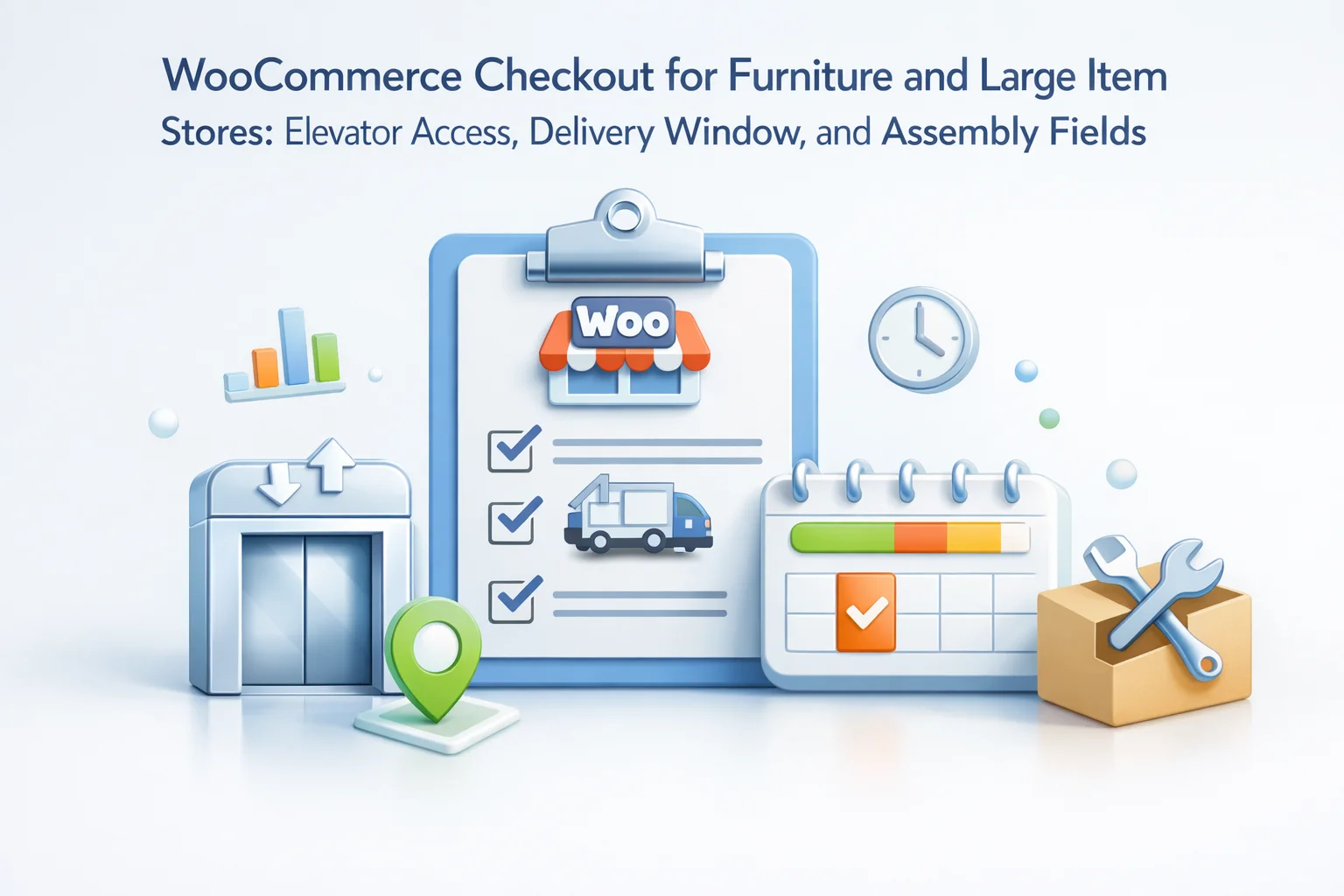
This guide builds the complete furniture and large item delivery checkout — every field your logistics team needs, configured per-product so fields appear only when items requiring them are in the cart, with conditional logic that adapts to different delivery scenarios. All implementation is done using the NEXU Advanced Checkout Field Editor for furniture and large item WooCommerce stores — no code required.
By the end, your delivery coordinators will have everything they need from the order record — before the driver leaves the depot — and your customers will experience a checkout that signals your business understands the complexity of what they are ordering and has a professional system for handling it.
Furniture and large item delivery failures are disproportionately costly compared to failed parcel deliveries. A missed parcel delivery results in a redelivery attempt — a relatively low cost. A failed large item delivery attempt with a two-person crew, a delivery vehicle, and fuel costs — where the team drives to the address, discovers they cannot access the building or get the item through an access point, and has to return the stock — can easily cost £50–£200 per failed attempt, before accounting for the rescheduling overhead and customer relationship damage.
A delivery team arrives at an apartment block with a 2.1m tall wardrobe. The lift dimensions are 1.9m by 1.4m. The staircase turns at a 90-degree angle on every landing with a clear width of 85cm. Nobody knew this because nobody asked at checkout. The team cannot complete the delivery. The stock returns to the warehouse. The customer waits for a rescheduled attempt. The operational cost of this single failure exceeds the margin on the item. An access constraints field at checkout would have flagged this before the driver left the depot.
Unlike parcel delivery, furniture delivery almost always requires the customer to be present — to direct the team to the right room, to accept the delivery, to confirm assembly requirements. A delivery arriving at 10am when the customer expected an afternoon window and is at work results in a failed attempt, a wasted journey, and a rescheduling process that tests the customer’s goodwill. A preferred delivery window field at checkout — or at minimum a preferred morning/afternoon/specific slot — eliminates this entirely by aligning the delivery schedule with the customer’s availability before the order enters the logistics system.
A delivery team arrives to deliver a flat-pack wardrobe. The customer asks if they can assemble it. The team has not allowed time for this, does not have the right tools, and has three more deliveries scheduled after this one. If assembly was ordered, it should have been known before the delivery was routed. If assembly was not ordered, the customer’s request creates an on-the-doorstep negotiation that no one wins cleanly. An assembly preference field at checkout resolves this by capturing the requirement before the route is planned.
The customer ordered a new sofa. The old sofa is still in the living room. They assumed the delivery team would take it away. The delivery team was not briefed on old item removal, does not have capacity on the vehicle, and has no disposal process for this type of item. This scenario — repeated across hundreds of furniture deliveries annually — creates on-site disputes, damaged customer relationships, and logistical problems that a simple old item removal field at checkout would prevent entirely.
Here is the complete set of checkout fields a furniture and large item WooCommerce store should consider, with detailed guidance on each field’s operational purpose and configuration.
Large item delivery requires the customer to be present and available to receive a two-person crew. Unlike a parcel that fits through a letterbox, a wardrobe delivery that the customer misses requires a full rescheduled attempt. A delivery date field with minimum date set to your production plus logistics lead time allows customers to select a date they will be available. For stores with long-lead custom or made-to-order furniture, set the minimum date appropriately — a bespoke sofa with a 6-week production time needs a minimum date 6 weeks out. Block dates your delivery service does not operate.
A time window preference dropdown gives customers a meaningful way to communicate when they will be available without the operational complexity of booking precise arrival times. Common options for furniture delivery: Morning (8am–1pm) / Afternoon (1pm–6pm) / All day (available from 8am). Some stores offer more precise windows — 8am–12pm / 12pm–4pm / 4pm–7pm — which can reduce failed attempts at the cost of more complex routing. Choose the granularity your logistics operation can reliably fulfill. Frame this as a preference rather than a guarantee in the label text — delivery routing constraints mean you cannot always honor exact window preferences.
Property type is fundamental logistical information for large item delivery. A house delivery (ground floor, direct access, parking near the entrance) requires a completely different approach from an apartment delivery (entry system, lift or stairs, potentially restricted parking, longer carry distances). The property type selection triggers subsequent conditional fields — an apartment requires floor level, lift availability, and staircase questions that a house delivery does not. A commercial delivery requires different information again. Configure this field’s value to trigger the appropriate follow-on fields using nested conditional logic.
Floor level determines the logistics effort and time allocation for an apartment delivery. Ground floor is roughly equivalent to a house delivery. Third floor without a lift is three flights of stairs with a heavy item — significantly more time, potentially more crew members, possibly requiring specialist equipment. This field should only appear when the property type is Apartment or Flat. Options: Ground floor (0) / First floor (1) / Second floor (2) / Third floor (3) / Fourth floor (4) / Fifth floor or above (5+). The “5th floor or above” option may trigger a separate assessment contact before confirming the delivery.
The availability and dimensions of a lift are critical for large item delivery planning above ground floor. A lift that exists but is too small for the item being delivered is effectively the same as no lift — the team will need to use stairs or the delivery may be impossible without alternative arrangements. A lift that does not exist means a staircase carry regardless of floor. The lift availability field should ask both whether a lift exists and, if it does, whether it is large enough to accommodate furniture. Options: No lift — stairs only / Lift available (standard size) / Lift available but may be small — dimensions: [text field].
A general access constraints textarea captures everything that structured dropdowns might miss — narrow doorways, low ceilings, restrictive parking zones, building management requirements, times when the lift is unavailable, specific entry instructions for the depot team. Pair this with a dedicated field for building entry codes or buzzer details (covered earlier in the food delivery guide as the gate code field). Label the textarea: “Any access constraints or information for the delivery team.” This is the safety net field that catches the unusual scenarios not covered by the structured fields above it.
For furniture that arrives flat-pack or in sections requiring on-site assembly, an assembly preference field captures the customer’s choice before the delivery is routed. If you charge for assembly, include the price in the option label so there is no ambiguity. Options: No assembly required — I will assemble myself / Yes, please assemble during delivery (+£XX). For items that always ship assembled or always require assembly, this field is not needed — configure it only on products where the choice is genuinely available. This field is best configured as a per-product field on individual furniture products rather than a global checkout field.
If you offer old item removal as a service — disposing of the customer’s existing furniture when delivering a replacement — this field captures the requirement and charges appropriately. Old item removal requires pre-planning: the vehicle needs capacity, the disposal process needs to be in place, and the delivery routing may need to include a drop-off at a recycling facility. A field that is not available at checkout means last-minute doorstep negotiations with no revenue or planning behind them. Options should reflect exactly what you offer — type of items accepted, whether there is a charge, and any restrictions (e.g. “mattresses only” or “sofas and chairs only”).
A simple field that saves significant customer effort: would the customer like the delivery team to remove all packaging from the property after installation? Large furniture packaging — polystyrene sheets, cardboard boxes, foam wrapping — is voluminous and difficult for customers to dispose of without specialist recycling access. Offering packaging removal as a service (included or charged) is a meaningful value-add that customers appreciate and that can differentiate your service from competitors. Options: Leave packaging for me to dispose of / Please remove all packaging after delivery (included in white glove service).
Not every product in a furniture or home goods store requires the full large item delivery field set. A store selling both furniture and small accessories — cushions, throws, decorative items — should not subject every checkout to floor level questions and elevator availability fields. Per-product and category-based conditional logic ensures these fields appear only when large item products are in the cart.
There are two complementary approaches for triggering large item delivery fields. The first is cart-based conditional logic: create a WooCommerce product category called “Large Item Delivery” and assign all furniture and large item products to it. Then configure the delivery fields with the rule: show when the cart contains a product from the “Large Item Delivery” category. Every product assigned to this category automatically triggers the delivery fields when added to a cart.
The second approach is per-product field configuration: for each large item product, configure the delivery-specific fields (assembly preference, old item removal) in the product’s individual checkout fields tab. These fields appear only when that specific product is in the cart. This is more precise — a dining table might offer assembly but not old item removal, while a sofa might offer both — but requires more individual configuration work for large catalogs.
For most furniture stores, the optimal approach is a combination: use category-based conditional logic for the universal large item delivery fields (delivery date, time window, property type, floor level, elevator access, access constraints) since these apply to all large items, and use per-product fields for item-specific service options (assembly, old item removal) since these vary by product type.
Here is the complete configuration sequence for a furniture store checkout with the full large item delivery field set.
Go to Products > Categories and create a category named “Large Item Delivery” (or similar). Assign all furniture and large item products to this category alongside their existing categories. This is the trigger category for the conditional rules on all global large item delivery fields. Products can belong to multiple categories — a sofa can be in both “Sofas” and “Large Item Delivery.”
Create a Date Picker field. Set minimum date based on your lead time. Field key: delivery_date. Conditional: show when cart contains product from “Large Item Delivery” category. Follow with a Dropdown field for the time window preference. Field key: delivery_window. Same conditional rule.
Create a Dropdown field for property type. Field key: property_type. Options: House / Apartment or flat / Commercial / Other. Conditional: show when cart contains “Large Item Delivery” category product. This field becomes the sub-trigger for apartment-specific fields.
Create a Dropdown for floor level. Field key: floor_level. Conditional: show when “Large Item Delivery” category AND property_type = “Apartment or flat.” Follow with elevator availability dropdown. Field key: elevator_access. Same nested conditional. Both fields are invisible for house deliveries and appear only for apartment deliveries.
Create a Textarea for access constraints. Field key: access_notes. Conditional: show when “Large Item Delivery” category. Follow with a Text field for entry/access code. Field key: entry_code. Same condition. Both optional.
For each furniture product that offers assembly, open the product in the product editor and add an Assembly dropdown in the Checkout Fields tab. For products where old item removal is relevant, add that dropdown too. These per-product fields appear alongside the global delivery fields at checkout, creating a complete delivery brief specific to the item being ordered.
Different furniture product types have different field requirements. Here are the recommended per-product fields for the most common furniture and large item categories.
Assembly for sofas typically means attaching legs and cushions rather than complex flat-pack assembly — but it still takes time. Old sofa removal is highly relevant for this category. Fabric protection application (Scotchgard or similar) is a common upsell that can be offered as a per-product checkbox field at checkout: “Apply fabric protection treatment during delivery (+£XX).”
Bed assembly is more involved — typically a 30–45 minute job that significantly affects the delivery route schedule if not pre-booked. Old bed and mattress removal are separate disposal items (mattress recycling has different requirements from furniture disposal). If your old item removal service covers both, make this clear in the field options. If mattress removal is not available, state this explicitly so customers are not surprised at the doorstep.
Wardrobes are the most access-constraint-sensitive furniture category — tall, rigid, and difficult to manoeuvre around corners. A per-product field asking “Have you confirmed the item’s dimensions will fit through your doorways and up your staircase?” (with a link to the product’s dimensions and a standard door clearance guide) serves as both a practical check and a liability management measure. Assembly for flat-pack wardrobes is significant — 1–2 hours — and must be pre-booked.
Tables typically require assembly (legs attached, leaves fitted) while chairs are usually pre-assembled. If assembling multiple chairs, capturing the quantity at checkout helps the delivery team allocate time correctly. A text field “Number of chairs requiring assembly (if any)” or a dropdown “0 / 2 / 4 / 6 / 8 chairs” gives the logistics team the information needed to schedule the stop duration accurately.
White goods (washing machines, dishwashers, fridge-freezers) have connection requirements beyond furniture assembly. If you offer a connection service — plumbing in a washing machine, connecting a cooker — this is a significant value-add that must be pre-booked with appropriately qualified engineers. Old appliance removal follows different disposal regulations from furniture and should have its own field options reflecting what your collection service can handle.
For made-to-order furniture, a checkbox field “I would like a pre-delivery survey to confirm dimensions and access” is a professional service offering that reduces installation failures for large bespoke pieces. Capturing the customer’s availability for this survey — a date range or a preferred contact time — in a per-product text field avoids the post-order scheduling call.
Every field value collected at checkout is stored as WooCommerce order metadata — permanently linked to the order, visible in the admin panel, and included in the new order notification email. Your delivery coordinator opening a new order sees the complete delivery brief: requested date, preferred time window, property type, floor level, elevator status, access code, access notes, assembly requirement, old item removal, and any per-product service additions.
For delivery operations using route planning or logistics software — particularly relevant for stores with their own delivery fleet — WooCommerce order export includes all custom field metadata. This means the delivery brief data exports alongside the delivery address, allowing it to be imported into your route planning system or fed into delivery management tools. Delivery stops can be scheduled with accurate time allowances because the assembly requirements, floor levels, and access constraints are known before the route is built.
According to research published by the Metapack Delivery Consumer Report, delivery experience is the second most important factor in repeat purchase decisions for online furniture buyers, behind only product quality. A delivery that goes smoothly — because the team had the right information, arrived in the expected window, had the right equipment for the floor level, and completed assembly as pre-agreed — is a repeat customer. A delivery that fails — because none of that information was available until the driver arrived — is frequently a lost customer.
The checkout field system described in this guide is the foundation of that smooth delivery experience. The NEXU Advanced Checkout Field Editor for WooCommerce large item delivery provides the technical implementation — date pickers, dropdowns, textareas, nested conditional logic, per-product fields, and full WooCommerce order integration. The logistics process and service offerings that make use of this data are yours to design — this guide provides the complete field architecture to capture everything those processes need from the moment the order is placed.
NEXU Advanced Checkout Field Editor gives you date pickers, delivery window dropdowns, nested property type conditional logic, elevator access fields, assembly options, and old item removal — all linked to WooCommerce orders for immediate logistics planning.







Hey! Just installed this and wow the delivery window fields alone saved me a headache
Got this for my brother's furniture store after his delivery guys kept getting caught off guard by staircases and no elevators. Just the delivery window and floor level fields saved him two reschedules last week. Still, way better than crossing your fingers and hoping a sofa fits before the truck even arrives
I was really hoping this would solve my checkout issues for bulky furniture, but it's missing the most basic thing. my building has staircases that turn 90 degrees at every landing with only 85cm clearance. The plugin doesn't even ask about tight turns or narrow stairwells just elevator access and floor number. Now I've got a sofa stuck halfway up because the team didn't know ahead of time. why isn't this part of the "access constraints" you advertise? Save yourself the headache and find something that actually covers real world delivery problems
Does this handle old sofa removal during delivery?