Next-Level Code. Nexuvibe Style ...
Hrs
Min
Sec

Gift purchases are a significant revenue opportunity for almost every e-commerce store — but they are also a distinct transaction type that requires different information than a standard self-purchase. A customer buying something for themselves does not need to write a card message, specify a gift wrapping style, or choose a delivery date based on someone else’s schedule. A customer buying a gift for a birthday, anniversary, or holiday needs all three of those things and expects the checkout to accommodate them.
The problem most WooCommerce stores solve this problem badly in one of two ways. Some add gift message and delivery date fields to the global checkout, where they appear for every customer regardless of whether the purchase is a gift. This creates unnecessary clutter for the majority of customers who are buying for themselves — adding fields they must skip past, which increases form length and reduces conversion rates. Others add no gift fields at all, leaving gift buyers to write “please include a gift note” in an order notes field — a vague instruction that often gets missed or mishandled in fulfillment.
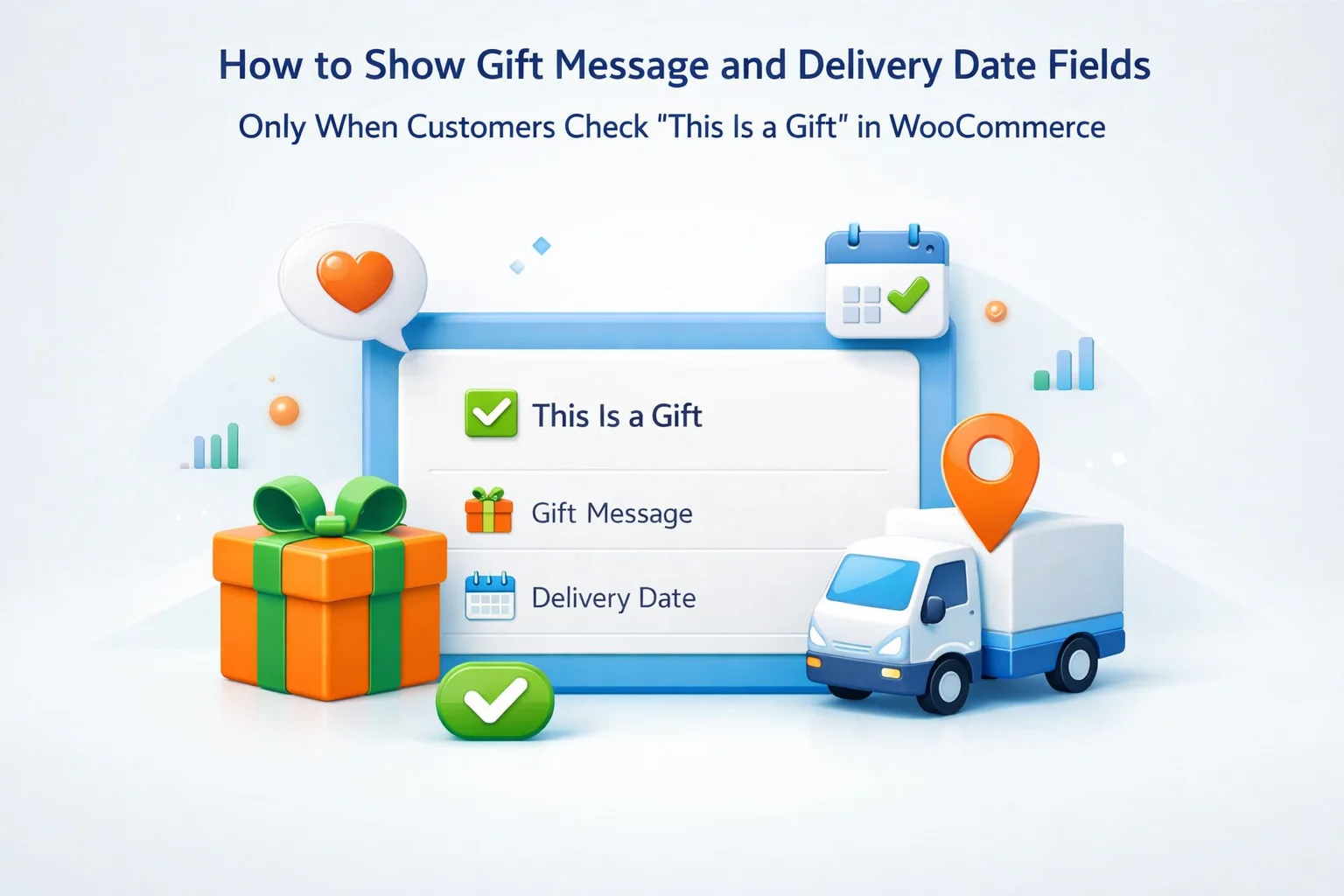
The elegant solution uses field-value conditional logic: a single “This is a gift” checkbox that reveals a complete gift experience — message, delivery date, gift wrap preference, recipient name — only when the customer checks it. Customers buying for themselves see none of these fields. Customers buying gifts see exactly the fields they need, appearing exactly when they signal the purchase is a gift. This guide shows you precisely how to build this system using the NEXU Advanced Checkout Field Editor with field-value conditional logic.
The result is a checkout that serves both customer types perfectly — fast and clean for self-purchases, rich and functional for gift buyers — without a single unnecessary field being shown to anyone who does not need it.
Gift purchases represent a meaningful share of revenue for most consumer-facing e-commerce stores, and the share spikes significantly during seasonal periods — Christmas, Valentine’s Day, Mother’s Day, Father’s Day, birthdays. Research from the National Retail Federation consistently shows that gifting accounts for a substantial portion of e-commerce volume, and that customers specifically value stores that offer a complete, hassle-free gift purchasing experience including gift wrapping, personalized messages, and reliable delivery scheduling.
The checkout experience is where gift purchasing either succeeds or fails. A gift buyer who cannot specify a card message is a gift buyer who may go elsewhere — to a competitor who offers a more complete gift experience, or to a third-party gift wrap service that handles the presentation element they wanted from you. A gift buyer who cannot choose a delivery date for a time-sensitive occasion like a birthday is a gift buyer who may simply decide the risk of the item arriving on the wrong day is too high. These are genuine purchase decisions being made at your checkout page, and they are affected directly by which fields you offer.
Conditional gift fields optimize your checkout in two directions simultaneously. For the majority of customers who are buying for themselves, hiding the gift fields removes clutter and speeds up checkout. For the minority who are buying gifts, showing the full gift experience makes them significantly more likely to complete the purchase and more likely to return for future gifting occasions. You get both outcomes from a single configuration decision.
The conversion impact of checkout field reduction is well-documented. The Baymard Institute’s checkout research has consistently found that reducing the number of visible form fields is one of the highest-impact checkout optimization changes available. Hiding gift fields for non-gift purchases is a direct application of this principle — every field hidden from a customer who does not need it is a reduction in perceived form length and a reduction in checkout abandonment risk.
There are two types of conditional logic available in the NEXU Advanced Checkout Field Editor, and it is important to understand which one powers the gift field system before we get into configuration.
Cart-content conditional logic triggers fields based on what is in the customer’s cart — which products are present, which categories are represented, which shipping method is selected. This is what powers the shipping-address-appears-for-physical-items behavior described in the mixed-store checkout guide. It evaluates the cart, not any field the customer has filled in.
Field-value conditional logic is different. It triggers fields based on the value of another field that the customer has already interacted with on the checkout page itself. When a customer checks a checkbox, selects a dropdown option, or types a specific value into a text field, other fields can appear or disappear in response. This is the mechanism behind the gift field system — the “This is a gift” checkbox is a field whose checked/unchecked state is the trigger for all the gift-specific fields that follow.
From the customer’s perspective, this interaction feels natural and responsive. They see the checkout form in its standard state. They notice the “This is a gift” checkbox — prominently placed but unobtrusive. If they check it, the form expands smoothly to reveal the gift-specific section: a card message textarea, a delivery date picker, a gift wrap selection dropdown, and optionally a recipient name field and a “Do not include a receipt” checkbox. If they uncheck it, those fields collapse again. The form adapts to their stated intent in real time.
Once the “This is a gift” checkbox is checked, a well-designed gift experience reveals several fields in a logical sequence. Here is the complete recommended gift field set with detailed guidance on each.
The most universally expected gift field. Label it clearly — “Personal message for the gift card” — so customers understand this text will appear on a physical or printed card included with the order, not as a delivery note to the courier. Use placeholder text to set format expectations: “e.g. Happy Birthday! Wishing you all the best. Love, Sarah.” Consider adding a character count helper or a note about maximum length if your gift cards or slips have a physical size constraint. Make this field optional — some gift buyers want to keep the card message separate and will write their own by hand.
Delivery date selection is one of the highest-value fields for gift buyers. A customer buying a birthday present wants confidence the item will arrive on or before the birthday — not three days after. A date picker gives them a concrete way to communicate that requirement. Configure a minimum date at least equal to your standard processing and delivery lead time so customers cannot select a date before you can realistically fulfill it. For physical products, set the minimum to your fastest reliable delivery time plus one day buffer. Label this field accurately: “Requested delivery date (we will do our best to meet your requested date — please allow adequate lead time).” The qualification is important — it sets the right expectation without creating an obligation you cannot always meet.
Gift wrapping is both a service offering and a revenue opportunity. If you offer gift wrapping, a dropdown or radio button field at checkout is the right mechanism to collect the preference. Options might include “Standard gift wrap (included),” “Premium gift wrap (+$5.00),” or “No gift wrap — just a gift card.” If you charge for gift wrapping, the selection here should ideally feed into the order total — which requires integration with your pricing setup, or a note in the order that your team manually adjusts. If gift wrapping is always included, use a simple radio choice between wrap style options. If you do not offer gift wrapping, skip this field — do not include a field for something you cannot deliver.
A text field for the recipient’s name, used to address the gift card. Label it specifically: “Recipient’s first name (for the gift card — e.g. Happy Birthday, [Name]!).” This field helps you personalize the gift card and the packaging, and it gives the buyer confidence that the gift will feel personal and addressed to the right person. Keep this field optional — some buyers want to address the card with “To my wonderful mum” rather than a name, and the message field accommodates that intent.
This is a small but meaningful field for gift buyers. Nothing deflates a gift quite like the recipient finding a price tag or receipt in the package. A simple checkbox — “Please do not include a price receipt or packing slip in this package” — gives buyers control over this and communicates to your fulfillment team to handle the packing accordingly. Many stores include this as an automatically checked default when the “This is a gift” checkbox is checked, which is a sensible default that buyers can override if needed. This is a detail that builds trust and demonstrates that your store genuinely understands the gift-buying experience.
An optional dropdown for the gift occasion — Birthday, Anniversary, Wedding, New Baby, Christmas, Valentine’s Day, Just Because, and Other — is a useful enrichment field that serves two purposes. First, it helps your fulfillment team select an appropriate gift card design if you offer occasion-specific packaging. Second, it gives you business intelligence about when your customers gift-purchase most, which informs marketing decisions around seasonal campaigns. Keep this field optional and low-friction — it should take one click and three seconds, not feel like a required form element.
Here is the complete configuration sequence. The entire setup takes approximately 20 minutes and requires no coding. The order of steps matters — you need to create the trigger checkbox first, because the conditional rules for the gift fields reference it.
In the NEXU Checkout Field Editor, create a new field. Select Checkbox as the field type. Give it a clear, specific label: “This is a gift — I would like to add a gift message and delivery preferences.” Assign it a memorable field key — something like “is_gift_purchase” — because you will reference this key when setting up the conditional rules for the gift-specific fields. Mark this field as optional (no one should be required to declare a gift) and place it in a visible position in the checkout form — below the standard address and contact fields, above the order notes area.
Create a new Textarea field. Label: “Gift message for the card.” Add placeholder text and helper text as described in the field set guide above. Mark as optional. Now open the conditional logic settings for this field and set the rule: show this field when the field “is_gift_purchase” (your trigger checkbox) is checked / equals true. Save. This field will now be invisible until the trigger checkbox is checked.
Create a new Date Picker field. Label: “Requested delivery date for this gift.” Set a minimum date offset matching your lead time (e.g., 3 days from today). Add helper text: “We will do our best to meet your requested date.” Mark as optional. Set the conditional rule: show when “is_gift_purchase” is checked. This date picker will appear alongside the gift message, creating a coherent gift-specific section of the form.
Create a Dropdown field for gift wrap preference. Enter your wrap options. Set the same conditional rule: show when “is_gift_purchase” is checked. Repeat for recipient name (Text field), the receipt exclusion checkbox, and the occasion dropdown if you are including those fields. Each gift-specific field gets the same conditional rule — show when the gift trigger checkbox is checked. All gift fields share the same trigger, so they all appear and disappear together as one coherent group.
In the visual field builder, arrange your fields so the gift trigger checkbox appears first, followed immediately by the gift-specific fields in a logical order: recipient name, gift message, delivery date, gift wrap, receipt exclusion, occasion. When a customer checks the trigger, the fields appear in this sequence directly below it. The visual grouping communicates that these fields belong together as part of a unified gift experience, not scattered randomly through the form.
In an incognito browser, test the full checkout flow twice: once without checking the gift checkbox (confirm all gift fields remain hidden and the order completes normally) and once with the checkbox checked (confirm all gift fields appear, are fillable, and the values appear correctly in the order confirmation and admin panel). Also test that unchecking the gift checkbox after filling in gift fields clears and hides those fields correctly — the data from a previously checked gift option should not carry over if the customer decides it is not a gift after all.
Where you place the “This is a gift” checkbox in the checkout form affects both how many gift buyers discover and use it, and how much it affects non-gift buyers. The placement needs to balance these two concerns.
Burying the gift checkbox at the bottom of the checkout form below the payment section means gift buyers who do not think to scroll down will miss it entirely and complete a gift purchase without the options they wanted. This is a lost service opportunity. Placing it too prominently — at the top of the form, before contact details — makes it feel like a required decision before the customer has even started filling in the form, which can feel disorienting.
The optimal placement is in the “additional information” zone of the checkout — after the standard contact and address fields, before or alongside the order notes field, but clearly before the payment section. This is the natural location where customers expect to find optional order customization choices. The gift checkbox sits comfortably here: visible enough that gift buyers will see it, unobtrusive enough that non-gift buyers can skip past it without friction.
Gift field data collected at checkout is stored in WooCommerce order metadata — it becomes a permanent part of the order record linked to that specific purchase. When you open the order in your WordPress admin, you see all gift field values alongside the standard order information: the gift checkbox status, the card message, the requested delivery date, the wrap preference, and any other fields the customer completed.
Your fulfillment team uses the order details panel as their working document. For gift orders, the panel shows everything they need to prepare and dispatch correctly: print this card message, use this wrap style, aim for this delivery date, do not include a receipt. No additional systems, no additional steps, no hunting through email threads for instructions that should have been on the order in the first place.
The admin order notification email also includes all gift field values. This means a fulfillment team member working from the notification email — particularly useful in small operations where the WooCommerce admin is not always open — has the gift details immediately available in the email without needing to log in separately.
Consider customizing your order confirmation email template to specifically acknowledge the gift options selected. A line like “We noted this is a gift — we will include your card message, omit the receipt, and do our best to deliver by [requested date]” in the customer confirmation email builds significant confidence in the gift buyer, reassures them their instructions have been received, and reduces the support queries that arise when customers are unsure whether their gift instructions were captured correctly.
Once the basic gift field system is working, there are several advanced configurations that can further improve both the gift experience and the revenue opportunities associated with gift purchases.
If your store sells products in multiple categories that warrant different gift wrap options — fragile items that need box packaging versus soft items that can be wrapped in tissue — you can use per-product conditional fields rather than a global gift wrap dropdown. Create separate gift wrap fields on each product category using the per-product field configuration, and use a combination of the gift trigger checkbox AND the product’s category presence as the combined conditions. This creates category-specific gift options while still only showing them when the purchase is identified as a gift.
The moment a customer checks the “This is a gift” box, they have revealed intent that makes them receptive to premium gift experience options. A gift wrap upgrade, a gift add-on (chocolates, flowers, a handwritten card by a calligrapher), or a premium presentation option — these are all logical upsells for a buyer who has just identified themselves as a gift purchaser. The gift wrap dropdown is the natural vehicle for these upsell options: include “Premium gift box with ribbon (+$8.00)” as an option alongside the standard wrap choice. Customers who care enough about the gift experience to check the box and fill in a card message are disproportionately likely to also purchase the premium wrap.
The requested delivery date field gives you data to prioritize gift orders that are time-sensitive. Orders flagged as gifts with a delivery date within 48 hours need to be identified and processed differently from standard orders. Review your order management workflow to ensure that orders with an imminent gift delivery date are flagged appropriately. In WooCommerce, you can use order notes or custom order statuses to mark time-sensitive gift orders for priority handling — and this should be part of your fulfillment process documentation when you deploy the gift field system.
If you include the optional Occasion dropdown in your gift fields, the data it generates over time is genuinely valuable for marketing planning. Reviewing order records from the past year to see which occasions drive the most gift purchases tells you where to concentrate seasonal campaigns, when to run gift-focused promotions, and which occasions your customer base associates with your product category. This is passive business intelligence that accumulates naturally as a byproduct of a well-designed gift checkout experience.
Here is a summary of the complete recommended gift field configuration — the trigger, the fields it reveals, and the recommended required/optional status for each.
The gift checkout field system described in this guide is one of the most satisfying conditional logic configurations to build in WooCommerce — because the customer experience improvement is immediate and obvious. Customers who trigger the gift experience see exactly what they need. Customers who do not trigger it see nothing they do not need. The checkout serves both groups perfectly from a single, elegantly configured form.
The NEXU Advanced Checkout Field Editor with field-value conditional logic for WooCommerce gift purchases gives you every mechanism this system requires: checkbox trigger fields, field-value conditional rules, date pickers, dropdowns, textareas, drag-and-drop field ordering, and full WooCommerce order integration. The gift experience you design is yours — this guide gives you the complete framework to build it cleanly and correctly.
NEXU Advanced Checkout Field Editor gives you field-value conditional logic, date pickers, dropdowns, and full WooCommerce order integration — everything you need to build a gift experience that appears exactly when customers signal they need it, and stays invisible for everyone else.







As a yoga instructor who occasionally sells gift packages for my clients, I was thrilled to find this solution for conditional checkout fields. the real time adaptation when a customer checks "This is a gift" is exactly what my site needed no more cluttering the checkout for everyone else. it's clean, intuitive, and keeps the focus on the buyer's intent.
Ugh, I was so excited to finally find a solution for conditional gift fields during your Black Friday sale, but this plugin is a total letdown. The "This Is a Gift" checkbox works fine, but the moment I tried setting up category specific gift options for my holiday bundles? Total mess. The guide mentions advanced configurations, but there's zero clear documentation on how to actually implement them. wasted hours trying to get gift wrap upsells to show only for my "Premium Gifts" category still broken.
Okay, so I got this set up and the gift fields only pop up when the box is checked which is perfect. but I'm a little stuck on one thing: what happens if a customer checks "This is a gift" after they've already filled out, say, their shipping address? Does the form clean up and hide the stuff they don't need anymore, or are they just gonna see a giant wall of fields? The demo didn't really show that part, and I don't want people getting confused right in the middle of checking out
Finally found a clean way to handle gift orders without overwhelming regular customers. the conditional checkout logic hides all the extra fields until someone actually checks "This is a gift," which keeps the process smooth for everyone else