Next-Level Code. Nexuvibe Style ...
Hrs
Min
Sec

The default WooCommerce checkout collects billing information, shipping information, and an optional order note. For some stores, that is enough. For many, it is not even close. A B2B wholesaler needs purchase order numbers and tax exemption documents. A custom furniture store needs room dimensions and access details. A catering company needs dietary restrictions and event dates. A print shop needs artwork files and color specifications.
The data your business needs to fulfill an order properly is specific to your business. WooCommerce cannot anticipate those needs, so it gives you a generic form. The gap between what WooCommerce asks and what you actually need is where custom checkout sections come in. Instead of hacking extra fields into the billing or shipping sections where they do not logically belong, you can create entirely new sections with clear headings that make sense to the customer and organize your data collection cleanly.
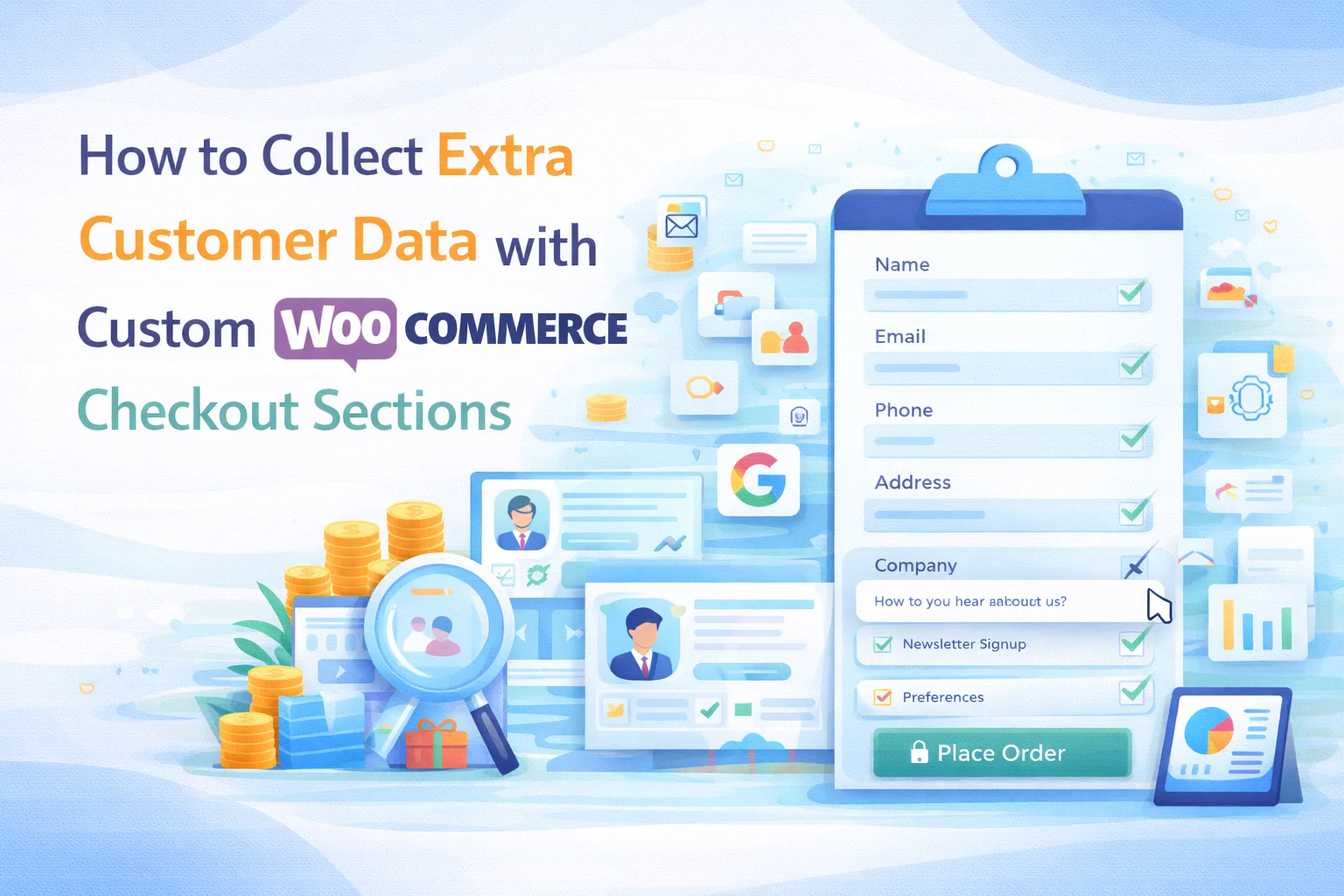
This guide covers why and how to create custom checkout sections, where to place them on the checkout page, what types of data different businesses collect through them, and how to use per-product checkout fields to collect product-specific data in WooCommerce without cluttering the global checkout.
When store owners first realize they need additional data at checkout, the instinct is to add extra fields to the existing billing or shipping sections. A purchase order number field gets added after the phone number in the billing section. Delivery instructions get appended to the shipping section. A gift message ends up somewhere in the middle of the address fields.
This approach creates confusion for customers. A “Purchase Order Number” field sitting between “Phone” and “Email” breaks the logical flow of the billing section. The customer is filling in personal contact details and suddenly encounters a business document reference that feels out of place. It also creates confusion for your team, because the data in the admin order page is mixed into sections where it does not naturally belong.
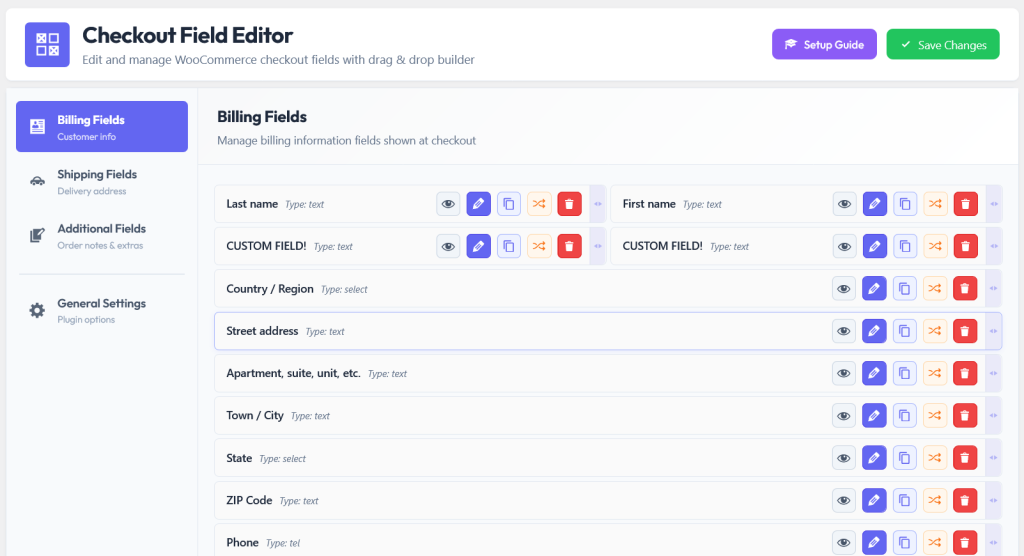
Custom sections solve this by giving extra fields their own dedicated area on the checkout page with a clear heading. “Business Information” as a section heading, with purchase order number and tax ID fields beneath it, makes logical sense to the customer. “Delivery Preferences” as a section heading, with gate code and time slot fields, groups related information naturally. The checkout form reads like a structured document rather than a disorganized list.
The specific data your business needs depends on your industry, your operations, and your product types. But across the hundreds of WooCommerce stores we have seen, extra checkout data generally falls into six categories.
VAT numbers, tax IDs, business registration numbers, purchase order references, tax exemption certificates (via file upload), DUNS numbers for government contractors, and import/export license numbers. This data is often legally required for B2B transactions and tax compliance. Without collecting it at checkout, your accounting team has to chase it post-sale, delaying invoicing and creating administrative overhead.
Preferred delivery dates and time slots, gate codes and buzzer numbers, floor and elevator access, loading dock availability, drop-off instructions (“leave at back door”), and delivery contact person (when different from the billing contact). Every piece of missing delivery data is a potential failed delivery attempt that costs you a redelivery fee and damages the customer experience.
Engraving text, embroidery details, custom color selections, sizing measurements, monogram initials, font preferences, artwork files for custom printing, and reference images. This data is product-specific and should only appear when the relevant product is being purchased. Per-product checkout fields are the cleanest way to handle this.
Gift messages, card text, wrapping style preferences, “Do not include price” checkbox, recipient name (when different from shipping name), occasion type (birthday, anniversary, sympathy), and scheduled delivery date for the occasion. This data should ideally be conditional: it only appears when the customer indicates the order is a gift.
Age verification confirmations, prescription numbers, license or permit references, end-use certificates, and compliance acknowledgment checkboxes. This data is often legally required for certain product categories. Conditional logic is essential here: age verification should only appear when restricted products are in the cart.
“How did you hear about us?” dropdown, referral code text input, newsletter opt-in checkbox, marketing communication preferences. This data is always optional and should be positioned at the end of the checkout form so it does not interfere with the primary purchase flow. Even though it is optional, the attribution data collected at checkout is often more accurate than analytics-based attribution.
There is a fundamental tension in checkout data collection. You need more data for specialized products, but adding more fields to the global checkout hurts conversion rates for standard orders. Every field you add globally is seen by every customer, including the ones buying products that do not require that data.
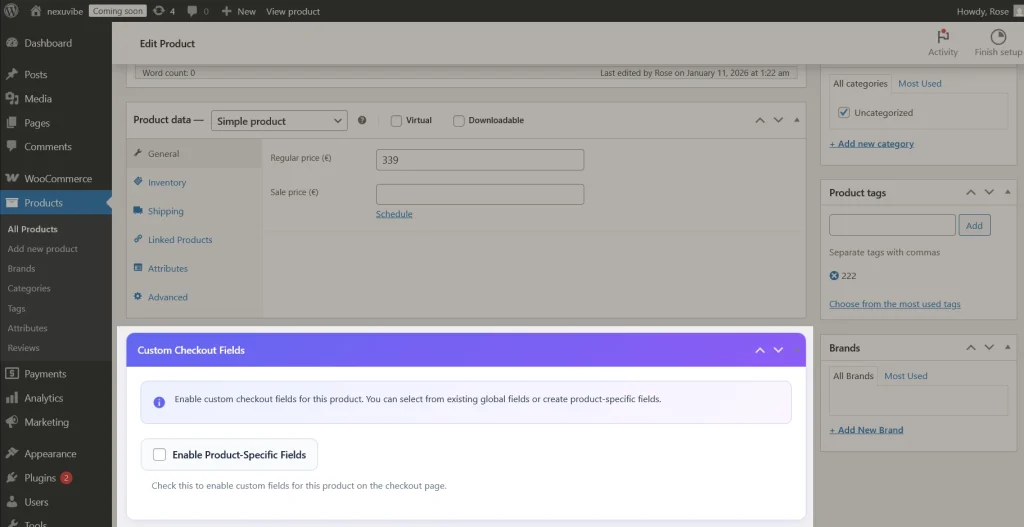
Per-product checkout fields resolve this tension completely. Instead of adding custom fields to the global checkout and using conditional logic to hide them from most customers, you assign fields directly to the products that need them. The fields only exist at checkout when their product is in the cart. No conditional logic workarounds. No hidden fields that might break if the conditions change. A clean, product-level assignment managed from the same screen where you set pricing and inventory.
This is particularly valuable for stores that sell across categories. A store selling standard clothing alongside custom-tailored items. A shop selling both gift baskets and everyday groceries. An art supply store that also offers custom framing services. In each case, the custom product needs extra checkout data and the standard product does not. Per-product fields keep both checkout experiences optimal.
Here are complete checkout data collection configurations for five common business types. Each blueprint specifies the fields, field types, sections, and whether conditional logic or per-product assignment is recommended.
Collecting data is only half the equation. The data needs to flow seamlessly into the systems your team uses to fulfill orders. With a properly configured checkout field editor, custom field data automatically appears in three key locations: the customer’s order confirmation email, the admin notification email, and the WooCommerce admin order detail page. No extra configuration is needed. The plugin handles the integration automatically.
For stores that export order data to external systems (ERP, accounting software, fulfillment services), the custom field data is stored as order meta in the WooCommerce database. This means it is accessible to order export plugins and can be included in CSV or API-based data exports. Your fulfillment team gets the data they need in whatever system they use, not just in the WooCommerce admin.
The bottom line is straightforward. If your business needs data at checkout that WooCommerce does not collect by default, you have two choices: chase that data after the order is placed (slow, unreliable, and annoying for the customer), or collect it at checkout where the customer expects to provide order-related information (fast, reliable, and integrated into the purchase flow). The NEXU WooCommerce checkout field editor with custom sections, per-product fields, and automatic order integration gives you the infrastructure to collect exactly the data your business needs at the exact moment it makes sense to ask for it.
Build custom checkout sections, assign unique fields to individual products, accept file uploads, and automatically flow all collected data into order emails and admin pages.





The custom checkout sections are a great solution for niche businesses like my print shop, but I noticed that without clear labeling, some customers get confused when they see artwork upload fields mixed in with their contact info. a dedicated section for design specs would make the process smoother and more intuitive. still, it's much better than cramming everything into the default fields.
Hey, the custom sections help but setup was
Good afternoon! As a security guard who also handles procurement for our corporate events, I've been using this custom checkout solution for our catering orders, and it's been a really helpful. collecting dietary restrictions and event dates upfront without cluttering the standard billing section keeps everything so much more organized. the only tiny thing I'd tweak is making the field labels a little more flexible with formatting, but honestly, that's nothing compared to how much cleaner our order data is now. for B2B needs like ours, this solves a problem WooCommerce just doesn't cover
This guide was a lifesaver for organizing our B2B checkout finally, a way to separate PO numbers and tax docs from personal details without confusing customers. the only hiccup? some fields still feel awkwardly placed even in custom sections, but it's miles better than cramming everything into billing. worth the setup time if you need more than the basics.