Next-Level Code. Nexuvibe Style ...
Hrs
Min
Sec

You have spent hours translating your pages and products through WPML. You switch your site to French to check the results. The page content is beautifully translated. Then you look at the navigation bar: “Home,” “About,” “Contact,” “Shop.” Still in English. The footer says “All rights reserved.” The sidebar widget says “Recent Posts.” The search placeholder says “Search…” The cookie consent banner is in English. Your “Add to Cart” button says “Add to Cart.”
This is the string translation problem. WordPress sites contain hundreds of small text fragments that live outside of posts and pages: menu items, widget titles, theme strings, plugin interface text, footer content, form labels, button text, and notification messages. WPML handles these through a separate system called String Translation, and unless you translate these strings, your “multilingual” site is a translated body wrapped in an English frame.
The problem is that WPML’s String Translation interface is designed for manual, one-by-one translation. You open a screen with hundreds of strings, find the one you need, type the translation, save, find the next one. For a site with 200 to 500 translatable strings across 4 languages, that is 800 to 2,000 individual translation actions. Nobody has time for that. Which is why most multilingual WordPress sites have untranslated strings lingering everywhere.
WPML manages two types of translatable content. The first type is post-based content: pages, posts, products, custom post types. These are translated through WPML’s Translation Management system, which is what most guides focus on and what most AI translation addons handle.
The second type is strings. Strings are text fragments that come from your theme, plugins, widgets, and WordPress core. They include menu item labels, widget titles and content, theme-generated text (like “Read more,” “Leave a comment,” “Search results for”), plugin interface text, and any text that your theme or plugins output through WordPress’s translation functions.
WPML collects these strings through a scanning process. When you go to WPML, then String Translation, you see a long list of every translatable string WPML has found in your theme and plugins. Each string needs a translation for each of your active languages. For a site with 300 strings and 4 languages, that is 1,200 individual translations.
The total count varies hugely by site. A simple blog might have 100 strings. A WooCommerce store with multiple plugins can have 500 or more. Each of these needs translation for every language. The manual approach to this is tedious beyond belief, which is why automation exists.
Untranslated strings are not just an aesthetic issue. They actively undermine the trust and usability of your multilingual site in several ways.
A French visitor arrives on your translated French page. The content is in French, so they trust the site. Then they see “Add to Cart” instead of “Ajouter au panier.” They glance at the navigation: English. They check the footer: English. Instantly, the site feels unfinished, unprofessional, or worse, like a scam site that has poorly translated content pasted onto an English template. Trust drops. Conversion drops. The visitor leaves.
There is an SEO dimension too. Navigation menu items and footer links are present on every page of your site. If they contain English text on your French pages, search engines see a mix of English and French on every French URL. This mixed-language signal can confuse search engine language detection and dilute the language targeting that your hreflang tags are supposed to establish.
The fix is not complicated. It just requires translating those strings. The question is whether you do it manually (hours of clicking through WPML’s string translation interface) or automatically (minutes with the right tool).
Before showing you the automated approach, it is worth understanding the manual process so you appreciate what the automation replaces.
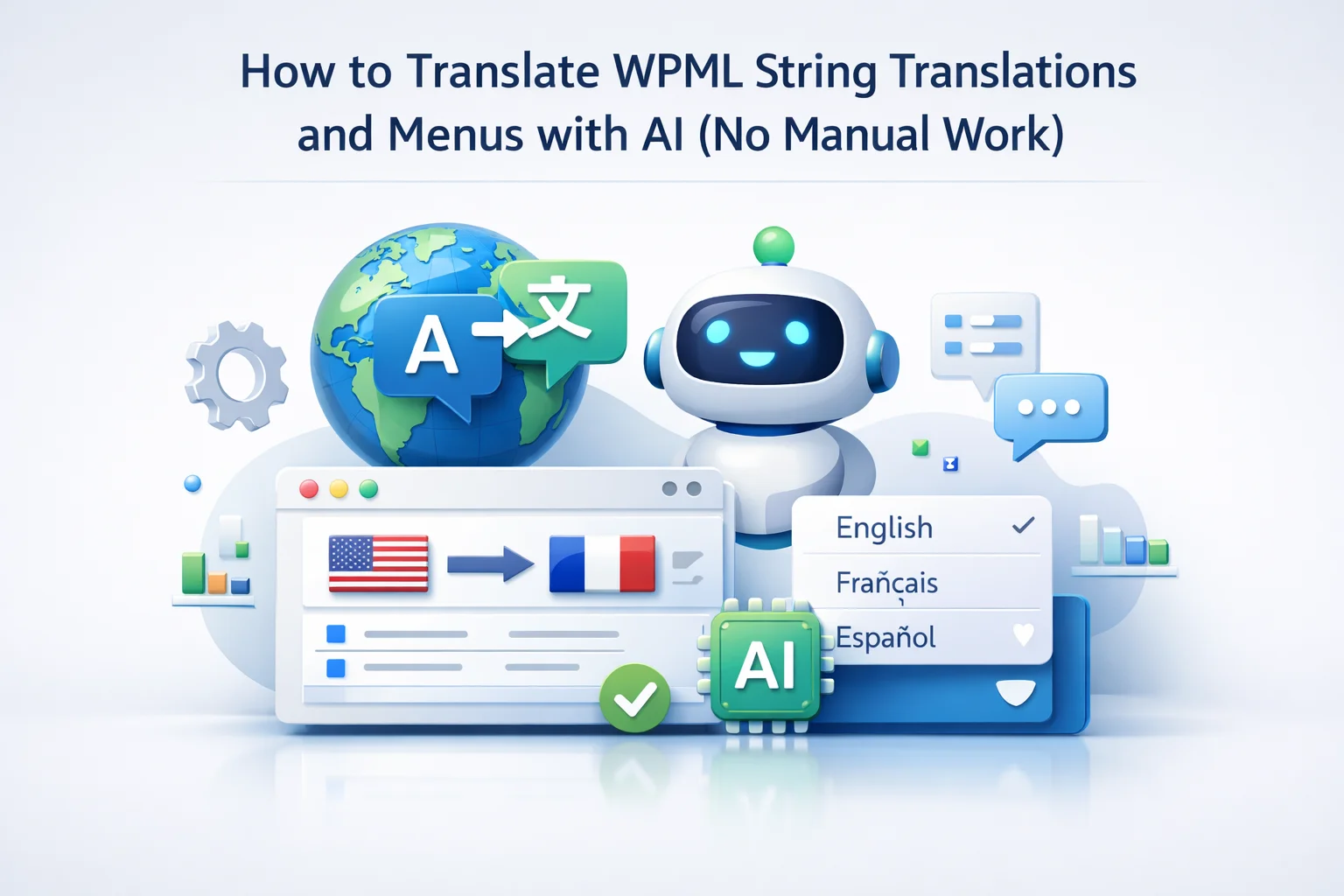
WPML handles menu translation in one of two ways depending on your configuration. In the default “Use WPML’s String Translation” mode, menu item labels are registered as strings in WPML’s String Translation interface. You go to WPML, then String Translation, filter by domain “WordPress menus,” and translate each menu item label one by one for each language.
In the alternative “Create separate menus for each language” mode, you create a complete duplicate menu for each language in Appearance, then Menus. This gives you more control (you can have different menu structures per language) but requires maintaining multiple menus and is impractical for most sites.
For most WordPress sites, the string translation approach is the right one. Your menu structure is the same across languages, only the labels change. And those labels are just strings that need translation, which brings us to the automation.
The NEXU AI Auto Translator for WPML includes a dedicated WPML string translation feature that automates this entire process. Instead of translating strings one by one through WPML’s interface, you use the plugin’s bulk tools to send all untranslated strings to your AI provider at once.
The process works like this: navigate to the plugin’s bulk tools section. Select “String Translations” from the available options. The plugin scans WPML’s string translation database and identifies all strings that are missing translations for your active languages. You click translate, and the plugin sends each string to your AI provider, receives the translation, and writes it back to WPML’s string translation table.
For a site with 300 untranslated strings across 4 languages, this process takes about two to three minutes. The same work done manually through WPML’s interface would take three to four hours of focused clicking and typing.
Go to WPML, then Theme and plugins localization. Click “Scan the selected plugins for strings” and “Scan the theme for strings.” This makes WPML discover all translatable text in your active theme and plugins. If you skip this step, some strings will be missing from the translation queue because WPML has not found them yet.
Go to WPML, then String Translation. Filter by domain “WordPress menus.” You should see your menu item labels listed. If they are not there, go to WPML, then Settings, and check that your menus are set to use string translation mode rather than separate menus per language. Resave your menu in Appearance, then Menus, to trigger string registration.
Navigate to the NEXU plugin’s bulk tools. Select “String Translations.” The plugin identifies all strings with missing translations. Click to translate. The AI processes each string and writes the translation back to WPML’s database. For menus, widget titles, and short interface strings, this is nearly instant. For longer strings like footer paragraphs or widget content, it takes a few seconds per string.
Switch your site to each translated language and walk through the key pages. Check the navigation menu, the footer, any sidebar widgets, the search bar placeholder, and WooCommerce interface elements like “Add to Cart” and “Checkout.” Everything should now display in the target language. If you spot any strings that were missed, they may need to be scanned again or manually registered in WPML’s string translation interface.
If your site uses Elementor for headers, footers, or other template parts, the text in those templates is handled differently from regular WordPress widgets. Elementor template content is translated through WPML’s post translation system (because Elementor templates are stored as custom post types), not through string translation.
This means your Elementor header and footer templates need to be translated as separate items in WPML’s Translation Management, just like you would translate a page. The AI addon handles these through the same automated workflow as page translation: select the template in Translation Management, assign the AI translator, and send the job. The Elementor JSON structure is parsed and every text widget within the template gets translated.
The practical implication is that you need to translate your global templates (header, footer) as separate translation jobs from your page content. Do the templates first so that when you start translating pages, the translated template wraps around each translated page consistently. If you translate pages first, they will render with the untranslated Elementor header and footer until you translate those templates separately.
WooCommerce adds a significant number of translatable strings to your site. Cart text, checkout labels, order confirmation messages, email subjects, product status labels (“In stock,” “Out of stock,” “On sale”), and dozens of interface strings that customers see throughout the purchase flow. These are especially important because untranslated checkout strings can directly cause cart abandonment.
WooCommerce Multilingual (the WPML addon for WooCommerce) registers most of these strings automatically. You will find them in WPML String Translation under the “woocommerce” domain. The AI bulk translation tool processes these alongside all other strings, so running the string translation once covers your entire WooCommerce interface.
Pay special attention to email strings. WooCommerce sends order confirmation, shipping notification, and other transactional emails. The subject lines and body content of these emails are often registered as strings in WPML. If they are not translated, your French customers receive English order confirmation emails, which is confusing and unprofessional. After running the string translation, send a test order in each language to verify that transactional emails display correctly.
Most strings translate straightforwardly. “Home” becomes “Accueil” in French, “Add to Cart” becomes “Ajouter au panier.” But some strings contain placeholders, HTML, or dynamic values that require careful handling.
Some strings contain %s or %d placeholders that get replaced with dynamic values at runtime. For example, “Showing %d of %d results” needs the %d placeholders preserved in the translation. AI models generally handle these correctly, but verify that placeholder tokens survived the translation intact. If a placeholder is missing in the translation, the string will output broken text on the frontend.
Some strings contain HTML tags for formatting or links. For example, a footer string might be “Copyright 2026 <a href=’/privacy’>Privacy Policy</a>.” The AI needs to translate the text but preserve the HTML structure. Modern AI models handle this well, but spot-check strings with complex HTML to make sure links and formatting survived translation.
If your menu or footer contains your company name or product names, these should not be translated. AI models usually recognize proper nouns and leave them untranslated, but occasionally a brand name that resembles a common word may get translated. Check that your company name, product names, and any trademarked terms are preserved as-is in the translated strings.
String translation is the last mile of multilingual WordPress. It is the difference between a site that is technically multilingual and one that feels genuinely native in every language. When a French visitor arrives on your site and every element they see, from the navigation to the button labels to the footer copyright text, is in natural French, they experience your site the same way a French native site would feel. No mental context-switching. No doubting whether the site is actually meant for them.
The tools exist to make this happen in minutes rather than hours. AI bulk translation of WPML strings eliminates the most tedious part of the multilingual WordPress workflow. One scan, one click, and your entire site interface speaks every language you support.
If you have already translated your pages and products but your menus, widgets, and interface strings are still in your default language, this is the step that finishes the job. Do it once, verify the results, and your multilingual site goes from 80 percent complete to genuinely, fully multilingual.
Bulk AI translation for WPML strings, menus, widgets, and WooCommerce interface text. Four AI providers. Pages, products, and strings all from one plugin. From $39/year.






Just wanted to share my experience with this WPML string translation guide. i run a WooCommerce site with a ton of plugins, and the number of strings to translate was crazy like 500+ little text snippets everywhere
Finally got around to automating my WPML string translations after years of avoiding that tedious interface. The AI bulk translation for menus, widget titles, and footer text actually works no more hunting through hundreds of strings one by one. My French and Spanish versions now look fully localized, not just half translated
Hey, the translations look good but my menu's
Saved me hours on menu translations. AI handled 200+ strings in one go.