Next-Level Code. Nexuvibe Style ...
Hrs
Min
Sec

If you run more than one WordPress website, you have probably dealt with the frustration of managing separate user databases. A customer registers on your main store, then visits your support portal and has to register again. An employee logs into the company blog but needs different credentials for the internal knowledge base. The result is confusion, password fatigue, and ultimately lost engagement.
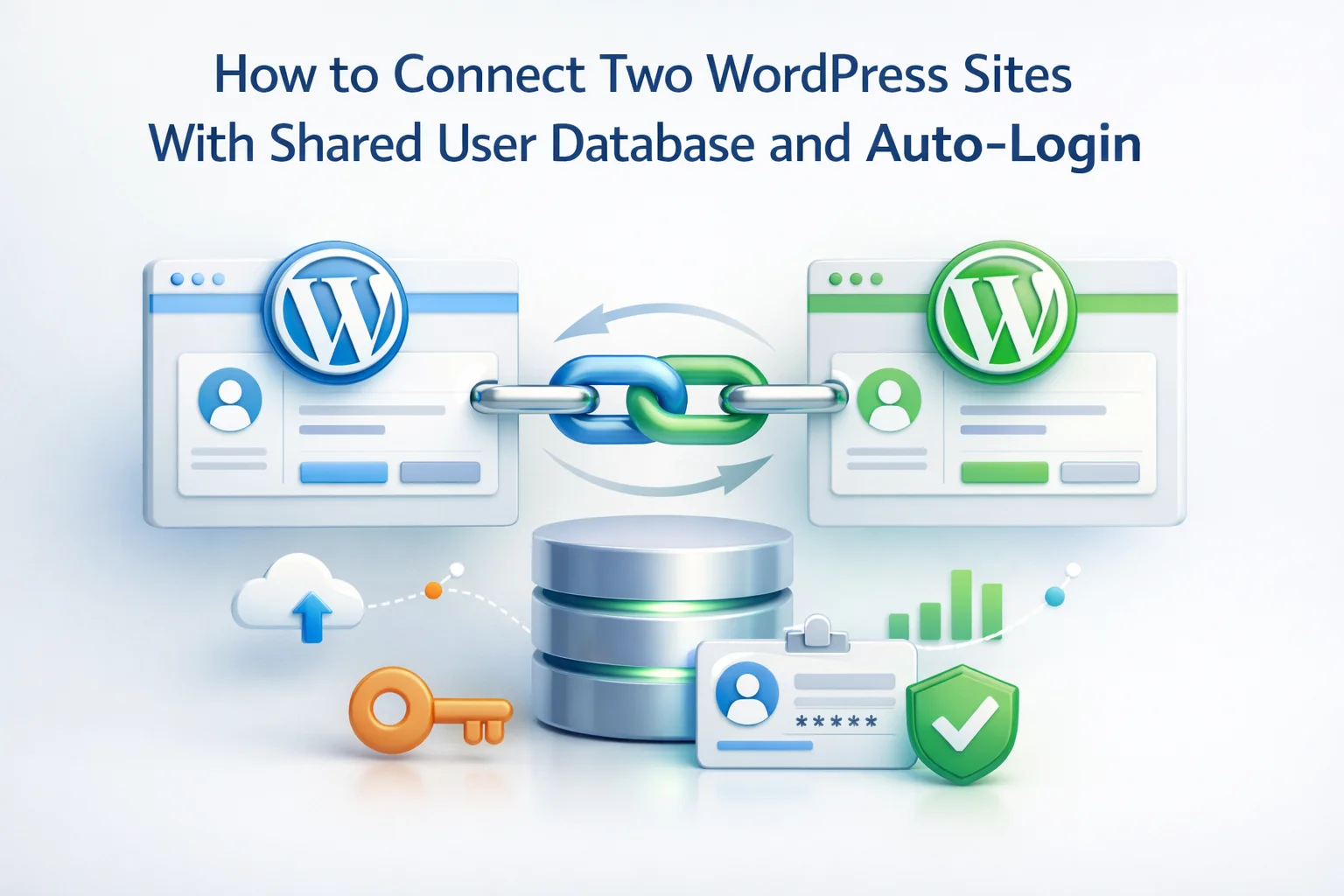
The good news is that connecting two WordPress sites to share a single user database is entirely possible without merging them into a multisite installation or writing custom code from scratch. This guide walks you through the technical concepts, the practical setup process, and the specific tools that make cross-site user synchronization work reliably in production environments.
By the end of this article, you will understand exactly how shared user databases work, why traditional approaches fall short, and how to implement a solution that keeps user profiles synchronized in real time across all your connected WordPress properties.
Every standalone WordPress installation maintains its own wp_users table. When you launch a second site, it gets its own independent user database with no connection to the first. This seems fine initially, but the operational problems accumulate quickly as your network grows.
Users who have already registered on your main site encounter a fresh registration form when they visit your secondary site. Many will simply leave rather than fill out another form. Those who do register now have two accounts with potentially different passwords, creating confusion and increasing support requests for password resets.
A customer updates their shipping address on Site A. Site B still has the old address. They place an order on Site B, and now you are shipping to the wrong location. This kind of data inconsistency creates real operational costs and damages customer trust in your brand.
Your team spends hours on manual user management. Exporting CSV files from one site, cleaning up the data, importing into another site, dealing with duplicate email conflicts. This is time that could be spent on activities that actually grow your business.
You cannot get a complete picture of customer behavior when user data is scattered across multiple databases. The same person appears as two different users in your reports, making it impossible to track their full journey across your ecosystem or calculate accurate lifetime value metrics.
There are several approaches to connecting WordPress user databases, each with different trade-offs. Understanding these options helps you choose the right solution for your specific situation.
The simplest approach is pointing multiple WordPress installations at the same database tables. You can configure wp-config.php on Site B to use Site A’s database and share the wp_users and wp_usermeta tables. This works in very limited scenarios, but breaks down quickly. User roles become confused because each site has different capability requirements. Plugins that extend user profiles create conflicts. And you have created a tight coupling that makes it extremely difficult to maintain either site independently.
A more robust approach is real-time synchronization through a secure API connection. Each site maintains its own user tables, but changes are pushed immediately to connected sites whenever a user registers, updates their profile, or changes their password. This preserves site independence while keeping user data consistent across the network.
For Single Sign-On functionality, the system needs to handle authentication tokens that work across different domains. When a user logs into Site A, the system generates a secure token that Site B can validate. This allows automatic login without requiring the user to enter credentials again.
The practical setup process for connecting two WordPress sites involves configuring a master-sub relationship and establishing secure communication between them. Here is how the process works using a dedicated WordPress user sync and SSO plugin designed specifically for this purpose.
The synchronization plugin must be installed and activated on every site that will participate in the network. This includes both the master site and all sub sites. The plugin establishes the REST API endpoints needed for secure communication.
Choose which site will be the master. This is typically your primary website with the largest existing user base. In the plugin settings, set this site’s role to Master. This site will be the central hub that coordinates all user data across the network.
On your master site, create an invite link or connection key. This encrypted key contains the authentication credentials that sub sites will use to establish a secure connection. Copy this key carefully as you will need it in the next step.
On your secondary site, set the role to Sub and paste the connection invite from your master. The plugin will validate the connection, establish the encrypted communication channel, and confirm that both sites can exchange user data securely.
Once the connection is established, both sites can communicate. The master site now knows about the sub site, and the sub site trusts the master for authentication purposes. At this point, user data will begin synchronizing automatically whenever changes occur on either site.
Not all user data needs to sync between sites. Different sites might have different purposes and require different information. A robust cross-site user synchronization system lets you control exactly what data flows between your connected properties.
The core user profile fields like username, email, password hash, first name, and last name are typically synchronized by default. These are the essential identity elements that need to be consistent everywhere for Single Sign-On to work correctly.
For WooCommerce sites, customer data adds another layer of complexity. Billing addresses, shipping preferences, and account details all need consideration. If you run multiple stores, you probably want this commerce data to follow customers across your network so they do not have to re-enter shipping information when shopping on a different store.
Role mapping is another critical configuration area. A user who is an Administrator on your main site probably should not automatically become an Administrator on your support forum. You need the ability to map roles between sites so that permissions translate appropriately. A customer on Site A might become a subscriber on Site B, while an editor on Site A keeps editor access on Site B.
User synchronization solves the data consistency problem, but users still have to log in separately on each site. Single Sign-On eliminates this friction entirely. Once a user authenticates on any site in your network, they are automatically logged into all connected sites.
The SSO process works through secure token exchange. When a user logs into Site A, the system generates an encrypted authentication token. This token is passed to Site B when the user visits. Site B validates the token against the master site and creates a local session for the user without requiring them to enter credentials again.
You can also configure central login, where users who try to log in on any sub site are redirected to the master site for authentication. After successful login, they are returned to their original destination already logged in. This approach centralizes credential management and provides a consistent login experience regardless of which site the user lands on first.
After your sites are connected and synchronization is running, you need visibility into what is happening. A good monitoring system shows you sync events in real time, alerts you to failures, and provides the information needed to troubleshoot when something goes wrong.
The logs interface records every sync event with timestamps, user identifiers, and outcome status. When a user updates their email address, you can see exactly when that change propagated to each connected site. If a sync fails, the log entry tells you why, whether it was a connection timeout, an authentication failure, or a conflict that needs manual resolution.
For high-traffic sites, a background queue system prevents sync operations from impacting site performance. Instead of processing every user update immediately, changes are queued and processed in batches. This protects your servers during traffic spikes while ensuring all data eventually synchronizes.
Connecting two WordPress sites with a shared user database transforms how your users experience your network. Instead of dealing with separate accounts, duplicate registrations, and password confusion, they get a seamless experience that feels like a single unified platform.
The technical implementation is straightforward with the right tools. A purpose-built WordPress user sync and SSO plugin handles the complex parts: secure API communication, conflict resolution, background queue processing, and token-based authentication. Your job is simply to decide which sites to connect, configure your sync rules, and enable SSO.
If you have been struggling with fragmented user databases, duplicate account problems, or customers complaining about login friction across your WordPress properties, now is the time to implement a proper synchronization solution. The setup takes minutes, and the improvement to your user experience is immediate and measurable.
Nexu User Sync provides real-time synchronization, Single Sign-On, WooCommerce customer data sharing, and complete network control from a single dashboard.







I've been running two WordPress sites one for my clinic's patient portal and another for staff training and the biggest headache is users having to log in twice.
Got this set up between our main site and support portal just like the guide said. the shared login works fine once everything's configured right, but it wasn't quite as plug and play as I expected. ended up tweaking the wp config manually and double checking table prefixes to avoid conflicts. Also, if you forget to sync user roles between sites, people can run into weird permission issues. not a dealbreaker by any means, but be ready for some trial and error if you're not super comfortable digging into databases
Was really hoping this would sync users between my main site and the new portfolio automatically. ended up having to link them manually though, which kinda defeats the purpose.