Next-Level Code. Nexuvibe Style ...
Hrs
Min
Sec

Speed is the single most underrated factor in quote conversion. When a potential customer submits a quote request form, they are at the peak of their buying intent. They have decided they want this service. They are comparing options. The business that gets them a clear, professional quote first has a significant advantage over every competitor still preparing their quote manually hours or days later.
Studies by the Harvard Business Review and others have consistently found that responding to sales leads within the first hour produces dramatically higher conversion rates than responding later, with some research suggesting the difference is as large as seven times more likely to qualify a lead if contacted within the first hour versus the first day. For quote-based businesses, a PDF quote delivered in seconds rather than hours represents exactly that kind of competitive advantage.
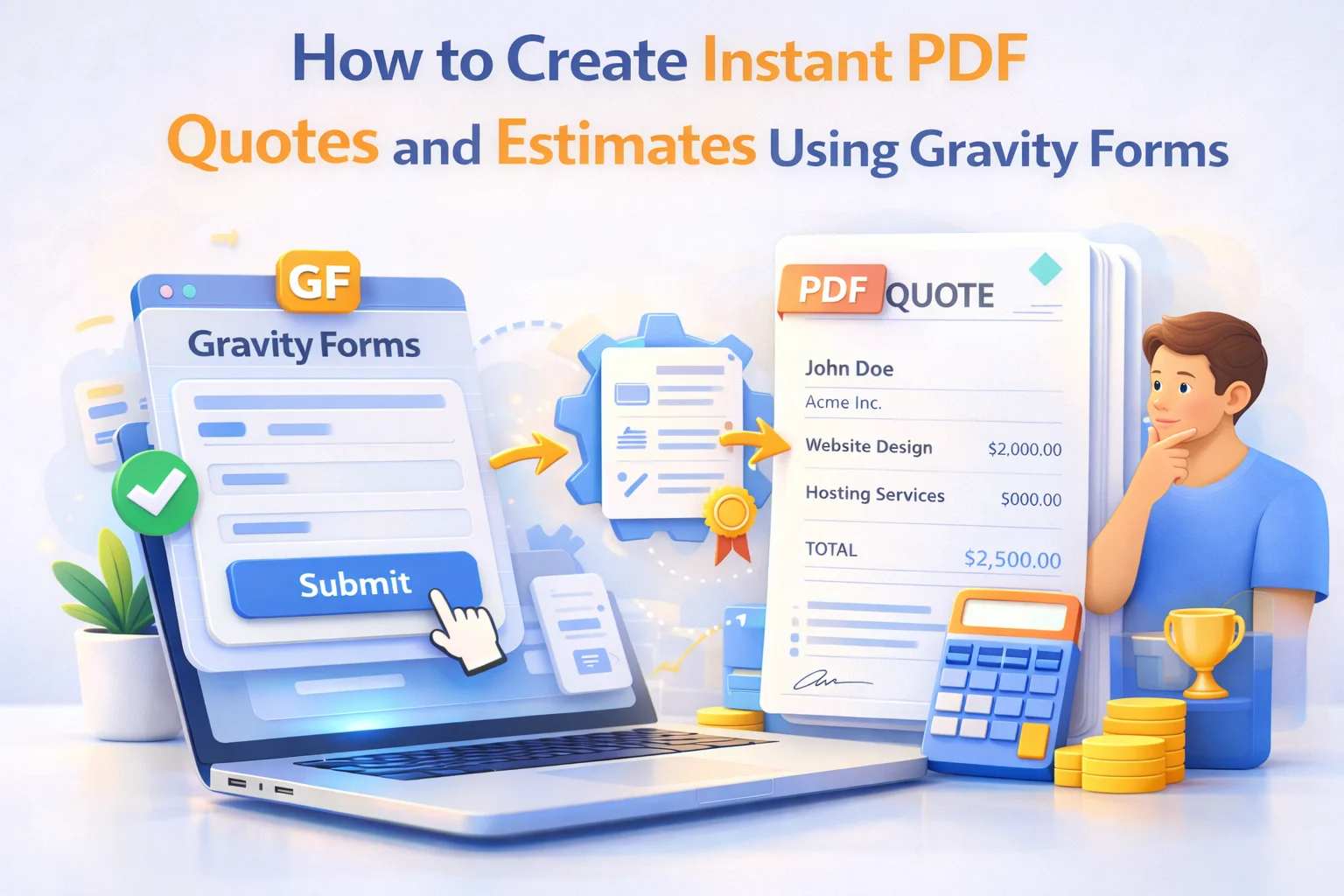
This guide shows you how to build an instant quote system on WordPress using Gravity Forms and Nexu PDF Generator’s instant quote and estimate builder for Gravity Forms. The customer fills in their requirements. The form calculates the price. The PDF quote is generated and emailed. All of this happens in the time it takes them to read the confirmation message.
We will cover the form design, the pricing calculation logic, the quote template structure, and the delivery workflow. We will also cover the specific challenges that quotes present compared to invoices or contracts, because a quote is not a confirmed order and the document needs to reflect that clearly.
Before building the workflow, it is worth being precise about what a quote document needs to communicate that an invoice does not. Getting this right in the template design matters, because a quote that looks too much like an invoice can create confusion or even unintended legal obligations depending on the jurisdiction.
A quote is a conditional offer. It says “this is what we would charge, under these conditions, if you decide to proceed.” It should include a validity period, typically 30 days, after which the pricing may no longer apply. It should clearly be labeled as a “Quote” or “Estimate” rather than an “Invoice” or “Order Confirmation.” It should include the scope assumptions that underpin the pricing, so that if the scope changes, the quote does not create a fixed-price obligation.
An invoice, by contrast, is a demand for payment for work already agreed or delivered. It does not need a validity period. It does not need scope assumptions. It does need a payment due date.
With those distinctions clear, the document template for a quote needs these sections: your business header and the customer’s details, a clear “QUOTE” or “ESTIMATE” heading with a quote reference number and issue date, a scope section describing what the quote covers and what assumptions underpin the pricing, a line items section with service descriptions and pricing, a totals section, a validity period statement, your terms and acceptance instructions, and your contact details for follow-up. We will cover each of these in the template design section below.
The form design for a quote system serves two purposes at once. It collects the customer’s contact details and requirements. And it calculates the price in real time as the customer selects their options, showing them a live total before they submit. That real-time calculation is what makes the instant quote possible.
Gravity Forms’ pricing fields are the engine behind this. The Product field lets you define specific services with fixed prices or allow customers to enter a custom amount. The Option field lets you add priced add-ons to a selected product. The Quantity field multiplies a unit price by a quantity the customer specifies. The Total field sums all pricing fields and displays the running total. Used together, these fields create a self-calculating quote form where the customer can see their price update in real time as they configure their requirements.
Use a Product field set to “Drop Down” to let customers choose from a list of service options, each with a defined price. For example, a photography studio might have Portrait Session at $299, Event Coverage at $799, and Commercial Shoot at $1,499. When the customer selects an option, the Total field updates immediately. The selected service description and its price both map to the quote PDF template.
An Option field renders as checkboxes or radio buttons, each with its own price that adds to the total. Using the photography example, add-ons might include Rush Delivery (+$150), Extra Edited Images (+$200), or Printed Album (+$350). Customers select the add-ons they want and the total updates in real time. Each selected add-on appears as a separate line item in the quote PDF.
For services priced by unit, session, day, or item, link a Quantity field to a Product field. The customer enters how many they need and the total calculates automatically. A translation agency might price per 500 words. A cleaning company might price per room. A printing company might price per unit with volume discounts configured through conditional pricing logic.
The Total field displays the running sum of all pricing fields on the form. Place it prominently near the form submission section so the customer sees their total clearly before submitting. This total is also the value that maps to the “Quote Total” section of the PDF, giving you a single authoritative calculated figure throughout the entire workflow with no manual calculation involved at any point.
With your form collecting the right data and calculating prices automatically, the next step is building the quote template in Nexu PDF Generator. This is where the customer’s selections and the calculated total become a formatted, professional document.
Create a new feed on your quote form, select Document as the document type, and open the template editor. You will write the quote document using a combination of static text (your standard quote language, terms, and validity period) and field merge tags (the customer’s specific selections and calculated prices).
A well-structured quote template contains these elements in order. First, your business header with logo, name, address, and contact details as static content. Second, a “QUOTATION” heading in prominent text alongside the quote reference number (using the entry ID merge tag), issue date (using the submission date merge tag), and validity expiry (a static duration note like “This quote is valid for 30 days from the date of issue”). Third, the customer details section with their name, company if applicable, and email pulled from form fields. Fourth, the scope and services section with the selected services, their descriptions, quantities, and individual prices all pulled from your pricing field merge tags. Fifth, the totals section with the calculated grand total from the form’s Total field. Sixth, your acceptance instructions and next steps. Seventh, your terms, exclusions, and assumptions in the footer.
Many service businesses have pricing that varies based on conditions beyond simple quantity multiplication. Rush jobs cost more. Certain locations attract travel surcharges. Enterprise clients have different rates than individual customers. Gravity Forms handles these scenarios through its conditional logic system, which shows and hides fields based on earlier selections.
A practical example: a web design agency with standard and rush delivery options. When the customer selects “Standard Timeline” in a dropdown, a product field with the standard price appears. When they select “Rush (within 2 weeks)”, a different product field with the rush rate appears. Only the relevant pricing field is visible and active based on the selection, so the Total field always reflects the correct price for the chosen option. The quote PDF receives whichever total the form calculated, automatically correct for the selected timeline.
This same pattern works for location-based surcharges, volume discount tiers, client type pricing (residential vs commercial, individual vs corporate), and any other conditional pricing structure your business uses. The key is that Gravity Forms’ pricing logic handles the calculation. The PDF receives the correct result and displays it in the quote without any manual adjustment.
Plumbers, electricians, builders, painters, and other tradespeople typically price by job type, materials, and estimated hours. A quote form can collect the job type, property size, and specific requirements, then use conditional pricing fields to calculate a quote based on your standard rates. The customer receives a professional PDF quote with itemized costs within seconds of submitting. For trades businesses competing on response time, this alone can significantly increase quote-to-job conversion rates.
Web design, branding, photography, video production, and other creative services are often quoted based on a scope that the client selects from defined packages or service modules. A quote form with tiered package pricing and add-on options gives clients a self-service configuration tool that produces a real price, then delivers a professional PDF quote documenting exactly what they configured and at what cost. Clients appreciate the transparency, and agencies benefit from receiving pre-qualified leads who already know the approximate investment level.
Businesses that quote based on quantities, specifications, and delivery parameters can use Gravity Forms’ pricing calculation system to build sophisticated quote calculators. Print quantities, paper sizes, and finishing options all feed into calculated unit prices and totals. Delivery zones and urgency levels apply conditional surcharges. The customer configures their order, sees a live total, and receives a formal quote PDF immediately. For print and manufacturing operations that handle dozens of quote requests daily, this eliminates an enormous amount of quote preparation time.
The quote delivery configuration in Nexu PDF Generator follows the same pattern as other document types. The PDF is attached to the Gravity Forms notification that goes to the customer’s email. The confirmation page shows a download link. Your admin inbox receives a copy. All three channels fire simultaneously within seconds of the form submission.
One aspect of the quote workflow that differs from invoices is what happens after delivery. An invoice expects payment. A quote expects either acceptance, rejection, or follow-up questions. Your confirmation message and the quote PDF itself should make the acceptance path explicit. Include your phone number and email in the quote document. Add a clear call to action in the confirmation message: “Review your quote above. To get started, reply to the confirmation email or call us on [number].”
On your admin side, each quote request is stored as a Gravity Forms entry with the PDF accessible via the entries list. This gives you a complete record of every quote sent, including the specific options the customer selected and the total calculated at the time of submission. If a customer calls to discuss their quote, you can pull it up instantly and see exactly what they received.
A quote without an expiry date can create an open-ended price commitment that is difficult to retract if costs change. Always include a validity period and state it prominently near the total. “This quote is valid for 30 days from the date of issue” is standard. It also creates gentle urgency that encourages faster decision-making from the customer.
A price without stated assumptions creates dispute risk. If the customer interprets the scope more broadly than you intended, you end up in a negotiation where your quote is the reference point working against you. Always include the key assumptions: “This quote assumes a single-storey property with standard access” or “This quote is based on the specification provided on [date] and may be subject to revision if requirements change.”
Many quote PDFs end after the pricing section with no instruction to the customer. A customer who wants to accept has to figure out how. Make it obvious: provide a direct email address, phone number, or booking link in the quote document itself. The easier you make it to say yes, the more often customers will.
The quote form should collect what is necessary to generate a meaningful price estimate, not every piece of information you might eventually need. Lengthy forms with many required fields create abandonment. If there are details you need only after the customer decides to proceed, collect those during onboarding, not at the quote stage. Keep the quote form focused on the pricing inputs and essential contact information.
Nexu PDF Generator turns your Gravity Forms pricing fields into an instant quote engine. Every selected option, every calculated total, every customer detail flows directly into a professional PDF quote delivered within seconds of submission.








Cut my quote turnaround from days to seconds. clients love it.
Just got this set up for my practice's lab testing quotes, and wow what a really helpful. Patients get their PDF with pricing before they even leave the page, so no more waiting around for me to manually calculate different panel rates. Already saved me hours this week alone. The only little snag was figuring out the conditional pricing fields at first, but the guide was super clear and walked me right through it. totally worth the setup time.
This has been a really helpful for me. the fact that the quote doesn't expire is perfect my clients are notorious for taking forever to decide, and now I don't have to keep chasing them to renew links or resend files. Just one clean PDF, no pressure, and they can take all the time they need.