Next-Level Code. Nexuvibe Style ...
Hrs
Min
Sec

Picture two shopping experiences. In the first, you ask a store assistant for hiking boots and they respond: “We have the TrailMaster Pro for $149, the Summit Hiker for $189, and the Alpine Explorer for $219. The TrailMaster has waterproof Gore-Tex, the Summit features Vibram soles, and the Alpine includes ankle support.” Useful information, but you are mentally juggling details while trying to visualize products you have never seen.
In the second experience, the assistant shows you three boots side by side. You see each one. You see the prices beneath each image. You can examine the details visually. And when you decide, there is a button right there to add your choice to the cart.
The second experience is what product cards bring to chatbots. They transform abstract text descriptions into visual shopping moments. And for WooCommerce stores, implementing this feature can significantly increase conversion rates by reducing the friction between product discovery and purchase. This guide shows you exactly how visual product recommendations in WooCommerce chatbots work and how to implement them.
Most chatbots treat product recommendations as information transfer. They describe products in words, list specifications, and quote prices. This approach works for simple informational queries but fails at the moment of purchase decision.
When a chatbot describes three products in text, customers must hold all that information in working memory while making comparisons. Images eliminate this burden. You see all three products at once. Your brain processes visual information far faster than text, and comparisons become instant rather than laborious.
Text recommendations require customers to leave the chat, navigate to product pages, find the items mentioned, and then return if they want to continue the conversation. Each step is a potential abandonment point. Product cards with direct links or add-to-cart buttons keep the entire journey within the chat interface.
E-commerce purchases are often emotional. A well-photographed product creates desire that specifications cannot. Describing a beautiful watch in words is categorically different from showing it. Product cards leverage visual appeal to move customers from consideration to purchase.
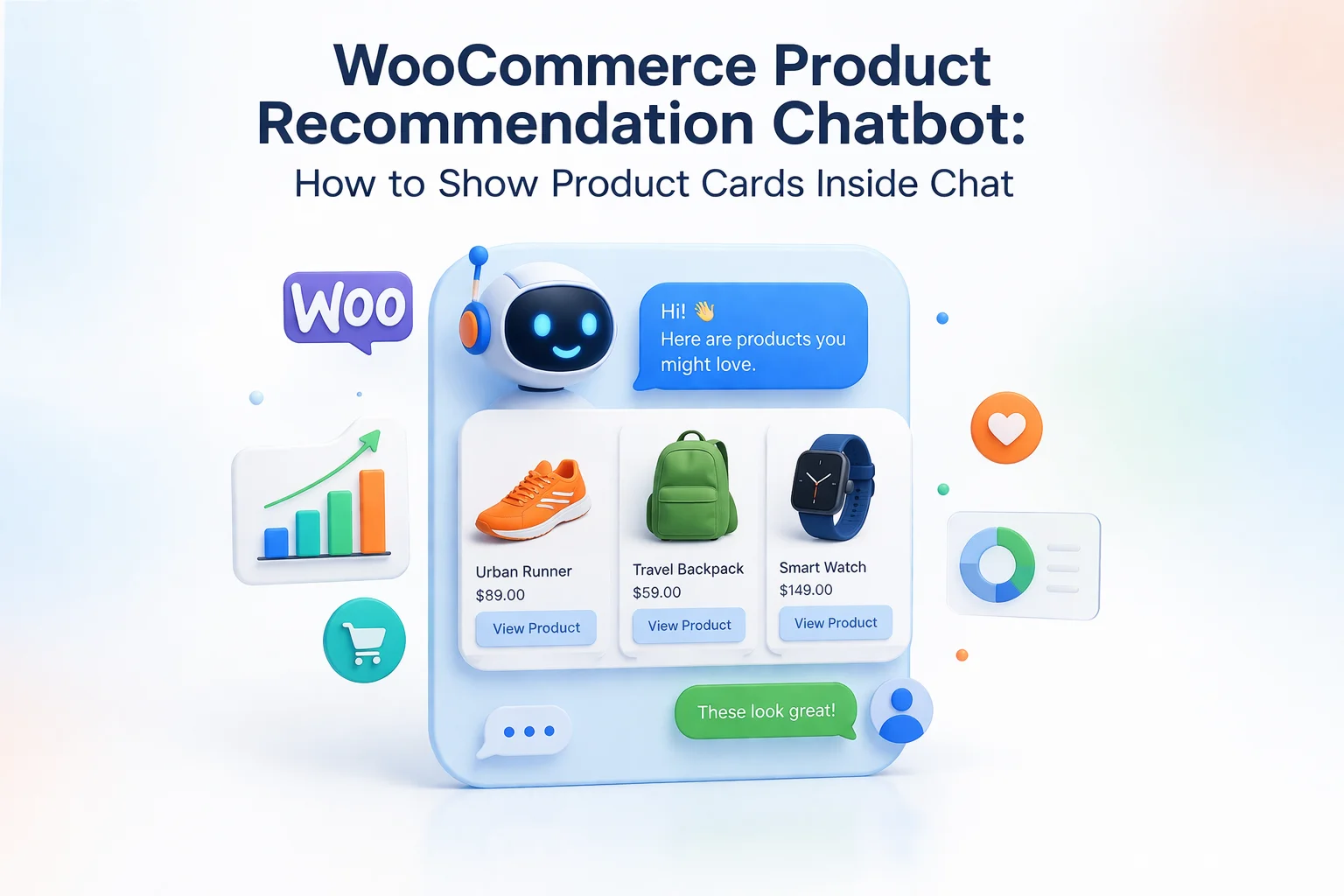
A product card is a compact visual representation of a product that appears directly in the chat conversation. Instead of a text paragraph describing an item, customers see a designed element containing the product image, name, price, and action buttons.
The typical product card includes several elements working together. The product image provides instant visual recognition. The product name confirms what the customer is looking at. The price eliminates the need to click through to find out. A view button links directly to the full product page for customers who want more details. And depending on configuration, an add-to-cart button enables purchase without leaving the conversation.
Displaying product cards requires deep integration between the chatbot and WooCommerce. The system must access product data in real-time, retrieve images from the correct locations, and render interactive elements that connect to WooCommerce cart functionality.
The chatbot must query WooCommerce product data when generating recommendations, not rely on cached or indexed snapshots. This ensures prices are current, stock status is accurate, and sale prices reflect active promotions. Stale data in product cards is worse than no cards at all.
Product images must be served at appropriate sizes for the chat widget. Full-resolution product photos would slow loading times and consume excessive bandwidth. The system should retrieve thumbnail versions or generate appropriately sized versions for card display.
If the product card includes add-to-cart functionality, it must connect to WooCommerce’s cart system properly. This means handling AJAX cart updates, managing sessions, and dealing with variable products that require selection of options before adding. Simple products work easily. Variable products need additional UI handling.
Chat widgets appear on devices from phones to desktops. Product cards must render appropriately at every size. On mobile, this might mean single-column card display. On desktop, multiple cards can appear side by side. The card design must adapt without breaking layout or becoming unusable.
The magic of an intelligent recommendation chatbot lies in how it determines which products to show. This is not random selection or simple keyword matching. A properly implemented system uses semantic understanding to match customer intent with relevant products.
The process begins with indexing. Product names, descriptions, categories, attributes, and specifications are converted into vector embeddings that capture semantic meaning. When a customer asks “something for rainy hiking,” the system does not just search for the word “rain.” It understands the intent and matches against products described as waterproof, water-resistant, all-weather, or featuring weather protection, even if those exact words were not in the query.
The AI then ranks retrieved products by relevance and selects the top matches for display. Depending on configuration, it might show the single best match, the top three options, or a comparison set. The response can include explanatory text about why these products match the request, followed by the visual product cards.
The AI understands this means: cushioned insoles, arch support, professional appearance, fatigue reduction. It retrieves products matching these characteristics even if the descriptions use different words like “ergonomic,” “supportive footbed,” or “anti-fatigue technology.”
Nexu SmartChat WooCommerce product card configuration provides built-in support for visual product recommendations. The setup process involves enabling the feature and configuring how cards display.
In the display settings, activate the product card feature for WooCommerce. This tells the system to render visual cards whenever the AI recommends products rather than describing them in plain text.
Select which WooCommerce image size to use for cards. Thumbnail sizes load fastest but show less detail. Medium sizes balance quality and performance. Choose based on your typical product images and chat widget size.
Choose whether cards include add-to-cart buttons, view-product-only links, or both. For simple products, add-to-cart works seamlessly. For variable products, linking to the product page where customers can select options often works better.
Product cards should feel like part of your store, not a foreign element. Configure card border radius, shadow effects, button colors, and typography to align with your brand. Consistent visual language builds trust and improves the shopping experience.
Product cards are a tool. How you use them determines results. These practices will help you get the most conversion value from visual product recommendations.
Product cards are only as good as the images they display. Professional, consistent product photography multiplies the impact of visual recommendations. Inconsistent image styles or poor quality photos undermine the entire feature. Your product images are now appearing in a new context. Make sure they represent your products well.
Choice paralysis is real. Showing ten product cards does not help customers decide. It overwhelms them. The sweet spot for most queries is two to three highly relevant options. This provides comparison without confusion. If a customer needs more options, they can ask for additional suggestions.
Do not just show cards. Explain why these products match the request. “Based on your need for all-day comfort, here are three shoes with enhanced cushioning and arch support.” The combination of contextual explanation and visual display creates a more persuasive recommendation than either alone.
Monitor which product card interactions lead to purchases. Are customers clicking view or add-to-cart? Are certain product categories converting better than others? Use conversation analytics to identify patterns and optimize your recommendation strategy over time.
Product cards turn AI product recommendations from information exchange into shopping experience. Customers see what you are selling. They grasp options at a glance. They can purchase without leaving the conversation. This is the difference between a chatbot that describes products and one that sells them.
For WooCommerce stores, this feature is not optional anymore. Customers expect visual experiences. Text-only chatbots feel dated compared to the rich interfaces they encounter elsewhere. Implementing product cards brings your chatbot into alignment with modern shopping expectations.
Nexu SmartChat visual shopping assistant for WooCommerce handles the technical complexity of product card integration. Automatic product indexing ensures recommendations are relevant. Real-time data access keeps prices and availability accurate. Configurable display settings let you match your brand. And the semantic matching AI ensures the products shown actually match what customers are looking for.
Nexu SmartChat displays WooCommerce products as visual cards with images, prices, and buy buttons directly in chat. Transform your chatbot from an information desk into a visual shopping assistant.








I grabbed this thinking it'd actually show products in chat not just spit out descriptions like every other bot. The demo made it look like a visual shopping assistant, but after way too much setup, it's still just text. No images, no product cards, nothing but a wall of specs and prices
You know how sometimes you're chatting with a store's bot and they just list off products like you're reading a spreadsheet? That's what I expected here too, but the product cards actually show up right in the chat images, prices, even an "Add to Cart" button
Hello, I was quite disappointed with this product. the idea of visual product cards in chat sounded promising, but the execution fell short. you see each one, yet they're so small and poorly formatted that the images are nearly useless. Prices appear crammed beneath blurry thumbnails, making it harder to compare than just reading text.
Hey, just tried this chatbot feature! conversions went up for my client after adding those visual product cards