Next-Level Code. Nexuvibe Style ...
Hrs
Min
Sec

The conventional chatbot interaction for a product question follows a predictable pattern: visitor asks about a product, chatbot answers with information, visitor navigates to the product page, visitor decides to buy, visitor adds to cart. This is four steps. The first two happen inside the chat. The last two require the visitor to leave the conversation and navigate elsewhere. Each step in that navigation sequence is a drop-off point.
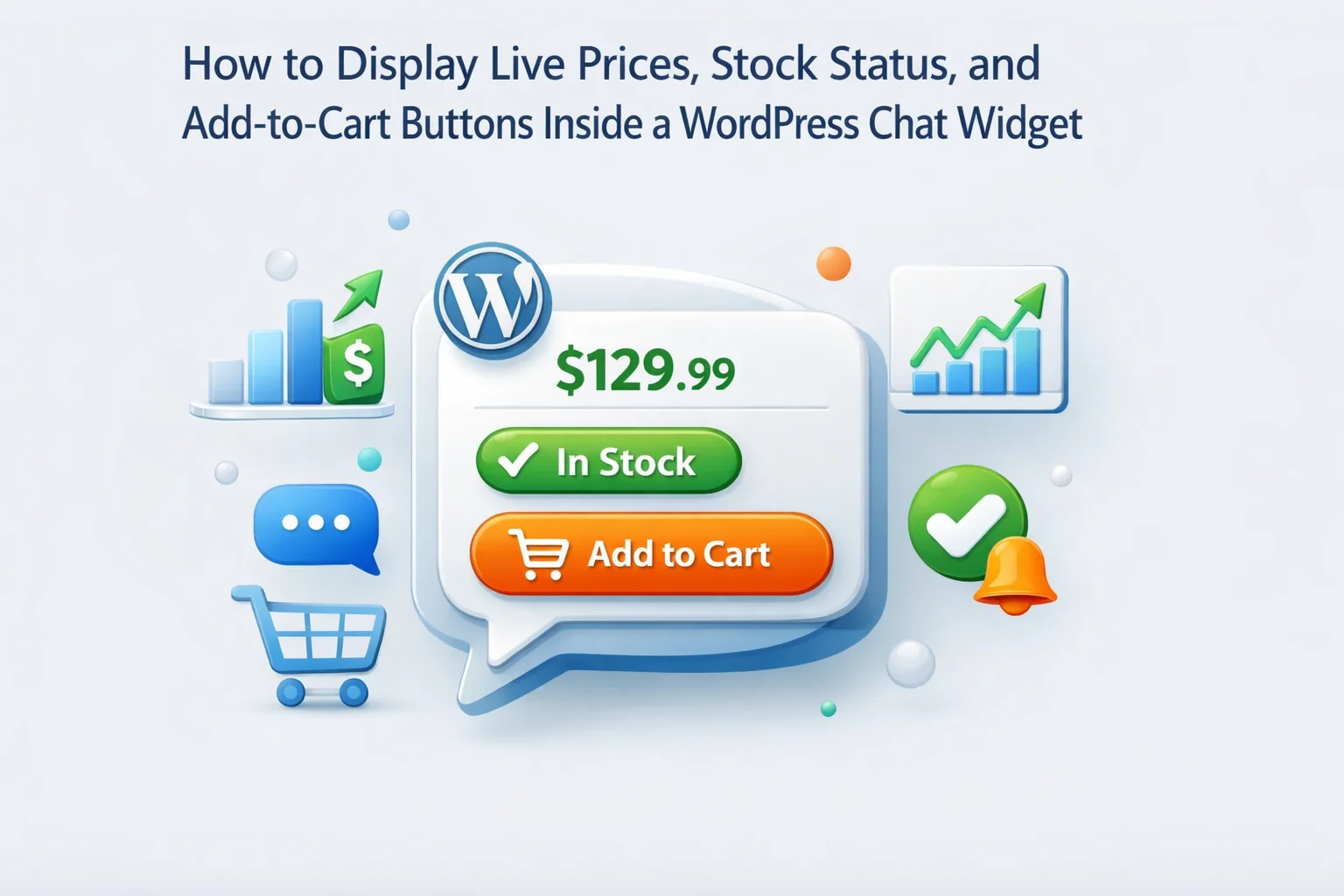
Chat commerce collapses this sequence. When a chatbot can display a product card with live pricing, current stock status, and an Add to Cart button inside the chat widget itself, the conversation and the purchase action happen in the same interface. A visitor who asks “what’s the current price for the Pro plan?” and receives an answer plus a clickable product card with an up-to-date price and a buy button does not need to navigate anywhere. The friction of the navigation step is eliminated entirely.
This guide covers how this capability works architecturally, which plugins support it and how their approaches differ, and how to configure a WooCommerce chatbot to surface product cards contextually — showing the right product at the right moment in a conversation rather than pushing every query toward a product card regardless of context. We reference Nexu SmartChat’s WooCommerce product integration throughout the implementation sections.
One important framing note before we start: this is an advanced WooCommerce capability that requires a plugin with specific WooCommerce integration architecture. Not every chatbot plugin on the WordPress repository can do this. This guide will help you understand what is technically required so you can evaluate whether your current plugin supports it and what you need if it does not.
The word “live” in “live product cards” has a specific technical meaning that matters for evaluating whether a given implementation actually delivers what it promises. There are two fundamentally different ways a chatbot can display product data inside a chat widget, and only one of them is genuinely live.
The chatbot plugin has indexed your product data (names, descriptions, prices, images) into its knowledge base at the time of the last re-index. When the chatbot displays a “product card,” it is pulling from this indexed snapshot, not from WooCommerce in real time.
The chatbot plugin has a direct integration with WooCommerce’s product and inventory data, fetched in real time when a product card is requested. The price displayed is the current WooCommerce price at the moment the card renders. Stock status is the current WooCommerce inventory status.
A plugin with genuine live WooCommerce data integration uses WordPress hooks and the WooCommerce product API to fetch data at render time rather than at index time. When the chatbot determines a product card should be shown, it calls WooCommerce directly for the current price, current stock status, and product image. This requires the plugin to have been built with WooCommerce integration as a core feature, not an afterthought.
How to check which type your plugin uses: if a product card is showing a price that does not match your current WooCommerce price, your plugin is using cached data. If the card shows correct current pricing including any active WooCommerce sales, it is using live data. This is a 30-second test you can run immediately.
A well-designed in-chat product card is a mini product page compressed into the chat window. It needs to contain enough information to support a purchase decision without requiring the visitor to navigate away, while being compact enough to fit the chat interface without overwhelming the conversation flow.
Full product descriptions, multiple product images, related products section, and customer reviews in full are all inappropriate for a chat card. They belong on the product page. The card’s job is to provide enough information to enable a decision, not to replicate the product page. A card that is too large visually dominates the chat window and disrupts the conversational flow that made the interaction valuable in the first place.
The most common mistake in in-chat product card implementations is showing a product card too aggressively — surfacing a card in response to almost any product-related mention, regardless of whether the visitor has expressed purchase intent. This creates a chatbot that feels more like a product pusher than an advisor, and it can actually harm conversion by making the interaction feel transactional at moments when the visitor was still gathering information.
Product cards should surface when three conditions are met: the visitor has asked a specific enough question to indicate they have a particular product in mind, the conversation has progressed to a point where they have received sufficient information to make a purchase decision, and their most recent message or interaction signals readiness rather than continued research. The system prompt plays a role here — it can instruct the chatbot to surface a product card when it detects purchase-ready signals rather than on every product mention.
In practice, the trigger configuration happens in two places: the system prompt and the plugin’s product card display settings. The system prompt instructs the AI model about when to surface product information in a structured card format versus as a text answer. The plugin settings determine the visual template and data fields the card displays. Both need to be configured deliberately rather than left at defaults.
Out-of-stock handling is where many in-chat product card implementations create a poor experience that damages trust. The two most common failures are: showing an Add to Cart button for an out-of-stock product (which leads to a confusing or failed cart addition), or showing the out-of-stock status without offering any alternative or next step.
A well-designed out-of-stock experience in the chat widget should dynamically change the card’s CTA based on current stock status. If the product is in stock, the card shows an Add to Cart button. If the product is out of stock, the Add to Cart button is replaced with either a “Notify when available” option, a link to similar products, or an estimated restock date if you have one. The chatbot’s conversational response should also acknowledge the availability situation and offer an alternative path rather than simply stating “this item is out of stock” without further assistance.
Variable products — products with size, color, material, or other variant options — are the most technically complex product type to handle inside a chat widget. The WooCommerce data structure for variable products is more complex than for simple products, and the chat interface creates specific UX challenges that differ from the product page experience.
On a product page, the visitor sees all variant options presented as attribute selectors (dropdowns, swatches, or buttons) before they reach the Add to Cart button. In a chat widget, fitting the same variant selection interface into the compact card format is a design challenge. The practical approaches are three, in order of implementation complexity.
The chatbot asks the visitor to specify their preferred variant in natural language before showing the card. “Which size are you interested in — Small, Medium, or Large?” The visitor responds, and the chatbot then surfaces the product card for that specific variant (or variant combination) with the appropriate pricing and availability for that exact variant. This requires no special UI elements inside the card but adds a conversational step before the card appears.
The product card includes a compact dropdown selector for the variant attribute(s). The visitor selects their size, color, or other option directly in the card, and the card’s price and stock status updates to reflect the selected variant before they click Add to Cart. This requires the plugin to have built a variant-aware card component that hooks into WooCommerce’s variation data API. It is the best user experience but is only available in plugins with deep WooCommerce integration.
For products with many variants or complex attribute combinations, the card shows the base product information and replaces the Add to Cart button with a “Choose your options” button that links directly to the product page with the variant selection interface. This is a graceful fallback that still reduces friction compared to the visitor navigating there themselves, because the link can scroll directly to the variant selector.
In-chat product cards with live pricing and Add to Cart functionality represent a genuine conversion tool, not just a UI enhancement. When implemented correctly — with cards that surface at the right moment, show accurate live data, and handle edge cases gracefully — the conversion impact is measurable. The key is knowing what to measure and what realistic benchmarks look like.
Realistic expectations for the first month of in-chat product card deployment should account for a configuration and calibration period. The trigger logic will need refinement as you see which card displays actually led to purchases and which ones appeared in conversations where the visitor was clearly not ready to buy. The first 30 days are a tuning period; the performance numbers from months two and three are more representative of steady-state impact.
In-chat product cards are among the highest-impact features available in a WooCommerce chatbot deployment precisely because they act on visitor intent at the moment it is most active. A visitor who has just had their specific product question answered is at peak purchase readiness. A product card that appears at that exact moment, with live pricing and a functional Add to Cart button, requires the minimum possible action to convert that readiness into a completed purchase. The Nexu SmartChat WooCommerce integration is built to enable exactly this capability — connecting the chatbot’s conversational intelligence with WooCommerce’s live product data for a seamless in-chat commerce experience.
Nexu SmartChat’s WooCommerce integration surfaces product cards with live pricing, current stock status, and Add to Cart functionality inside the chat window — so visitors can go from question to purchase without ever leaving the conversation.






Got the product cards up in the chat widget after working through the guide took me maybe 20 minutes. now customers can check prices and stock right in the chat, which should help cut down on abandoned carts
Got this on a whim to test the flash sale popups in chat. Works like it should the promo prices update live from WooCommerce so I don't have to do it manually. saved me some time
Just wanted to share my thoughts on the stock status feature in the chat widget it's actually super handy to see live inventory right in the conversation.