Next-Level Code. Nexuvibe Style ...
Hrs
Min
Sec

Here is a scenario that plays out on WordPress sites every single day. A business owner installs a contact form, tests it by filling it in themselves, and does not receive the notification email. They check their spam folder, nothing. They reinstall the form plugin. Still nothing. They try a different form plugin. Same result. The problem, they eventually discover, has nothing to do with the form plugin at all.
Contact Form 7, WPForms, Gravity Forms, Ninja Forms, Formidable Forms, every major WordPress form plugin uses the same underlying mechanism to send email. They all route messages through WordPress’s built-in wp_mail() function, which by default uses your web server’s PHP mail handler. And that PHP mail handler is the actual source of the problem. It was never designed to send transactional email reliably, it sends from an IP address with no authentication credentials, and modern spam filters treat everything it produces as suspicious.
This means that fixing a contact form email problem almost always requires fixing the underlying WordPress email infrastructure rather than adjusting settings within the form plugin itself. Understanding this distinction is the difference between spending hours tweaking form settings that cannot solve the problem and implementing the actual fix in under thirty minutes.
This guide covers both layers: the form-plugin-specific settings that can cause email problems on their own, and the WordPress email infrastructure fix that solves the root cause permanently across Contact Form 7, WPForms, Gravity Forms, and every other form plugin you might be running.
When you submit a contact form on a WordPress site, the sequence of events is this: the form plugin processes the submission and calls wp_mail() to send the notification email. WordPress then hands that email to your web server’s PHP mail handler, which attempts to deliver it directly to the recipient’s mail server.
That delivery attempt fails, or lands in spam, for a specific set of reasons. The web server sending the email is not listed in your domain’s SPF record as an authorized sender. The email carries no DKIM cryptographic signature proving it came from your domain. On shared hosting, the sending IP may be shared with hundreds of other sites and may be on email blacklists due to the behavior of other tenants. The email claims to be from your domain but arrives from a server that has no proven relationship with that domain.
There are, however, form-plugin-specific settings that can cause or worsen email delivery problems independently of the infrastructure issue. These are worth checking first, because they are quick to diagnose and easy to fix, and in some cases they are the sole cause of the problem on an otherwise well-configured site.
Contact Form 7 is the most installed WordPress plugin (its WordPress.org listing shows its install count clearly) of any kind, with over five million active installations. It is also the form plugin most commonly associated with email delivery complaints, not because it is poorly built, but because of its massive install base and because several of its default settings create conditions that spam filters flag.
By default, Contact Form 7 sends notification emails with the submitter’s email address in the “From” field. This is the setting that catches most people: [your-email] in the Mail tab’s “From” field means the notification email appears to come from the visitor’s email address (e.g., [email protected]) but is actually sent by your web server.
The fix: Change the “From” field to an email address at your own domain, for example, [email protected] or [email protected]. This eliminates the domain mismatch that spam filters penalize heavily. The visitor’s email address should go in the “Reply-To” field so you can still reply directly to them, but it should not appear in the “From” field.
Once you have moved the visitor’s email address out of the “From” field and into the “Reply-To” field, check the “Additional Headers” section of the CF7 Mail tab and add: Reply-To: [your-email]. This ensures that when you click “Reply” on the notification email in your inbox, your email client addresses the reply to the visitor who submitted the form, not to your own noreply address. This is a usability fix, not a delivery fix, but it is important for making the form actually useful once delivery is working.
The “To” field in Contact Form 7’s Mail tab defaults to the WordPress admin email address using the [_site_admin_email] tag. If your WordPress admin email address is incorrect, outdated, or pointing to a mailbox that nobody monitors, notifications are going to the right place, just not where you expect them. Check Settings > General in WordPress to verify the admin email is correct and actively monitored.
Contact Form 7 has its own spam filtering built in, separate from your server’s spam filters. If Akismet is active or if you have configured CAPTCHA, some legitimate submissions may be silently filtered as spam before they even reach the email stage. This means CF7 considers the submission spam and never calls wp_mail() at all. Check CF7’s flame icon in the admin, submissions marked as spam appear there. If you are seeing submissions in the spam log that should not be there, review your spam filter settings.
WPForms has a more polished interface (you can review its features on the WordPress.org plugin page ) than Contact Form 7 and somewhat more opinionated defaults, which means the specific misconfiguration points are different, but the underlying infrastructure problem is identical.
WPForms allows you to use Smart Tags in the From Email field, which means some forms are configured to send notifications with the submitter’s email address as the From address, exactly the same problem as CF7’s default. Navigate to each form’s Settings > Notifications and check the “From Email” field. If it contains a smart tag like {field_id="1"} (which pulls the email field from the form), change it to a fixed address at your own domain. Use the submitter’s email in the Reply-To field instead.
WPForms Pro includes conditional logic that can be applied to notifications, meaning a notification only sends if certain form conditions are met. If conditional logic is applied to your notification and the conditions are not being satisfied by real submissions, no email is sent. This is a feature that can be accidentally applied or left from a previous configuration. In the form editor, check Settings > Notifications and look for any conditional logic rules that might be preventing the notification from firing for all submissions.
WPForms Pro stores form entries in the WordPress database, which means you can review submissions even if email notifications fail. Many site owners discover this and use it as a substitute for fixing the email problem, checking the entries dashboard manually instead of receiving notifications. This works until the volume of submissions makes manual checking impractical, or until an urgent inquiry sits unread because nobody checked the dashboard that day. Entry storage is a useful backup, not a replacement for working email notifications.
The same root infrastructure problem affects every WordPress form plugin. But each plugin has its own notification settings interface, and the specific places to check vary.
Gravity Forms stores notifications under Form Settings > Notifications for each individual form. The “From Email” field should be set to a domain-matching address, not a dynamic field value. Gravity Forms also has a “Send Email” field in the notification that needs to be enabled, it can be accidentally disabled. One Gravity Forms-specific issue: if you are using the Conditional Routing feature, check that the routing conditions are correctly configured and not filtering out more submissions than intended. Gravity Forms has good diagnostic tools under the System Status page (covered in detail in the Gravity Forms email troubleshooting guide ) that can flag configuration issues.
Ninja Forms uses an “Email” action within each form’s notification settings. In the form builder, check the Emails & Actions tab and look for the Send Email action. The “From Address” setting here has the same domain mismatch problem as CF7 and WPForms if it is set to a form field value. Additionally, Ninja Forms has a known behavior where email notifications can be disrupted by certain caching configurations, if you have a caching plugin active, check whether there is a compatibility setting in your cache plugin for forms.
Formidable Forms manages email notifications under the Actions & Notifications section of each form. The “From” field configuration follows the same principle, it should use a domain-matching email address rather than a field value. Formidable Forms also supports email routing to different recipients based on field values, which is powerful but can result in notifications going to unexpected addresses if the routing logic is misconfigured. Test each routing path individually to confirm notifications are reaching the right inbox.
After you have checked and corrected the form-plugin-specific settings above, there is one more step that makes all of the above fixes durable and extends reliable email delivery to every form and every email notification your WordPress site sends. That step is configuring SMTP.
Without SMTP, even a perfectly configured Contact Form 7 or WPForms setup is dependent on your web server’s PHP mail function, which is unreliable, unauthenticated, and susceptible to spam filtering regardless of how well the form-level settings are configured. With SMTP, every email your site sends, form notifications, password resets, WooCommerce order confirmations, everything, goes through a proper, authenticated mail server that is trusted by Gmail, Outlook, and every other major receiving mail system.
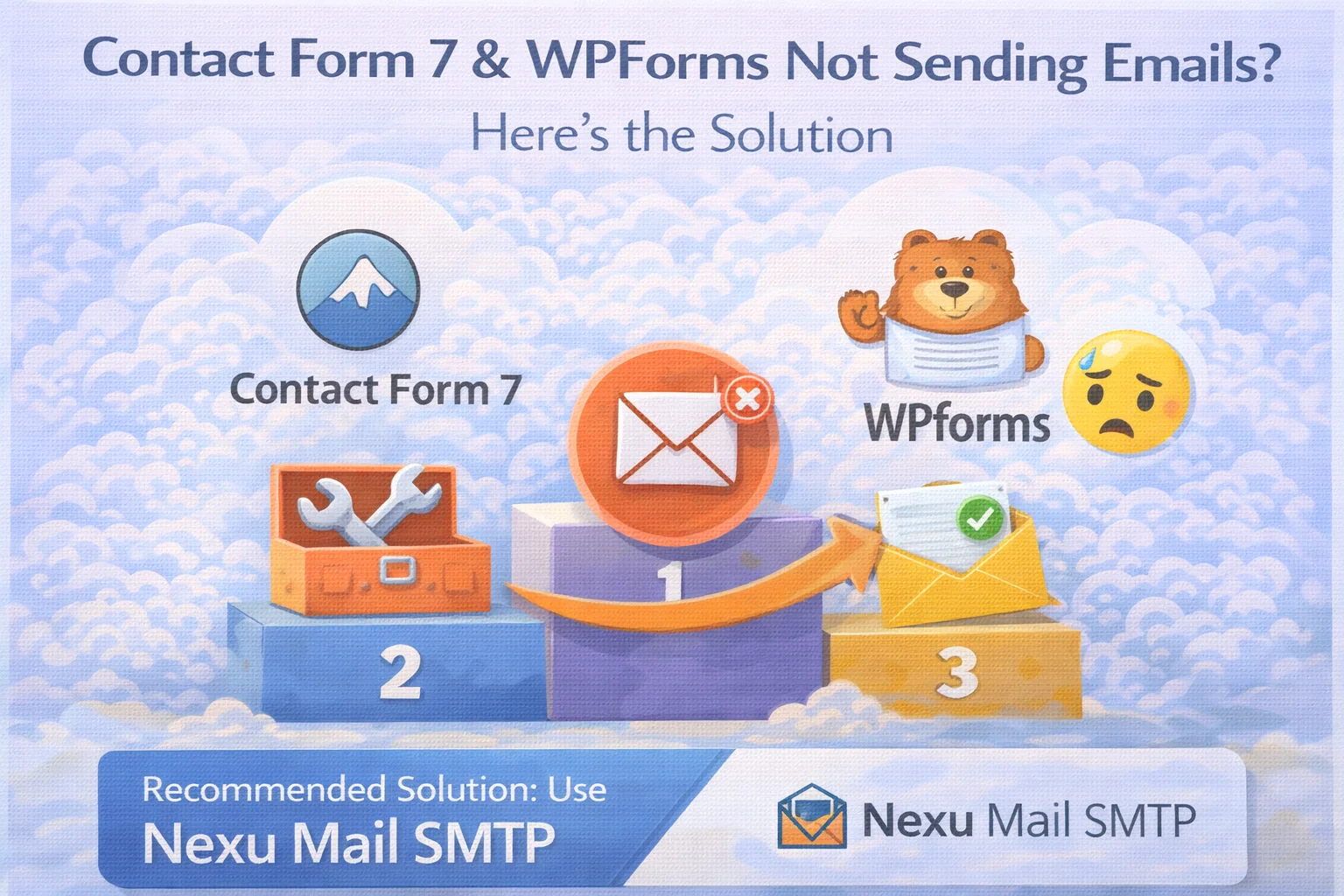
Nexu Mail SMTP fixes WordPress contact form email delivery at the infrastructure level, meaning it works identically for Contact Form 7, WPForms, Gravity Forms, Ninja Forms, Formidable Forms, and any other form plugin that uses wp_mail(). You configure SMTP once, in one place, and all form notifications benefit automatically.
The setup process is the same regardless of which form plugin you use: enter your SMTP provider credentials, set a From Email address at your own domain, run a test send, and confirm delivery. From that point forward, every contact form submission notification on your site goes through authenticated SMTP rather than PHP mail, and your spam-filter problems go away with it.
Even with SMTP correctly configured, there is still one operational blind spot that most WordPress site owners live with: they have no record of what was sent and when. A potential client fills in your contact form on a Sunday afternoon. You receive the notification, plan to respond Monday morning, and then realize you cannot find the email. Was it delivered? Was it something you accidentally deleted? Did it go to spam? Without an email log, this question is unanswerable.
An email log that records every outgoing message from your WordPress site, including every contact form notification, closes this gap entirely. Every submission generates a log entry with the recipient, subject line, timestamp, and delivery status. If you need to find a specific submission, you search the log. If a notification was sent but you cannot find it in your inbox, you can resend it directly from the log with a single click.
For businesses where contact form submissions represent potential sales inquiries, client communications, or support requests, this is not an edge-case convenience feature. It is the difference between running your contact workflow on hope and running it on documented, verifiable data.
Contact form email problems have a reputation for being mysterious and difficult to solve. In practice, the vast majority of them share the same root causes: a From Email address set to a third-party domain, an untested underlying email infrastructure relying on PHP mail, or both. Work through the checklist above in order, implement SMTP, and test after each step. For most sites, reliable contact form email delivery is a thirty-minute fix once you know what you are actually looking for.
The form plugin you choose matters far less than the underlying WordPress email infrastructure that all of them depend on. Fix the infrastructure once with Nexu Mail SMTP’s universal WordPress form email delivery solution, and Contact Form 7, WPForms, Gravity Forms, and every other form plugin on your site benefits automatically, with a full email log to prove it.
Nexu Mail SMTP fixes WordPress contact form email delivery at the infrastructure level, so every notification from every form plugin reaches your inbox, logged, tracked, and resendable.








Still not getting emails
Hey everyone! Just had to share how much this guide saved me hours of frustration, no joke. i was about to lose it because my WPForms submissions kept disappearing into the void, and I was convinced the plugin was the problem. Nope! turns out it was my server's PHP mail handler all along, which I never would've figured out on my own. The way this guide breaks everything down made it so clear why my emails were getting eaten by spam filters.
We made the switch to this SMTP setup after we kept losing leads from Contact Form 7 submissions that just never showed up. People would fill out forms, but the messages were going straight into the void. The guide's step by step instructions for setting up SMTP totally fixed it no more missing inquiries. it only took about 15 minutes once we had our host's credentials handy. the only thing to note is you'll have to dig into your hosting settings a bit, but that's really on your provider, not this solution