Next-Level Code. Nexuvibe Style ...
Hrs
Min
Sec

Gmail and Google Workspace sit on some of the most trusted email infrastructure in the world. When Gmail sends an email on your behalf, it arrives with Google’s full authentication credentials. SPF records pointing to Google’s servers, DKIM signatures verified against Google’s published keys, and an IP reputation built on billions of legitimate daily sends. Spam filters at every major receiving mail server treat Gmail-sent messages with a baseline level of trust that no web server can replicate.
Connecting your WordPress site to Gmail’s SMTP servers is one of the most effective things you can do to improve email deliverability. It is also free, you do not need a Google Workspace subscription to use Gmail’s SMTP, though Workspace offers advantages for professional use that we will cover. The entire setup takes under twenty minutes once you know exactly what to do.
The challenge is that most tutorials about Gmail SMTP for WordPress are incomplete or outdated. The step that trips up the vast majority of people, generating a Gmail App Password rather than using a regular password, is often mentioned only briefly, without explaining why it is necessary or exactly where to find it in Google’s account settings, which have changed significantly over the past few years. This guide covers that step in full detail, along with every other part of the setup from start to first confirmed delivered email.
We cover both free Gmail accounts and Google Workspace (formerly G Suite) accounts, noting where the process differs. We also cover what to do after the initial setup to verify that email is actually reaching your recipients, because configuring SMTP and confirming it is working are two different steps that most guides treat as one.
Before starting the setup, it is worth understanding what you are choosing between and what the practical differences are. The SMTP configuration steps are nearly identical, the important differences are in sending limits, deliverability, and the professional impression your emails make.
The account you will be sending WordPress emails from. Use a dedicated account if possible rather than your primary personal Gmail.
App Passwords require 2FA to be active on your Google account. If you have not set this up, it takes under five minutes.
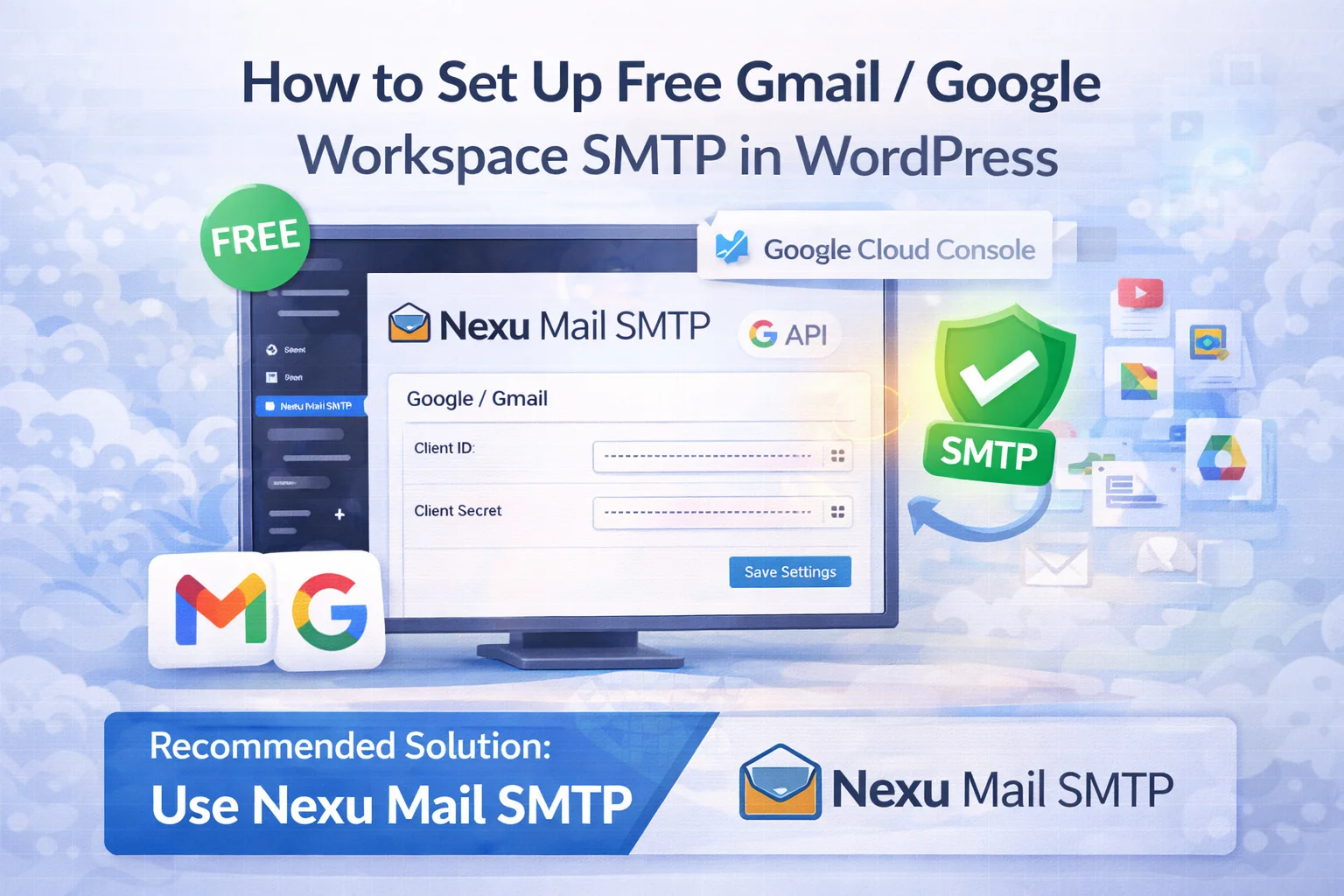
We use Nexu Mail SMTP in this guide. Install and activate it from your WordPress dashboard before starting.
This is the step that causes more failed Gmail SMTP setups than any other. Google stopped allowing regular Gmail passwords for SMTP authentication years ago as a security measure. If you try to connect WordPress to Gmail using your normal password, you will get an authentication error regardless of how correctly you enter the other settings. You must use an App Password, a special 16-character password generated specifically for third-party app access.
Go to myaccount.google.com and click on Security in the left-hand navigation. You need to be signed in to the specific Gmail or Google Workspace account you intend to use for WordPress SMTP, not just any Google account. If you manage multiple Google accounts, confirm which one is active before proceeding.
In the Security section, look for How you sign in to Google and find 2-Step Verification. If it shows as Off, click it and follow the setup wizard. Google will ask you to confirm your phone number and choose a second factor, the Google prompt to your phone is the easiest option. Complete the 2FA setup before proceeding. App Passwords will not appear in your account settings until 2FA is active.
With 2FA active, go directly to myaccount.google.com/apppasswords. If you cannot find this page through the Security menu, searching “App Passwords” in Google’s account search bar will bring you there. Note: if this page shows an error saying App Passwords are not available for your account, this typically means either 2FA is not fully activated yet, or (for Google Workspace accounts) App Passwords have been disabled by your Workspace administrator, in which case, see the Workspace section below.
On the App Passwords page, you will see a text field with a prompt to name your app. Type WordPress SMTP (or any name that helps you identify it later) and click Create. Google will generate a 16-character password displayed in a yellow box. Copy this password immediately. Google will never show it to you again after you close this window. Do not add spaces when pasting it into your SMTP configuration, even though Google displays it with spaces for readability. The actual password is the 16 characters without spaces.
smtp.gmail.com587 (TLS) or 465 (SSL)With your App Password ready, the WordPress configuration is straightforward. Open your WordPress dashboard and navigate to the Nexu Mail SMTP settings panel. The settings you need to enter are specific and order matters, entering an incorrect port or encryption combination will cause a connection failure even with correct credentials.
After entering these settings, save them. The From Email address must match your Gmail username exactly, if these two values do not match, Gmail will override the From address anyway, potentially causing display issues in some email clients. For Google Workspace users, the From Email should be your Workspace email address (e.g., [email protected]), which is the professional setup that aligns sending address with your domain’s DNS records.
If you are using Google Workspace rather than a free Gmail account, the SMTP settings themselves are identical (smtp.gmail.com, port 587, TLS). The differences are in the account setup and a few Workspace-specific considerations that can block the connection if not addressed.
In Google Workspace, App Passwords are controlled at the admin level. If the App Passwords page gives you an error, your Workspace administrator has disabled this feature. The admin needs to go to Google Admin Console > Security > Authentication > 2-step verification and ensure “Allow users to turn on 2-step verification” is enabled, and that App Passwords are not blocked. If you are the Workspace admin, check these settings before assuming the feature is broken.
With Google Workspace, your From email address can be [email protected] or [email protected] rather than a @gmail.com address. This aligns perfectly with your domain’s DNS records and eliminates the “via gmail.com” notation that sometimes appears in email headers when sending from a free Gmail account with a domain mismatch. For WooCommerce stores, receiving an order confirmation from [email protected] is significantly more professional and trustworthy than from a @gmail.com address.
Google Workspace allows you to configure DKIM signing for your own domain, which is a significant deliverability improvement over free Gmail. In the Google Admin Console, go to Apps > Google Workspace > Gmail > Authenticate email, generate a DKIM key, and add the provided TXT record to your domain’s DNS. Once propagated (up to 48 hours), every email your WordPress site sends through Workspace SMTP will carry a DKIM signature authenticated against your own domain, not Google’s. This is the configuration that maximizes deliverability for a business WordPress site.
Saving the SMTP settings is not the same as confirming email is working. Most guides treat these as the same step. They are not. You need to actively verify that emails are being delivered before assuming the configuration is correct.
In Nexu Mail SMTP, use the Send Test Email function and send a test to an email address you control. Check that it arrives in the inbox (not spam) within a few minutes. If you receive it, the basic SMTP connection is working. If you do not receive it within five minutes, check your spam folder, then check the email log for an error entry that will tell you exactly what went wrong.
Open the email log in Nexu Mail SMTP and confirm that the test email appears with a successful delivery status. A log entry with a success status and a timestamp means the email was accepted by Gmail’s servers. This is the first concrete evidence that your configuration is correct and the pipeline is working.
Go to mail-tester.com, copy the unique email address provided, and send a test email from your WordPress site to that address using the SMTP plugin’s test function. Mail Tester will analyze the email and give you a score out of 10 covering SPF, DKIM, content quality, blacklist status, and more. A score of 9 or 10 means your Gmail SMTP setup is delivering with excellent inbox placement. Note any specific issues flagged and address them.
If you are running WooCommerce, do not stop at the generic test email. Enable the Cheque Payment gateway temporarily, place a test order, and check the email log for the Order Processing notification. Confirm it arrived in the customer email’s inbox. This tests the complete WooCommerce email pipeline, not just the SMTP connection, and ensures that order-triggered emails are working correctly through your new Gmail SMTP configuration.
Even with the correct settings, a small number of configurations run into specific errors. These are the most common ones and exactly how to resolve each one.
This error means you entered a regular Gmail password instead of an App Password, or you entered the App Password with spaces (Google displays it as four groups of four characters separated by spaces, but the actual password has no spaces). Go back to myaccount.google.com/apppasswords, generate a new App Password, copy it carefully without the spaces, and re-enter it in the SMTP configuration. If 2FA is not enabled on your Google account, this error will also appear, enable 2FA first, then generate the App Password.
A connection timeout means your web server cannot reach Gmail’s SMTP server on the specified port. Some hosting providers block outbound connections on port 587. Try switching to port 465 with SSL encryption. If both ports fail, contact your hosting provider and ask whether outbound SMTP connections are blocked and which ports are permitted. Managed hosting providers like WP Engine and Kinsta block outbound SMTP specifically to prevent abuse, they recommend using a transactional email service like SendGrid instead.
This appears in some email clients when the From Email domain does not match the sending SMTP domain. If you are using free Gmail and sending from [email protected] through Gmail’s SMTP, recipients using certain clients may see “sent via gmail.com” in the email headers. The clean solution is Google Workspace, which allows you to send as [email protected] through Gmail’s servers without this mismatch. Alternatively, update your From Email to match your @gmail.com address to eliminate the notation entirely.
If emails work normally until a certain point in the day and then stop, you have hit Gmail’s sending limit (500/day for free Gmail, 2,000/day for Google Workspace). The limit resets at midnight Pacific time. If you are consistently hitting this limit, it is a sign that your site’s email volume has outgrown Gmail SMTP. At this point, moving to a transactional email provider. SendGrid, Mailgun, or Amazon SES. is the right decision. These services are designed for high-volume transactional sending and have sending limits measured in tens of thousands per day at very low cost.
Gmail SMTP is an excellent solution for most WordPress sites, but it has architectural limits that make it the wrong choice for specific situations. Knowing when to move on saves significant operational headaches later.
Gmail SMTP takes WordPress email from unreliable to trustworthy in under twenty minutes. The App Password step catches most people because it is poorly documented elsewhere, but once you have generated it correctly and entered it without spaces, the rest of the configuration is simple and the result is immediate. Your WordPress emails go out through Google’s infrastructure, pass every authentication check that spam filters run, and land in your recipients’ inboxes instead of their junk folders.
Pair the SMTP configuration with an active email log, which Nexu Mail SMTP includes as a built-in feature alongside Gmail SMTP configuration, and you have both the delivery fix and the ongoing visibility to confirm it continues working correctly every day, not just on the day you set it up.
Nexu Mail SMTP makes Gmail and Google Workspace SMTP configuration straightforward, and adds a full email log so you know every email is reaching its destination, every time.








The guide says to use the "exact settings," but the SMTP port field is blank in all the screenshots. I tried 465 and 587, and neither worked ended up having to look it up myself
Okay, so I installed and activated it now how do I actually check if Gmail SMTP is working?
As a part time tutor who sends a ton of automated emails through my WordPress site, I was always dealing with messages ending up in spam or just vanishing into thin air. I tried a bunch of plugins and random fixes, but nothing actually worked until I stumbled on this guide. The part about setting up the Gmail App Password was the one thing no other tutorial even mentioned. took me maybe 15 minutes to figure out, and now every single email goes straight to the inbox like it should.
I set up Gmail SMTP just like the guide said, but how can I tell if emails are actually going through? the log says "sent," but is there a way to double check they're not just sitting in limbo?